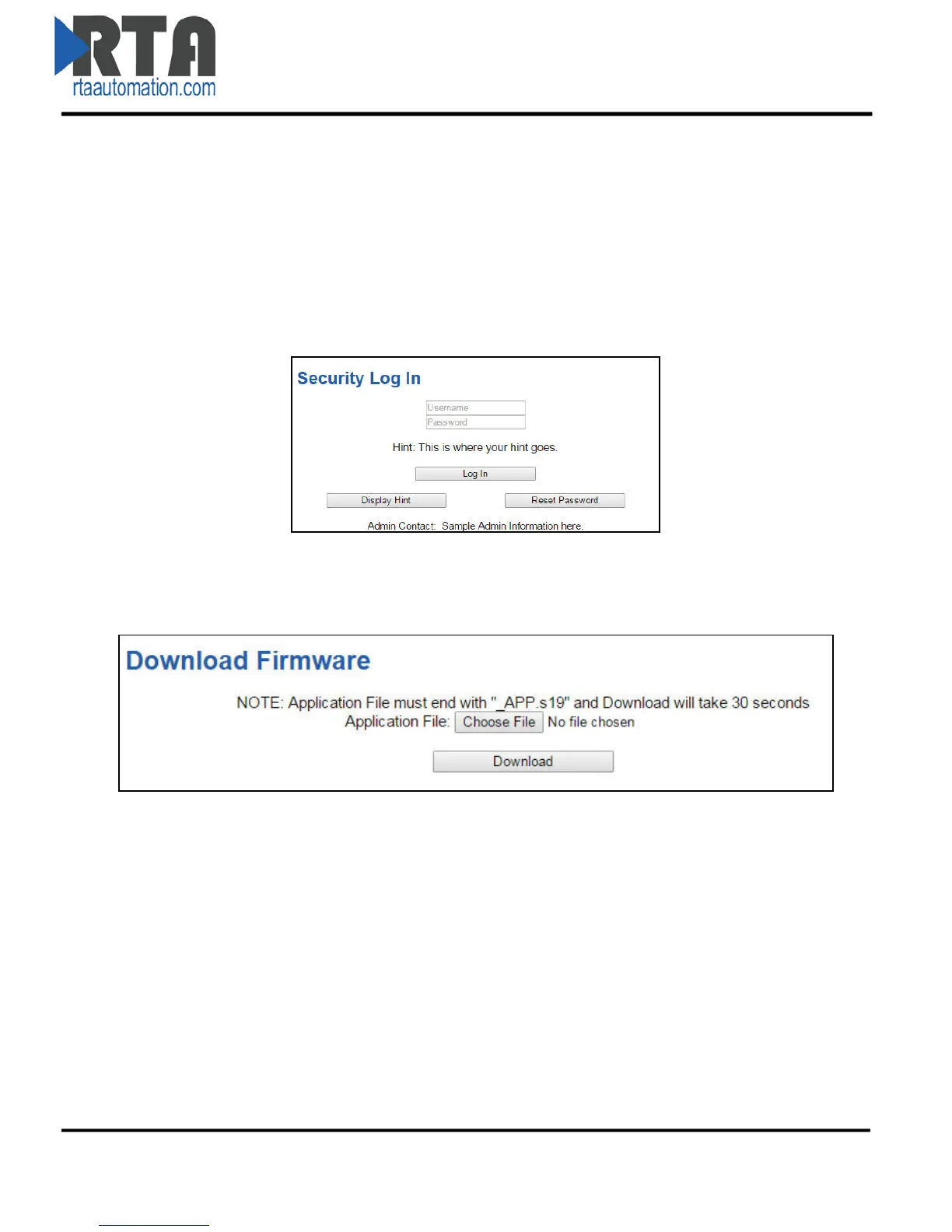
Security - Log In
1) Username: Name of the user to login.
2) Password: Password of the user to login.
3) Log In: If login is successful, the user will be redirected to the Diagnostics Page.
4) Display Hint: Displays the hint specified for the user if one was set up.
5) Reset Password: This is used to reset security settings. Confirm reset password must be selected
to confirm this action. Once confirmed, there is a 15 minute window to do a hard reset of the
490NBX by physically removing and restoring power from the 490NBX. Once power is restored,
you may navigate to the IP address of the 490NBX as normal.
Download Firmware
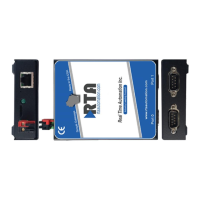
If you need to upgrade firmware for the gateway, click the Utilities button under the OTHER navigation
pane and then click the Upgrade Firmware button. This will redirect to the following screen:
From here, click Choose File and select the XXXXX_APP.s19 file. Once the file name appears next to
Application File, click the Download button.
The firmware will load and will automatically reboot the gateway and redirect the webpage to the
diagnostics page when done.
Reset Gateway
There are 3 options to reset the gateway.
• Restart the Gateway – Saves the current settings of the 490NBX and performs a software
reboot.
• Reset to Last Powerup – Brings the device back to its last power up settings.
• Reset to Shipped Defaults – Brings the device back to its original manufacturing defaults.
Once an option is selected, click the Reset button to execute.
Real Time Automation, Inc. 27 1-800-249-1612


 To Next Page