RTI INTELLIGENT MEETINGS
13
www.rticontrol.com
Automatic Source Switching
The Automatic source switching function allows you to easily and quickly choose a wanted source.
1. If the Video Output Screen setting in the Web GUI is set to Single Screen (default setting), source
switching follows the Last-In-First-Out rule. In Single Screen mode, if a new video input is detected,
the UC-IVB-50 will switch to this source and output it to the display screen, disconnecting the previous
source.
If two video sources are being displayed in Split Screen (Video Output Screen Split Screen in
the Web GUI), connecting a new video source input to the UC-IVB-50 will follow one of the following
rules based on the currently active connections:
a. 2 UC-MXT Media Xchange™ wireless transmitters: Connecting an HDMI
®
source will replace the
oldest active (rst connected) UC-MXT Media Xchange™ wireless transmitter.
b. 1 HDMI
®
Source & 1 UC-MXT Media Xchange™ wireless transmitter: Connecting a UC-MXT
Media Xchange™ wireless transmitter will replace the HDMI
®
/USB-C video input source.
2. If all video sources are removed, the UC-IVB-50 will return to the default Guide Screen.
Pairing with Bluetooth Remote Controller
The UC-IVB-50 can be controlled by the included Bluetooth remote controller after they have been
successfully paired with each other.
To pair the UC-IVB-50 with the Bluetooth remote controller:
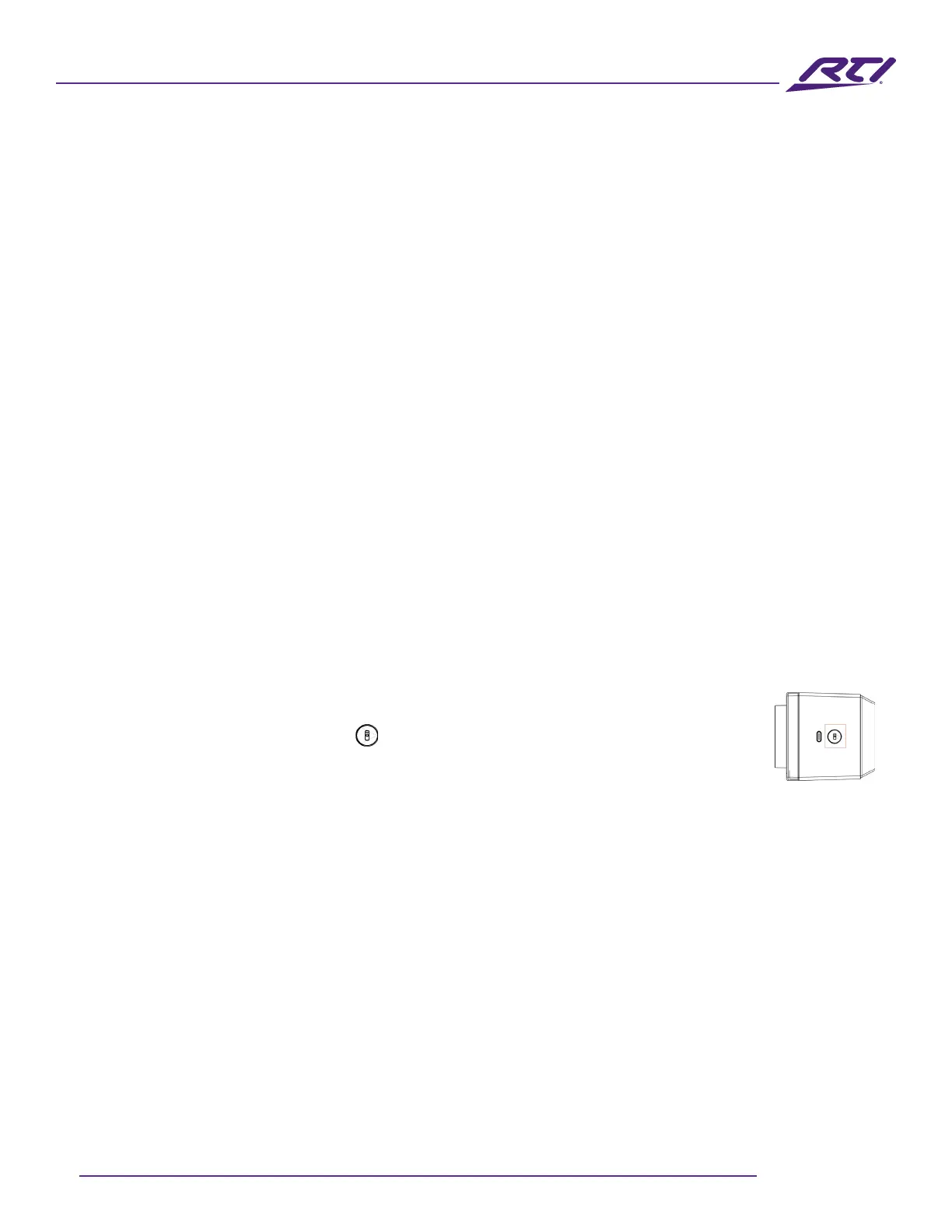
1. Press and hold the pairing button on the UC-IVB-50’s right side for ~2 seconds to
initiate the pairing mode. The status LED on the front of the UC-IVB-50 will blink blue,
indicating that the pairing mode is active.
2. Press any button on remote controller. When pairing is successful, “Remote Control Connected” will
appear on the display connected to the UC-IVB-50. The remote controller is now ready for use.
The following briey introduces the functions of the remote controller buttons.



 To Next Page