41
2.21 ALARM
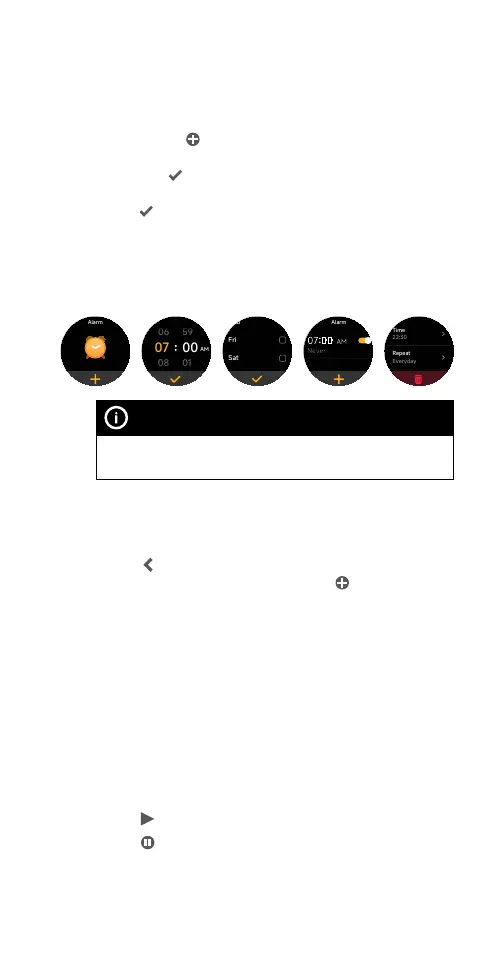
Setting an alarm with the smartwatch
1) Press the smartwatch button to open the
applications list on the watch home screen. Tap
Alarm. Tap
to set a new alarm. Set the alarm by
swiping the screen accordingly to select the time
and tap
to save the setting. In the following
screen, tick the boxes to set the repeat cycle and
tap
at the screen bottom to save the setting. The
alarm will only activate once if no repeat cycle is set.
2) Slide the button next to an alarm to enable and
disable it.
3) Tap an alarm to edit or delete it.
NOTE
An alarm set via the Alexa can only be deleted with the Alexa
application.
Setting an alarm with the Ryze Connect App
1) Open the Ryze Connect App and go to the Device
tab. Tap Alarm Clock.
2) Tap
to set a new alarm. Follow the on-screen
prompts to complete settings. Tap
at the upper
right to save the setting. Slide the button next to an
alarm to enable and disable it. To delete an alarm,
tap on the alarm and in the following screen, tap on
the bin icon.
2.22 STOPWATCH
The smartwatch supports both normal and lap timing
with its stopwatch application.
1) Press the smartwatch button to open the
applications list on the watch home screen.
Tap Stopwatch.
2) Tap
to start or resume the stopwatch.
3) Tap
to stop the stopwatch.
4) Tap the clock icon to record a lap time. Swipe the
screen to scroll through lap times.



 To Next Page