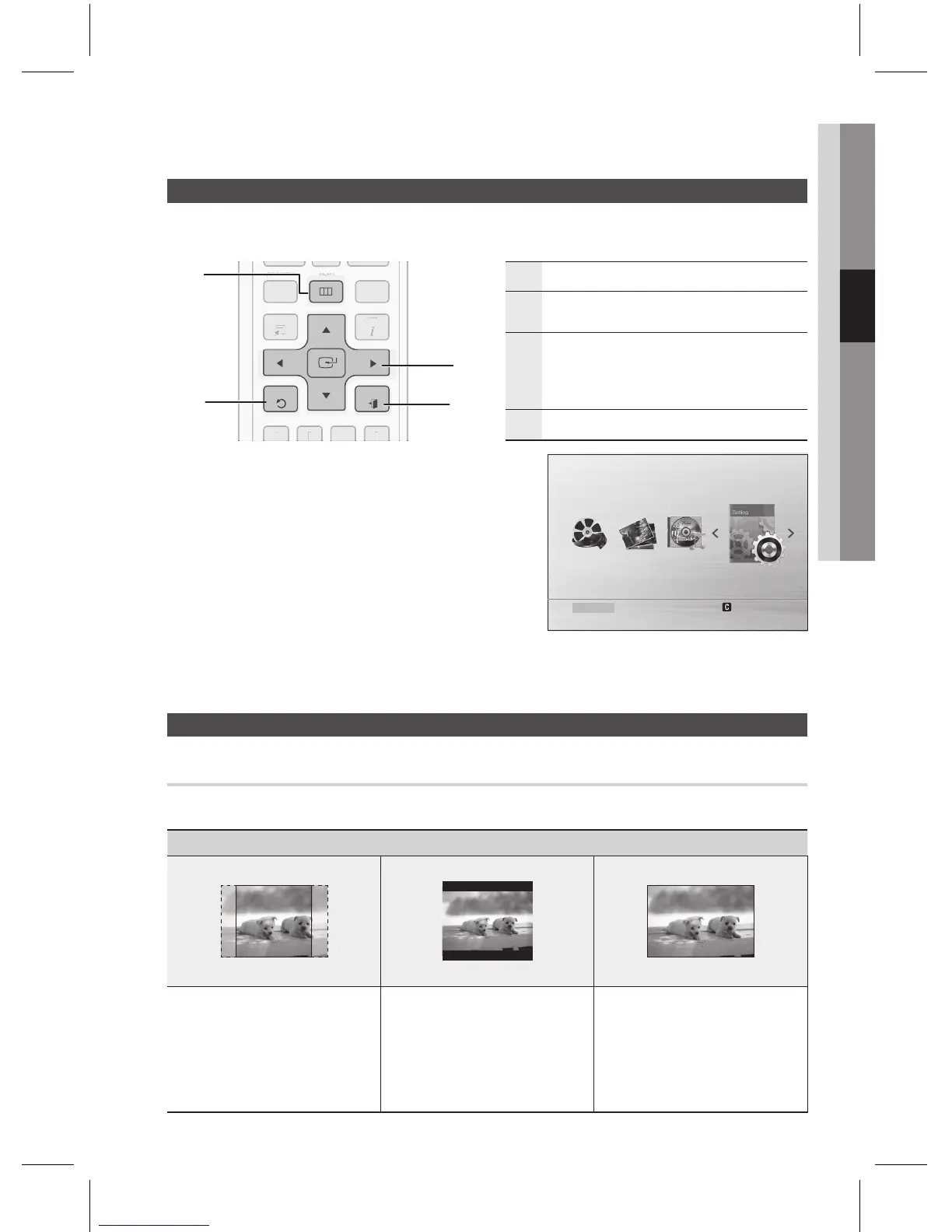
The access step may differ depending on the selected menu. The GUI (Graphical User Interface) in this
manual may differ, depending on the rmware version.
1
BUTTON : Display the home menu.
2
BUTTON : Return to the previous
setup menu.
3
BUTTON
Move the cursor and select an item.
Select the currently selected item.
Con rm the setting.
4
BUTTON : Exit the setup menu.
Press the button.
Press the button on the remote control.
Press the
_+
buttons to select , then press the
button.
Press the
$%
buttons to select the desired menu, then
press the button.
Press the
$%
buttons to select the desired sub-menu,
then press the button.
Press the
$%
buttons to select the desired item, then press the button.
Press the button to exit the setup menu.
Depending on the type of television you have, you may want to adjust the screen setting.
~
~
~
Select when you connect the product
to a 4:3 TV screen. 16:9 content will
have the extreme left and right portions
cut off.
Select when you connect the product
to a 4:3 TV screen. The product will
display all content in its original aspect
ratio. Content formatted in 16:9 will be
displayed with black bars on the top
and bottom.
Select when you connect the product
to a 16:9 TV screen. All content will ll
the full screen. Content formatted in
4:3 will be stretched.
1.
2.
3.
4.
5.
6.
7.


 To Next Page