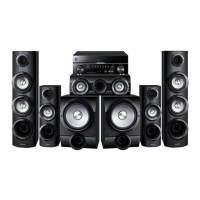
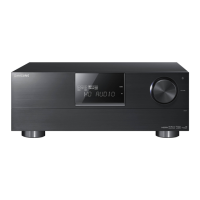
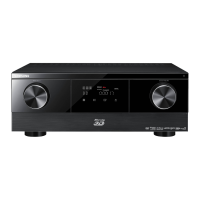
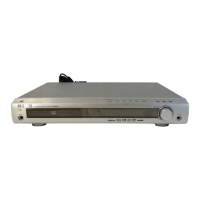
Samsung may offer upgrades for AV Receiver's rmware in the future.
Please visit Samsung.com or contact the Samsung call center at to receive information about
downloading upgrades and using a USB drive. Upgrades will be possible by connecting a USB
drive to the USB port located on your AV Receiver.
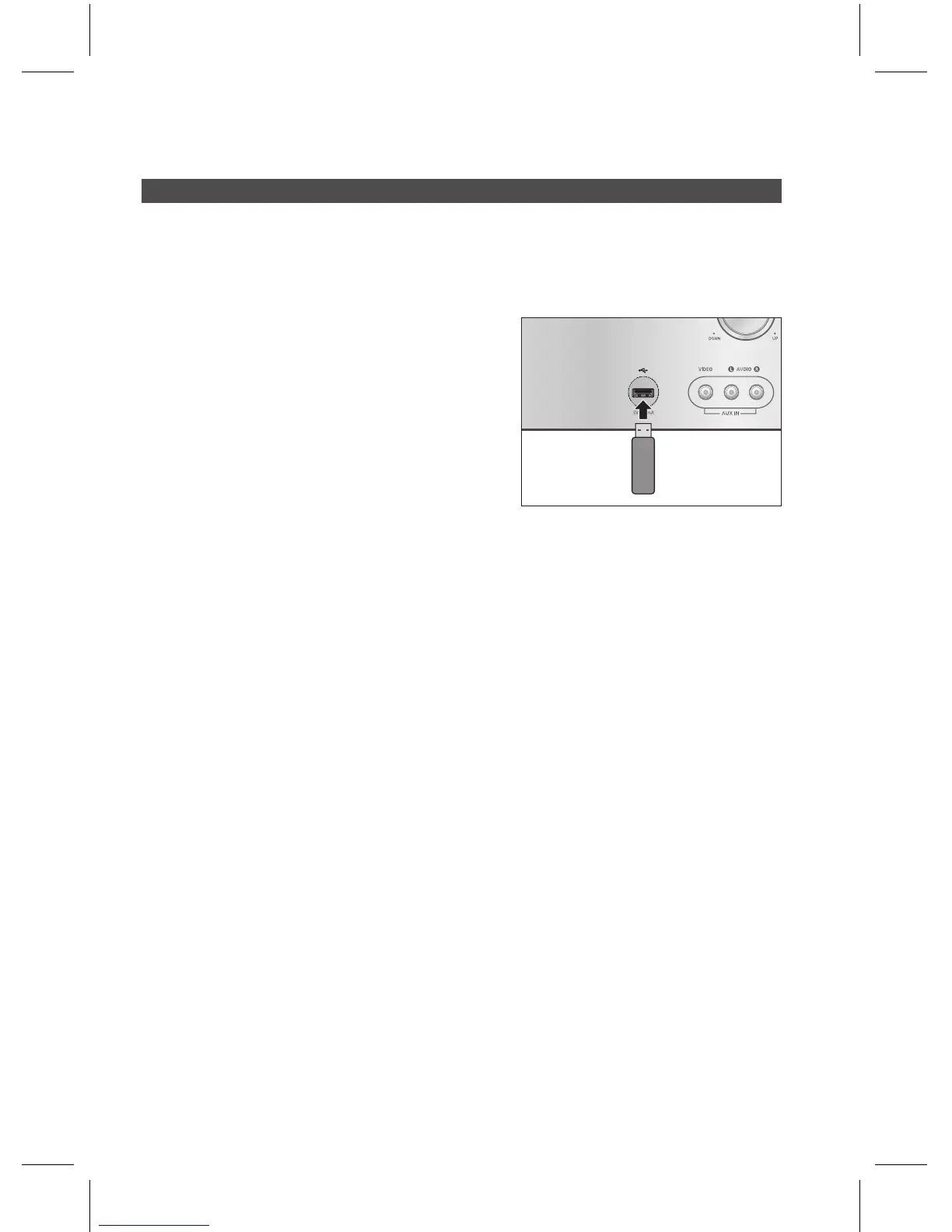
Insert a USB drive containing the rmware upgrade into
the USB port on the front of the main unit.
Select a folder that contains the upgradeable rmware
les. (This applies to all of Video, Photos and Music.)
The upgrade process will be performed automatically.
The main unit will turn off automatically after completing
the rmware upgrade.
Remove the USB drive from the front USB port.
Turn the power on, switch to USB mode and wait until
“No USB” appears on the front display.
Press the “STOP” button for 5 seconds on the remote
control or the front panel while in “No USB” is displayed.
The set automatically powers off, and initialization is nished.
Please be careful not to disconnect the power or remove the USB drive while upgrades are being
applied. When software is upgraded, settings you have made will return to their default (factory)
settings. We recommend you write down your settings so that you can easily reset them after the
upgrade.
If you failed software upgrade, it is strongly recommended whole USB data format to FAT16 and retry
software upgrade.
The NTFS USB File System can not be supported.
Depending on the manufacturer, the USB may not be supported.
1.
2.
3.
4.
5.
6.
7.
8.
✎
`
`
`
`


 To Next Page