128
Play Camera (Optional)
PlayCameraisaprogramthatenablesuserstotakestillpicturesorrecordvideosusingthecamerainstalledonthe
computer.
Before You Start!
■
Theprogramversionsdescribedinthismanualaresubjecttochangeandthescreenimagesandtermsinthismanualmaydiffer
fromactualones.
■
Formoreinformationonhowtousetheprogram,refertotheonlinehelp.
Note
■
Donottakepicturesorrecordvideoofsomeonewithouttheirpermission.
■
Donottakepicturesorrecordvideoinlocationswherephotographyisprohibited.
■
Donottakepicturesorrecordvideoinlocationswhereyoucouldviolateanotherperson’sprivacy.
1
ClickStart > All Programs > Samsung > Play
Camera > Play Camera.
Note
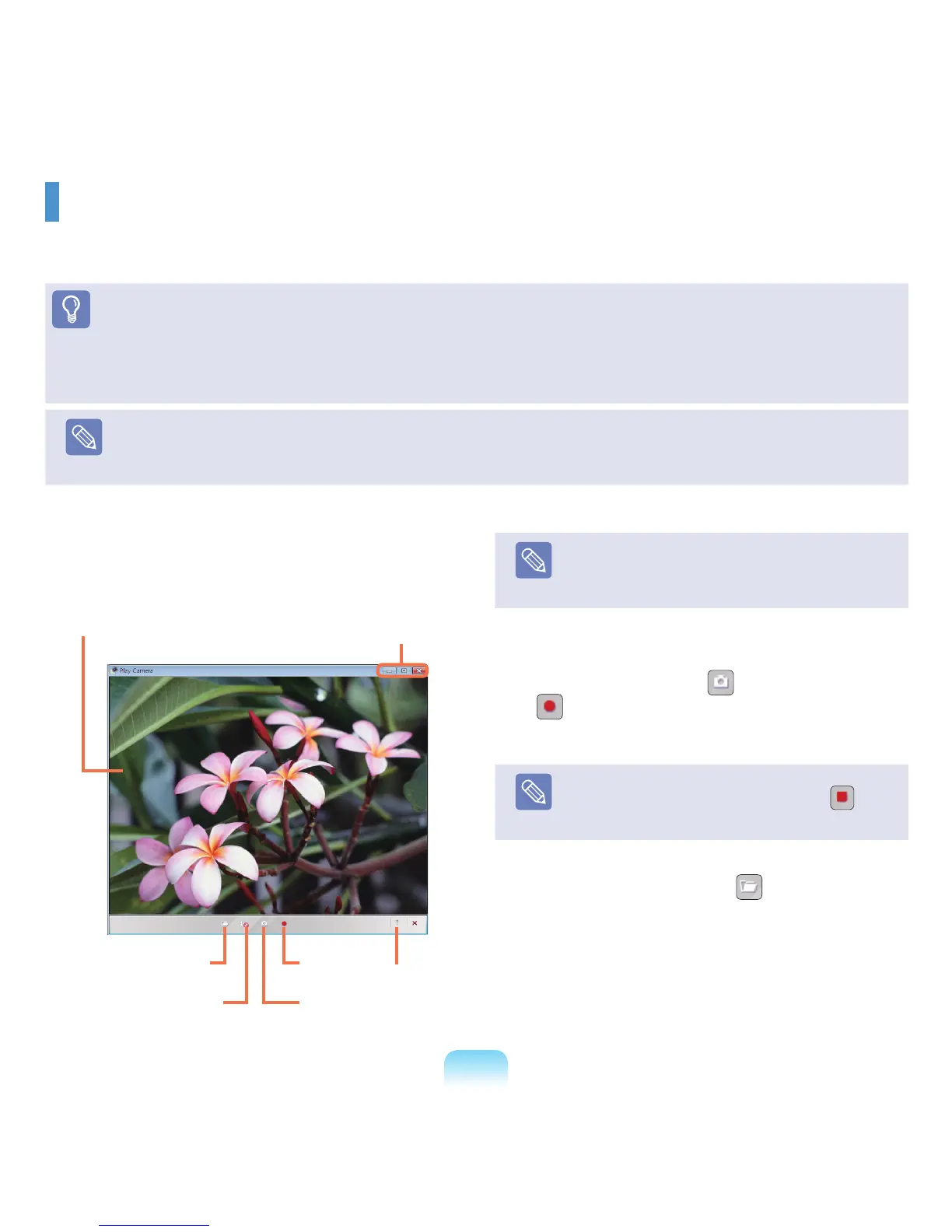
Ifyouright-clickoverthePreviewwindowusingthe
Touchpad,youcansetupthecamera,resolution,
deviceandsavefolder.
2
PlaceanobjectinfrontofthecameraovertheLCD
andclicktheSnapshot( )orRecord
( )button.Astillpictureistakenorvideostarts
recording.
Note
Tostopavideorecording,clicktheStop( )
button.Therecordingisstopped.
3
IfyouclicktheOpenFolder( )button,youcan
viewyourstoredpicturesandvideos.
-Youcanviewapicturebydouble-clickingit.
-Sinceyoucannotwatchrecordedvideosusingthe
PlayCamera,useavideoplayingprogramsuchas
WindowsMediaPlayer,CyberlinkPowerDVD,etc.
to watch videos.
Window Control
and Exit Buttons
Preview Window
Open Folder
Preview Snapshot
Help
Rec



 To Next Page