79
Connecting to Wireless LAN
IfanAPexistsnearyourlocation,youcaneasilyconnect
towirelessLANinthemethodprovidedbyWindowsXP.
IfyouusetheprogramprovidedbyawirelessLANcard
provider,connecttowirelessLANafterseeingpage 83
of this document.
ThefollowingdescriptionisbasedonWindowsXP
ServicePack2;thus,thepicturesmayvary.
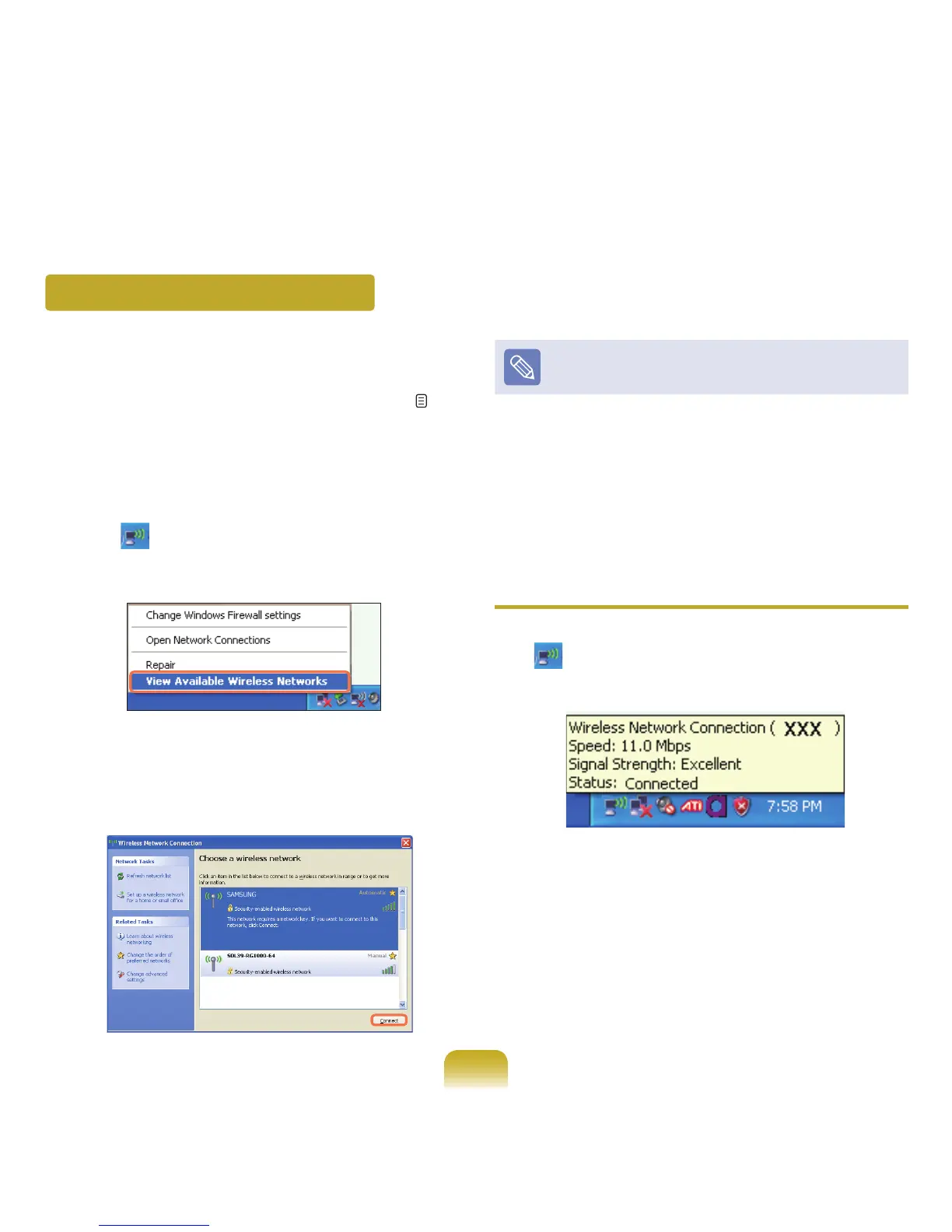
1
ClicktheWireless Network Connection
icon( )fromtheTaskbarusingtherightbuttonof
thetouchpad.Then,clickView Available Wireless
Networks.
2
SelectanAPtobeconnectedandclickConnect.
IfanetworkkeyissetintheAP,thenetworkkey
inputwindowwillappear.Enterthenetworkkeyin
theinputwindowandclickOK.
Foranetworkkey,contactthenetworkadministrator.
3
OnceConnected to APisdisplayed,youcanusea
wirelessnetwork.
To check the network connections
PlacethemouseontheWireless Network Connection
icon( )fromtheTaskbar.Then,thestatuswillappear.



 To Next Page