39
Turning the Computer On and Off
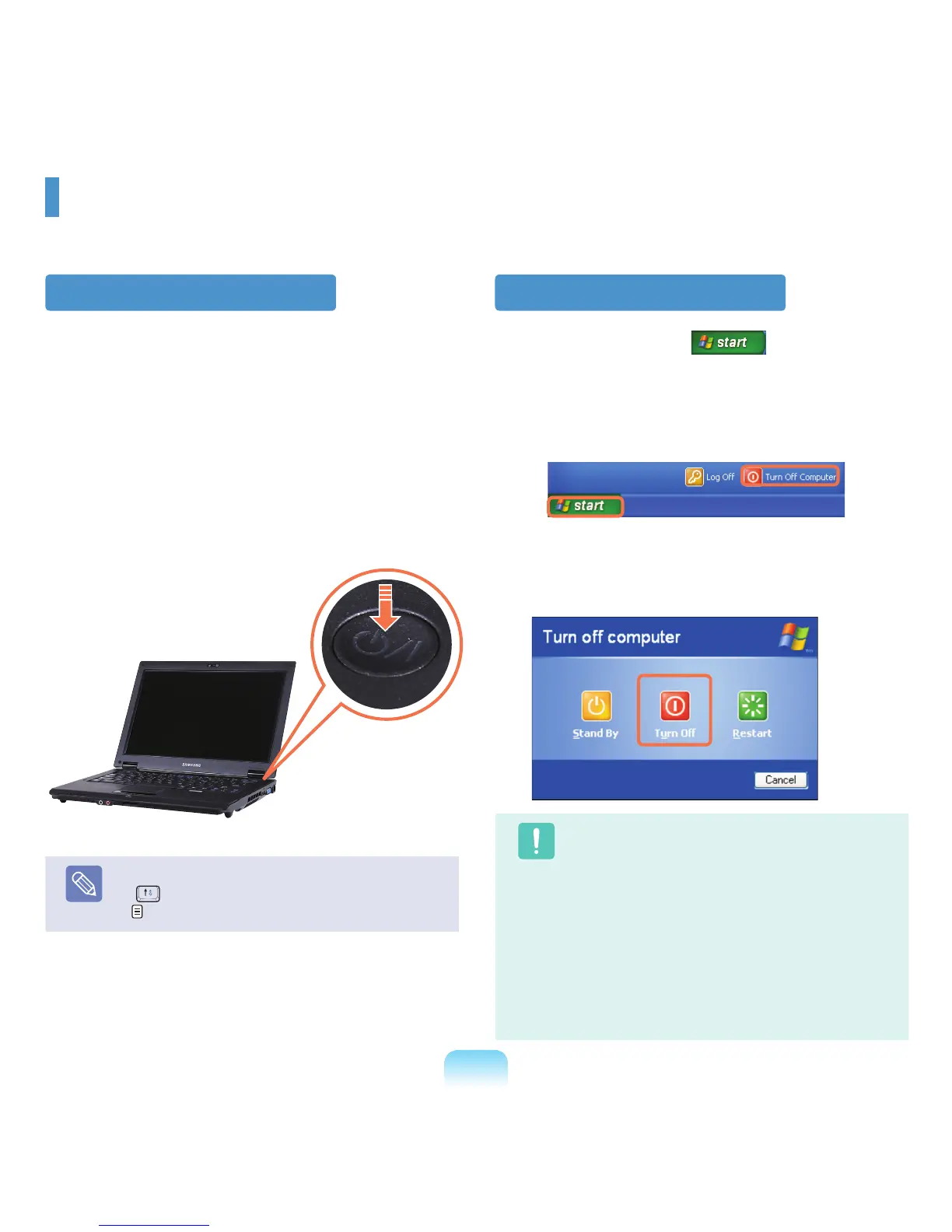
Turning the computer on
1
Installthebattery and connect the AC adapter.
(RefertotheInstallation Guide.).
2
LifttheLCDpanelup.
3
PressthePower button to turn the computer on.
Note
IftheLCDbrightnessistoodim,presstheFn+
( )keysandadjustthescreenbrightness.
p. 43
Turning the computer off
1
Clickthestartbutton( )onthetaskbar.
2
ClickTurn Off Computer.
3
ClickTurn Off.
Caution
■
Ifthecomputerhasnotturnedoffproperlydueto
asystemerror,press
<Ctrl>+<Alt>+<Delete>.
When[WindowsTaskManager]dialogbox
appears,click
Shut Down > Turn Off to turn
offthecomputer.Yourunsavedworkmaybe
lost/damaged.
■
If <Ctrl>+<Alt>+<Delete>keysdonotoperate
either,pressthepowerbuttonformorethan4
seconds to turn off the computer. Your unsaved
workmaybelost/damaged.Thenexttimeyou
turnonyourcomputer,aharddiskcheckwillbe
performed,beforeWindowsstarts.



 To Next Page