82
Step 2. Connecting to the congured
computer
1
Right-clickontheWireless Network Connection
( )icononthetaskbar,andselectView
Available Wireless Networks.
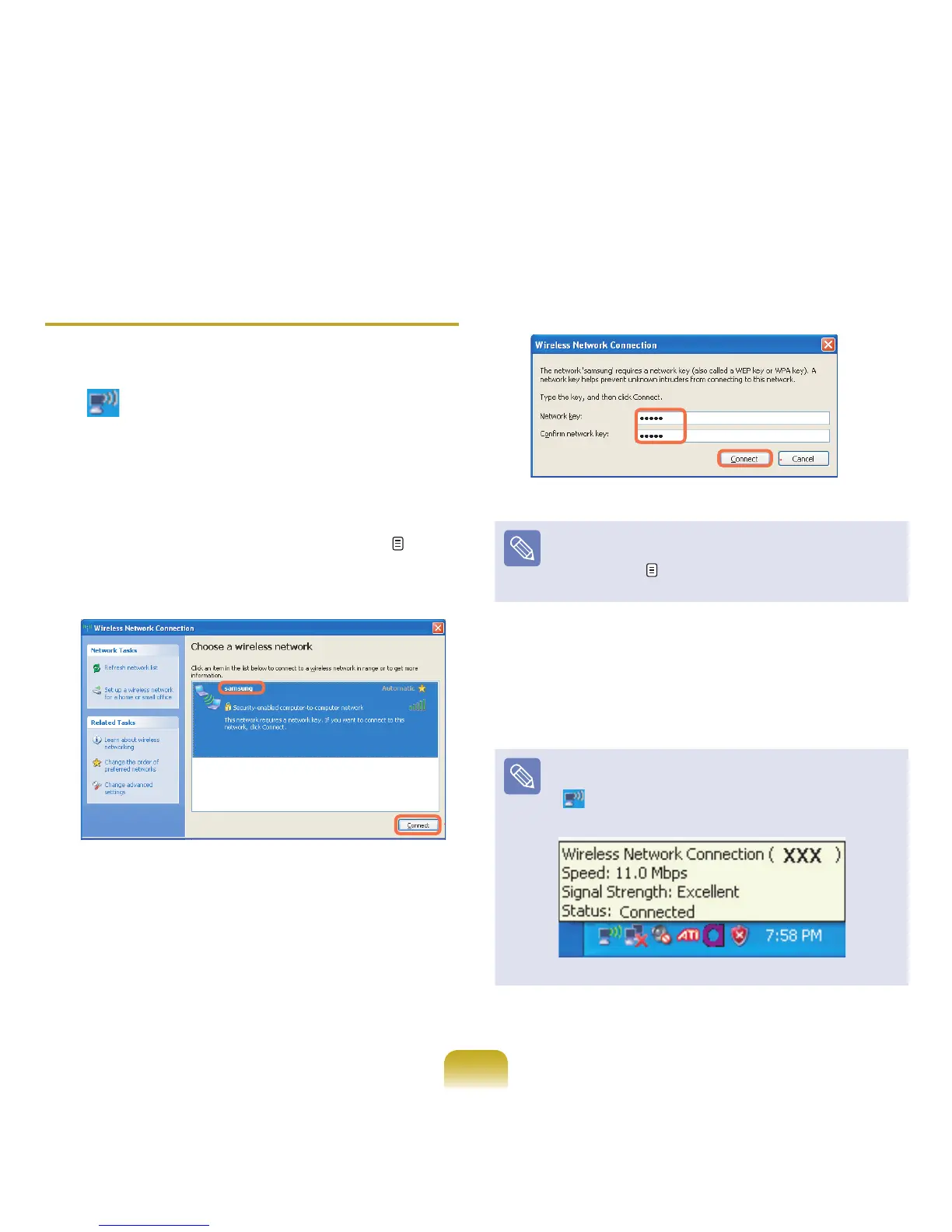
2
Selectthewirelessnetworkname(e.g.samsung)
speciedin”Connectingtocomputer-to-computer
networks(peer-to-peeroradhoc)”onpage 80,
andclickConnect.
3
Enteracryptographickeyinthenetworkkeyboxand
clickConnect.
Ifthenetworkkeyisnotconguredin”Connectingto
computer-to-computernetworks(peer-to-peerorad
hoc)”onpage
80,justclickConnect,withoutany
keystrokes.
Whenconnectedtothewirelessnetwork,thesystem
displays Connectedintheselectednetworkofthe
NetworkConnectionwindow.
Checking the connection statusMovethemouse
pointerovertheWirelessNetworkConnection
( )icononthetaskbar,andtheconnectionstatusis
displayed.



 To Next Page