Section 3: Power and Communications Test
24
Test
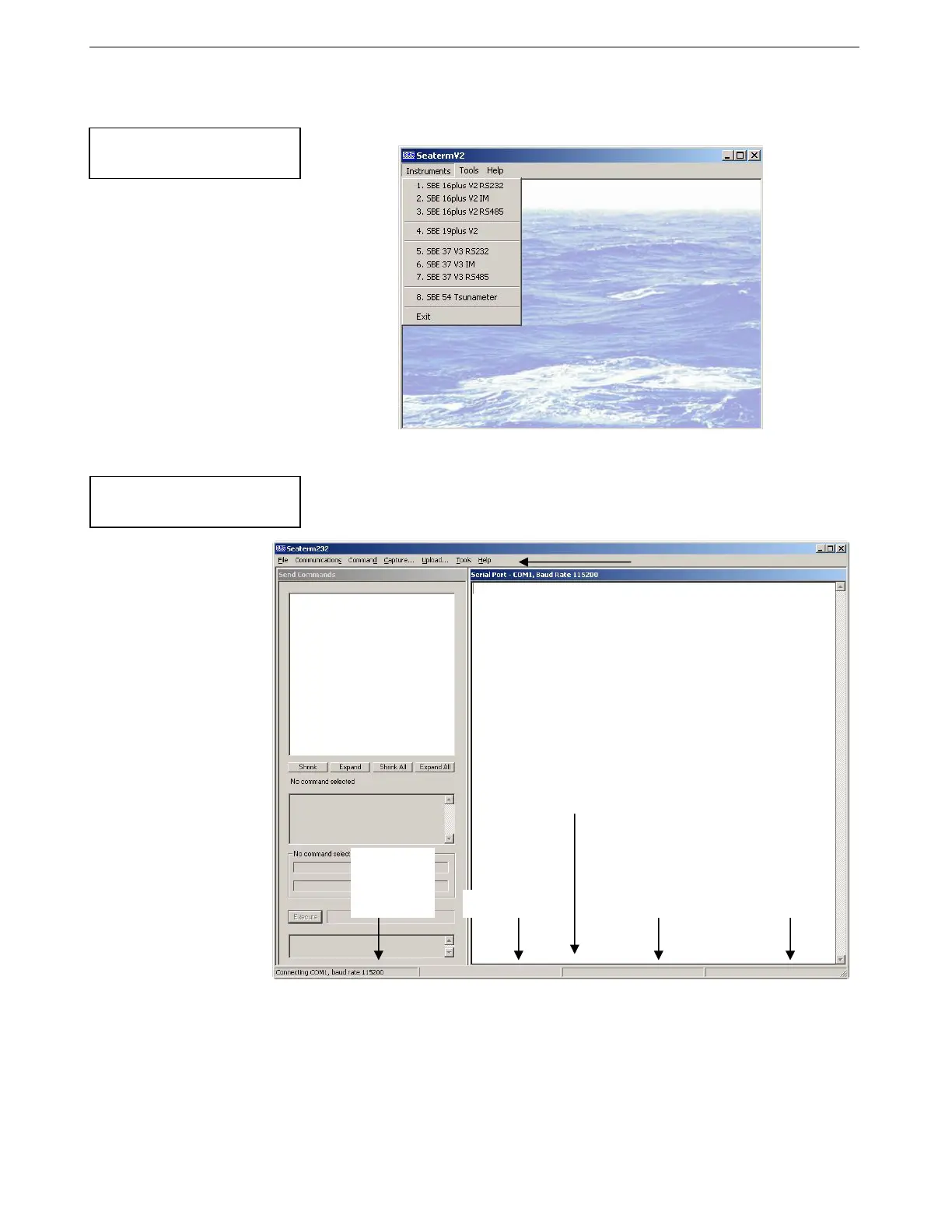
1. Double click on SeatermV2.exe. The main screen looks like this:
SeatermV2 is a launcher. Depending on the instrument selected, it
launches Seaterm232 (RS-232 instruments), Seaterm485 (RS-485
instruments), or SeatermIM (inductive modem instruments).
2. In the Instruments menu, select SBE 19plus V2.
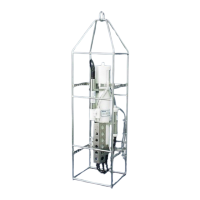
Seaterm232 opens; the main screen looks like this:
• Menus – For tasks and frequently executed instrument commands.
• Send Commands window – Contains commands applicable to your
19plus V2. The list appears after you connect to the 19plus V2.
• Command/Data Echo Area – Title bar of this window shows
Seaterm232’s current comm port and baud rate. Commands and the
19plus V2 responses are echoed here. Additionally, a command can
be manually typed or pasted (ctrl + V) here. Note that the 19plus V2
must be connected and awake for it to respond to a command.
• Status bar – Provides connection, upload, script, and capture
status information.
Note:
See SeatermV2’s Help files.
If uploading
- upload file name.
If sending XML script
– script file name.
Capture
status
Progress bar for
u
loadin
data
Status –
Ready,
Uploading,
Finished
U
load
etc.
Status Bar
Command/Data Echo Area
Send Commands
Window
Menus
Note:
See Seaterm232’s Help files.
31


 To Next Page