64 •
17-10-06-643-100a/04-2018S
8.2 Data transmission (models with a WiFi interface)
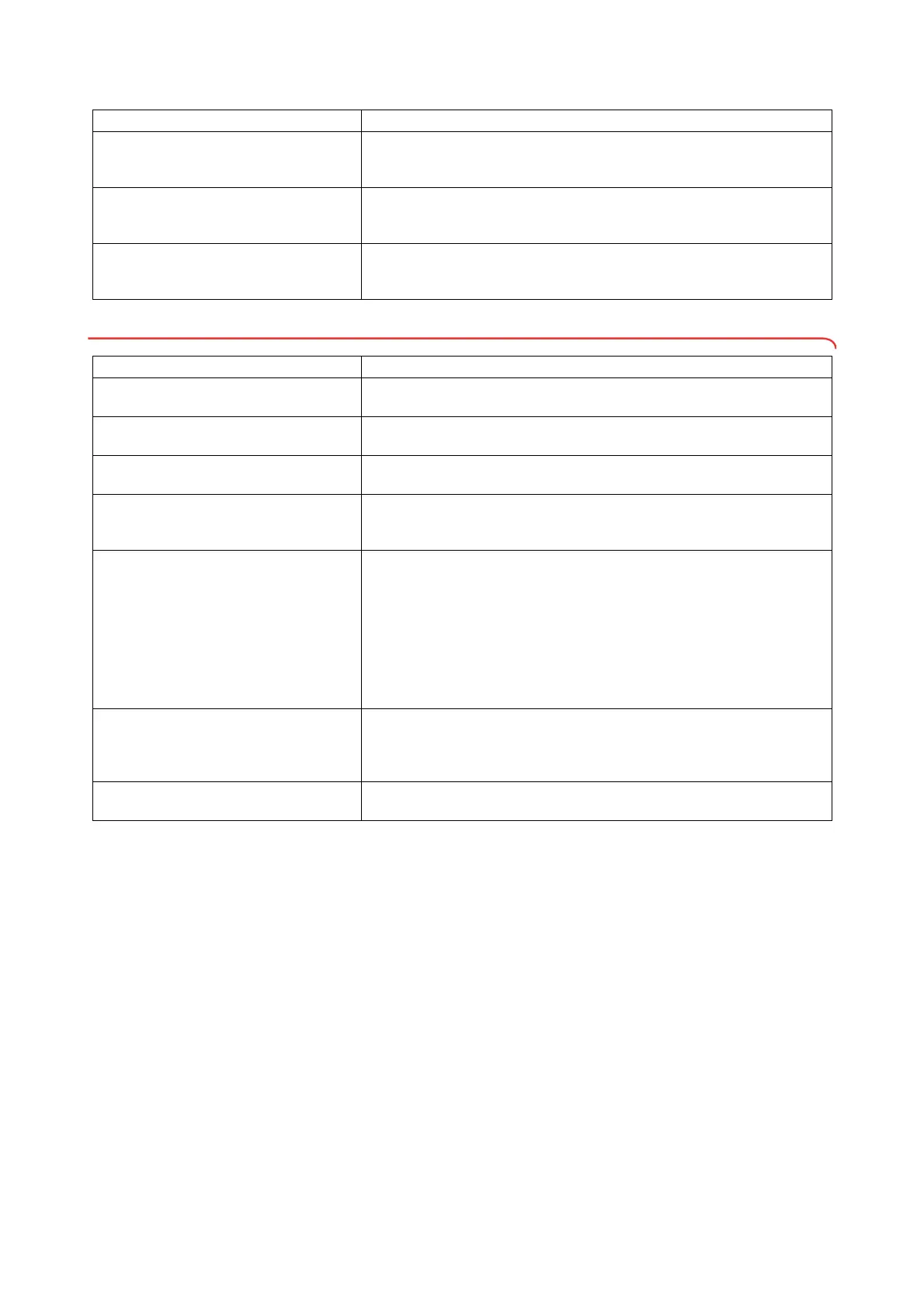
… the display Err:12: appears?
The scale has been switched on with too high a load.
- Remove the load from the scale
- Restart the scale
… the display Err:16 appears?
The scale was caused to oscillate and was unable to determine the zero
point.
- Restart the scale
... the display Err:32 appears?
An internal communication error has occurred.
- Restart the scale
- Inform seca Service
Problem Cause/solution
Problem Cause/solution
... the status LED does not come on?
The status LED is faulty.
- Inform seca Service
... only the “SYS” item is visible in the “rF”
menu?
The WiFi interface is deactivated.
- Activate WiFi interface
... after calling up the menu, the “rF” item is
not displayed?
The scale's WiFi interface is faulty.
- Inform seca Service
... the display noChG appears when the WiFi
interface is activated?
Scale in battery mode, On option selected in rF\SYS menu
- Select PErM option
- Use power supply unit (recommended)
... the status LED is illuminated red?
•ID not found in hospital information system (HIS) or in seca software (see
fault Id:Err).
• Device has not saved measured results to the clipboard.
- Repeat measurement
• Measured results have
not been sent to an HIS or to seca software.
- Deactivate BMIF function (see “Using the differential value function
(bMIF)” on page 57)
- Repeat measurement
- Check WiFi connection
... the display Id:Err appears?
The ID of the user or the patient has not been found in the HIS or in the
seca software.
- Scan the barcodes for the user and patient again
- Inform seca Service
… Enter is pressed and the display Err:71
appears?
No data transmission possible, WiFi interface is deactivated.
- Activate WiFi interface (see “Setting up the WiFi connection” on page 51)


 To Next Page