General Information
Print Server User Manual Windows 7
1. Download the installation file for the InterCon-NetTool from
the homepage of the SEH Computertechnik GmbH:
http://www.seh-technology.com/services/downloads.html
2. Start the installation file.
3. Select the desired language.
4. Follow the installation routine.
The InterCon-NetTool will be installed on your client.
5. Start the InterCon-NetTool on your client.
The InterCon-NetTool searches the network for existing print
servers and displays them in the 'device list'.
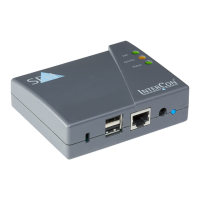
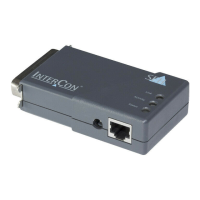
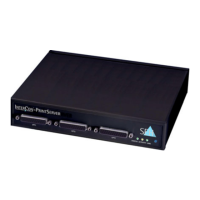
If the print server has received an IP configuration via the boot pro-
tocols BOOTP or DHCP, you can identify it with the help of it's type
designation. If you are using several print servers of the same type,
identify the print server using it's hardware address. You can find
the hardware address in the type plate at the bottom of the print
server.
If the print server has assigned itself an IP address via ZeroConf from
the address range (169.254.0.0/16) which is reserved for ZeroConf, it
will be displayed in the device list under the 'ZeroConf' filter. Assign
a new IP configuration to the print server, see below.
For more information on the InterCon-NetTool, see: ’Administration
via InterCon-NetTool’ 15.
How to Change the
IP Configuration of
the Print Server
You can change the IP configuration later on.
’How to Configure IPv4 Parameters’ 31
’How to Configure IPv6 Parameters’ 34


 To Next Page