EasyManua.ls Logo

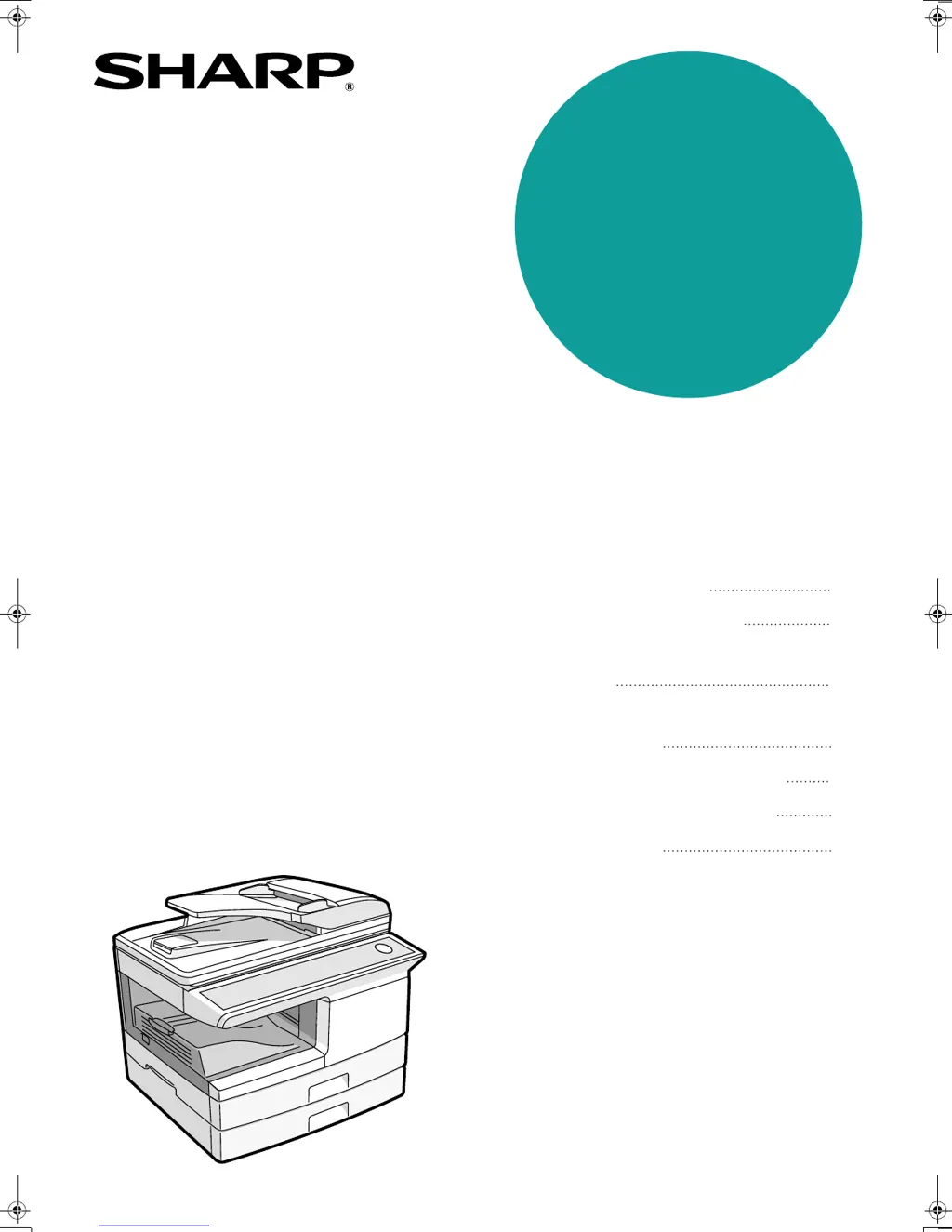
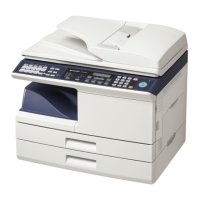
Sharp FO-2080 - User Manual

Sharp FO-2080
257 pages
Print Icon
To Next Page IconTo Next Page
Loading...
MODEL
FO-2080
INSTALLATION
INITIAL SETTINGS
CHOOSING SUITABLE
MEDIA
HOW TO USE THE FAX
FUNCTION
SPECIAL FUNCTIONS
TROUBLESHOOTING
APPENDIX
11
13
50
52
67
85
92
Page
OPERATION MANUAL
(for facsimile)
FO 2080 OPERATION MANUAL (for facsimile)
!AR-FX13_sec.book 1 ページ 2009年5月11日 月曜日 午後2時24分

Table of Contents

Other manuals for Sharp FO-2080

Questions and Answers

  • M
    Melissa CaldwellAug 13, 2025
    What to do if the printed image is dirty on Sharp All in One Printer?
    • A
      Alexandra SantiagoAug 13, 2025
      If your printed image is dirty, it could be due to several factors. You might be using paper outside the specified size and weight range; use copy paper within the specified range. Curled or damp paper can also cause this issue; avoid using such paper and store paper in a dark, dry place when not in use. Insufficient margins in your application's paper settings can also lead to dirty images; ensure your margins are within the specified print quality area.
  • J
    jessica86Aug 16, 2025
    How to check if the printer driver is installed for Sharp FO-2080 All in One Printer?
    • R
      Robert SteeleAug 16, 2025
      To check if the printer driver is installed, click the "start" button, then "Control Panel", then "Printers and Other Hardware", and finally click "Printers and Faxes". See if the "SHARP FO-xxxx" printer driver icon appears. If it's there but you still can't print, the driver might not be installed correctly. Delete the software and reinstall it.
  • J
    jonathanromanAug 19, 2025
    Why Sharp All in One Printer does not print?
    • C
      Cindy WilsonAug 20, 2025
      There could be several reasons why your Sharp All in One Printer isn't printing. It might not be correctly connected to your computer, so check the USB or LAN cable connections at both ends, and try a different cable. If it's a network printer, the IP address may have changed automatically, so manually enter the correct IP address using "Assign IP Address". If it's a shared printer, reconfigure the port settings. Also, ensure that "SHARP FO-xxxx" is selected as the printer in the "Print" window after choosing "Print" from the "File" menu.
  • S
    Shelia MarshAug 25, 2025
    How to fix skewed or off-paper printed image on Sharp FO-2080?
    • M
      Matthew BirdAug 25, 2025
      If the printed image is skewed or runs off the paper, ensure the paper size loaded in the tray matches the size specified in the printer driver. Verify the "Image Orientation" option in the printer driver's "Paper" tab is correctly set. Also, make sure the paper is properly loaded and that the document margins and paper size settings in your application are correctly specified to suit the paper size.
  • Q
    qmaldonadoAug 27, 2025
    How to improve poor scanning quality on Sharp FO-2080 All in One Printer?
    • D
      Diane AndersonAug 27, 2025
      To improve poor scanning quality, regularly clean the document glass or the underside of the RSPF. Ensure you are using a clean original document. Also, check that the resolution setting in the scanner driver is appropriate for the original you are scanning.
  • H
    Heather SheaAug 31, 2025
    What to do if the size of paper loaded in the tray is different from the paper size setting in Sharp FO-2080?
    • M
      Mary HenryAug 31, 2025
      Make sure that the size of paper loaded in the tray and the machine's paper size setting agree.
  • K
    Kelly OliverSep 4, 2025
    What to do if the specified size of paper has not been loaded in Sharp FO-2080 All in One Printer?
    • B
      Benjamin CookSep 4, 2025
      Load the specified size of paper in the paper tray.
  • S
    smithmichelleSep 7, 2025
    Why is the printed image light and uneven on Sharp FO-2080?
    • J
      Jennifer JohnsonSep 7, 2025
      If the printed image is light and uneven, it might be because the paper is loaded so that printing occurs on the back side. Some paper types have a front and back side, and toner won't adhere well if printing on the back.

Summary

Introduction

TYPE OF SERVICE

Describes restrictions on phone service usage.

Important safety instructions

Crucial safety guidelines for installation and operation.

Quick Reference Guide

Chapter 1 INSTALLATION

CONNECTIONS

Steps to connect the fax machine to the telephone line.

ABOUT THE OPERATION MANUALS

Details fax functionality and usage.

PART NAMES

Identifies physical components of the machine.

POWER ON AND OFF

Instructions on turning the machine on/off and power save modes.

Chapter 2 LOADING PAPER

PAPER

Instructions for loading paper into the main tray.

BYPASS FEED (including special paper)

How to use the bypass tray for various paper types.

CHANGING A TRAYS PAPER SIZE SETTING

Procedure to adjust paper size settings for trays.

Chapter 3 MAKING COPIES

NORMAL COPYING

Steps for copying using the flatbed scanner.

SELECTING THE TRAY

Choosing the paper source for copying.

MAKING A COPY DARKER OR LIGHTER

Adjusting image exposure for copies.

REDUCTION;ENLARGEMENT;ZOOM

Adjusting copy size using zoom ratios.

Chapter 4 CONVENIENT COPY FUNCTIONS

AUTOMATIC TWO-SIDED COPYING

How to copy onto both sides of paper automatically.

SORT COPY

Arranging copies into separate sets.

CREATING MARGINS WHEN COPYING (Margin shift)

Adjusting margins for binding.

Chapter 5 INSTALLING THE SOFTWARE

SOFTWARE

Software for printer, scanner, and fax functions.

BEFORE INSTALLATION

Prerequisites for installing the software.

INSTALLING THE SOFTWARE

Steps for connecting and installing via USB.

SETTING UP BUTTON MANAGER

Configuring scanner buttons for custom actions.

Chapter 6 PRINTER;SCANNER FUNCTIONS

System requirements for USB 2.0 (Hi-Speed mode)

Requirements for optimal USB 2.0 performance.

USING THE PRINTER MODE

How to use the machine as a printer.

USING THE SCANNER MODE

How to use the machine as a scanner.

SCANNING FROM YOUR COMPUTER

Scanning documents from a computer application.

Chapter 7 USER SETTINGS

USER PROGRAMS

Settings related to copy operations.

SELECTING A SETTING FOR A USER PROGRAM

Procedure to change user program settings.

Chapter 8 TROUBLESHOOTING AND MAINTENANCE

MISFEED REMOVAL

Instructions for clearing paper jams.

TD (TONER;DEVELOPER) CARTRIDGE REPLACEMENT

Procedure to replace the toner cartridge.

DRUM CARTRIDGE REPLACEMENT

Procedure to replace the drum cartridge.

CLEANING THE MACHINE

Instructions for cleaning machine parts.

Chapter 9 APPENDIX

SPECIFICATIONS

Technical details and performance data of the machine.

INDEX

Alphabetical listing of topics and page numbers.

Sharp FO-2080 Specifications

General IconGeneral
Print TechnologyLaser
Print Speed20 ppm
Print Resolution600 x 600 dpi
Copy Speed20 cpm
Scan Resolution600 x 600 dpi
Fax Modem Speed33.6 Kbps
Paper Capacity250 sheets
ConnectivityUSB
TypeAll-in-One Printer

Related product manuals