12. The Global Time of a Chase
01) Press <Time Mode> and choose the desired chase by pressing a playback button.
02) Press <Up> or <Down> to turn the pages. Press <A>-<E> to select an option. Turn the Wheel V to
adjust the value. The time options are:
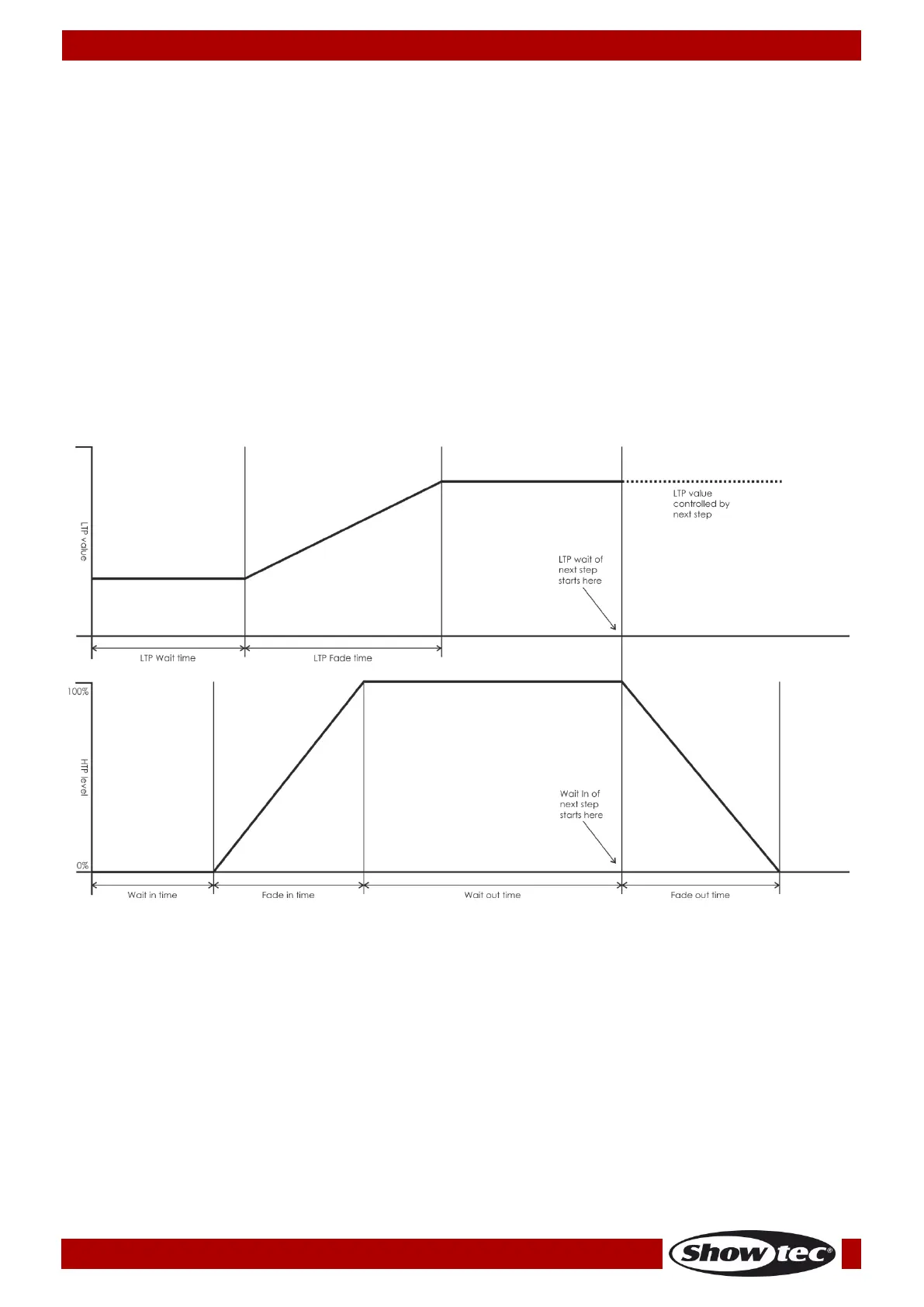
Wait In: The wait time before an HTP channel fading in
Fade In: The fade in time of an HTP channel
Wait Out: The wait time before an HTP channel fading out
Fade Out: The fade out time of an HTP channel
LTP Wait: The wait time before an LTP channel fading
LTP Fade: The fading time of an LTP channel
Link: If set to ON, the chase will automatically run step by step. If set to OFF, you need to press
<Go+> or <Go-> to run the steps one after another.
Overlap (ON/OFF): If set to ON, then the overlap effect will be active as the fade time runs.
Priority (Lowest/Low/Normal/High/Highest): Set the priority for your playbacks. Playbacks with
higher priority will always override the playbacks with lower priority.
03) Press <Enter> twice to save and exit, or press <Exit> to exit without saving.
13. Set Separate Time For a Step
Fade in/out time can be set to each single step separately. A chase step with separate time is called a
complex step; if it is using the global time, then, it is a simple step. To set separate time for each step,
press <Unfold>.
01) Press <Unfold>, and then press the playback button of the chase.
02) Press <Time Mode>, and then press the playback button of the step.
03) Press <Up> or <Down> to turn the pages. Press <A>-<E> to select an option. Turn the Wheel V to
adjust the value.
04) Press <Enter> twice to save and exit.
Any modification will turn a step into a complex step.
To convert a complex step back to a simple step, press <Fixture Menu> in the time editing menu to
change.



 To Next Page