Shure Incorporated
28/45
1.
2.
3.
1.
2.
3.
Set Up an AD610 and Choose a Network Host ID
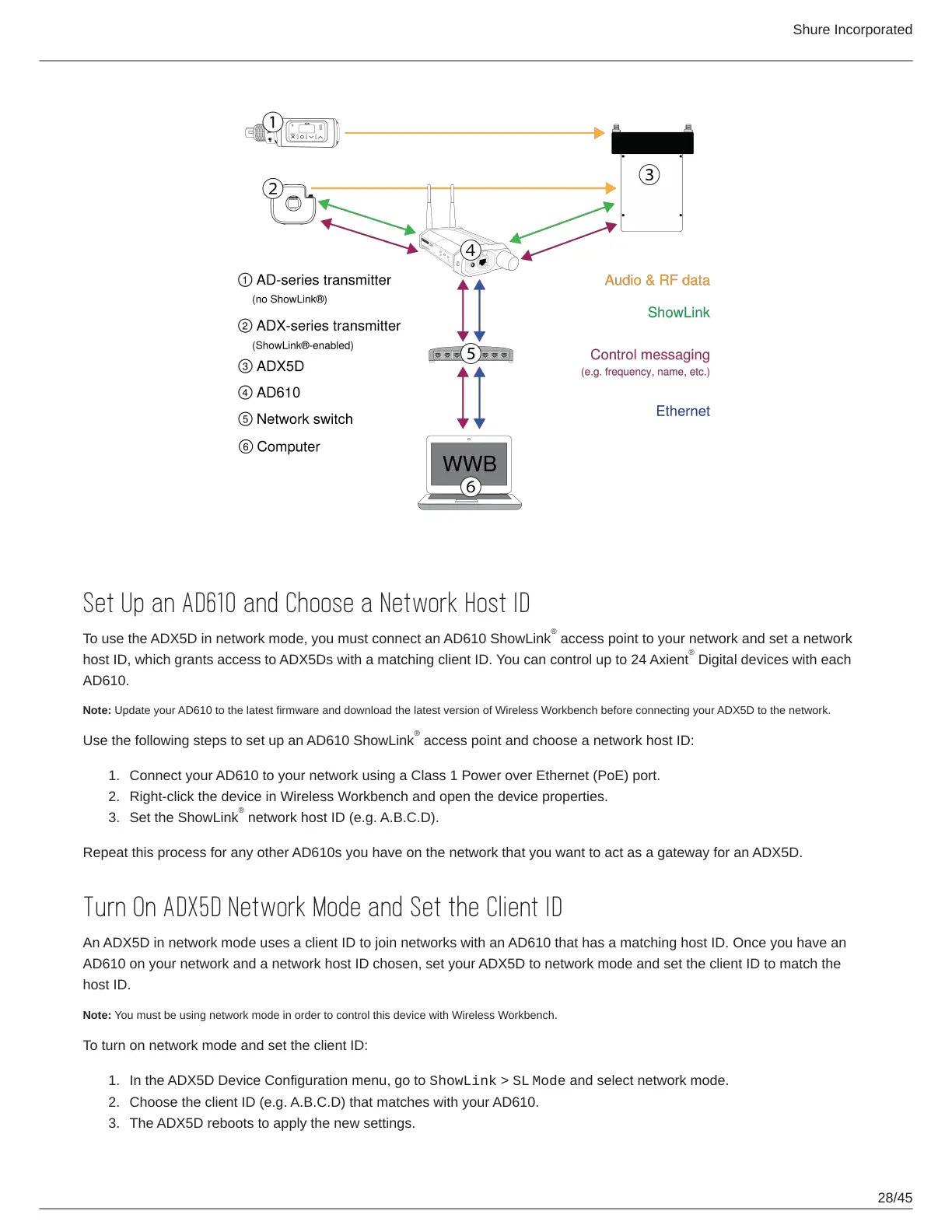
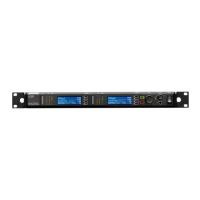
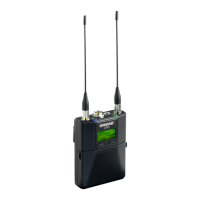
To use the ADX5D in network mode, you must connect an AD610 ShowLink access point to your network and set a network
host ID, which grants access to ADX5Ds with a matching client ID. You can control up to 24 Axient Digital devices with each
AD610.
Note: Update your AD610 to the latest firmware and download the latest version of Wireless Workbench before connecting your ADX5D to the network.
Use the following steps to set up an AD610 ShowLink access point and choose a network host ID:
Connect your AD610 to your network using a Class 1 Power over Ethernet (PoE) port.
Right-click the device in Wireless Workbench and open the device properties.
Set the ShowLink network host ID (e.g. A.B.C.D).
Repeat this process for any other AD610s you have on the network that you want to act as a gateway for an ADX5D.
Turn On ADX5D Network Mode and Set the Client ID
An ADX5D in network mode uses a client ID to join networks with an AD610 that has a matching host ID. Once you have an
AD610 on your network and a network host ID chosen, set your ADX5D to network mode and set the client ID to match the
host ID.
Note: You must be using network mode in order to control this device with Wireless Workbench.
To turn on network mode and set the client ID:
In the ADX5D Device Configuration menu, go to ShowLink > SL Mode and select network mode.
Choose the client ID (e.g. A.B.C.D) that matches with your AD610.
The ADX5D reboots to apply the new settings.
®
®
®
®



 To Next Page