EasyManua.ls Logo

Shure ADX5D - User Manual

Shure ADX5D
45 pages
Print Icon
To Next Page IconTo Next Page
Loading...
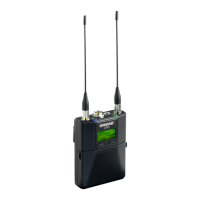
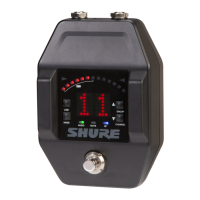
ADX5D
Portable Receiver
The Shure user guide for ADX5D.
Version: 1.0 (2021-F)

Other manuals for Shure ADX5D

Questions and Answers

  • H
    hburnsAug 4, 2025
    Why is there no sound coming from my Shure ADX5D?
    • B
      bullockamandaAug 4, 2025
      If you are experiencing a lack of sound from your Shure Receiver, verify that the receiver and transmitter are powered on and set to the same channel. Perform a scan and sync to ensure the transmitter and receiver are set to the same group and channel. Confirm that the transmitter and receiver are in compatible bands. Check that all cables and connectors are working correctly. After enabling or disabling encryption, remember to re-sync all receivers and transmitters.
  • J
    Jane WilliamsonAug 8, 2025
    What to do if my Shure ADX5D is not appearing in Wireless Workbench?
    • M
      Monica YatesAug 9, 2025
      If the ADX5D is not appearing in Wireless Workbench, verify that the ADX5D's client ID matches the AD610s network ID. You may also need to install the latest version of Wireless Workbench, or try rebooting the ADX5D.
  • K
    Kaitlin LeeAug 18, 2025
    How to troubleshoot faint sound or distortion on Shure Receiver?
    • W
      whitejanetAug 18, 2025
      To address faint sound or distortion on your Shure Receiver, first adjust the system gain on the receiver. Ensure the output level of the receiver corresponds to the mic/line input setting of the mixing console, amplifier, or DSP. Also, check that all cables and connectors are working correctly.
  • D
    davidbeckAug 25, 2025
    Why am I not able to set ShowLink mode on my Shure ADX5D?
    • J
      John LopezAug 25, 2025
      If you are not able to set ShowLink mode on the ADX5D, verify that your attached backplate and mode enable ShowLink. Also, ensure that there is an AD610 connected to your network with a network ID set. Check that the ADX5D is in network mode.
  • A
    ajacksonAug 29, 2025
    Why are linked transmitters not appearing in Wireless Workbench with my Shure ADX5D Receiver?
    • M
      Michael MccoyAug 29, 2025
      If linked transmitters are not appearing in Wireless Workbench, perform a scan and sync to ensure the transmitter and receiver are set to the same group and channel. Also, make sure the transmitter and receiver are in compatible bands. Consider updating the transmitter to the latest firmware.
  • L
    larrybaldwinNov 12, 2025
    What causes lack of range with my Shure Receiver and unwanted noise?
    • L
      Larry HicksNov 13, 2025
      If you're experiencing a lack of range, unwanted noise bursts, or dropouts with your Shure Receiver, ensure the receiver antennas are securely attached. Perform a group or channel scan to find the best open frequency and sync to transfer the setting to the transmitter. For multiple systems, check that all systems are set to channels in the same group (systems in different bands do not need to be set to the same group). Maintain a line of sight between transmitter and receiver antennas. Move or point receiver antennas away from metal objects or other sources of RF interference. Eliminate RF overload by moving the transmitter further away from the receiver—at least 6 m (20 ft). Reduce the transmitter RF power level. If you are using active antennas, reduce antenna or amplifier gain. Try usin...

Summary

IMPORTANT SAFETY INSTRUCTIONS

Hardware Setup

Antenna Attachment

Instructions for attaching antennas to the ADX5D receiver.

Rear Panel Kits

Attaching the Backplate

Steps for attaching the backplate to the ADX5D receiver.

TA3 Backplate

Details and connection information for the TA3 backplate.

DB15 Backplate

Connecting to External Hardware (DB15)

Instructions for connecting the DB15 backplate to compatible video cameras.

DB25 Backplate

Connecting to External Hardware (DB25)

Instructions for connecting the DB25 backplate to compatible equipment.

Scan for Available Frequencies

Group Scan

Procedure for scanning and assigning available frequencies within a group.

Channel Scan

Procedure for scanning available frequencies within a selected group.

Spectrum Scan

Scanning the RF spectrum for interference sources.

IR Sync

Home Screen

Icons

Menus and Configuration

Shortcut Menu

Accessing quick settings via the shortcut menu.

Device Configuration

Configuring receiver settings at the device level, including audio, RF, and display.

Channel Configuration

Configuring individual receiver channels, including audio, radio, and transmitter slots.

Firmware and Presets

Managing firmware updates, user presets, and factory reset options.

ShowLink Remote Control

ShowLink Test

Testing ShowLink coverage boundaries and link quality.

ADX5 D ShowLink Modes

Selecting operating modes for ShowLink connectivity.

Network Setup and Configuration

Setting Up AD610 and Network Host ID

Steps to set up AD610 access point and host ID.

Configuring ADX5 D Network Mode and Client ID

Enabling ADX5D network mode and matching client ID.

Assigning Transmitters to Transmitter Slots

Transmission Modes

Frequency Diversity

Interference Management

Setting the Detection Mode

Determining how the receiver reacts to interference.

Unregistered Transmitter Action

Configuring receiver response to unregistered transmitters.

Frequency Server

Assigning a networked Spectrum Manager as a frequency server.

3.5 mm Output Settings

Troubleshooting

Notifications

Device Notifications

Specific device-related alerts and their recommended actions.

Channel Notifications

Channel-specific alerts and their recommended actions.

Contact Customer Support

Receiver Frequency Bands

Specifications

UHF Specifications

Detailed technical specifications for UHF operation.

ShowLink Specifications

Technical specifications related to the ShowLink system.

Mechanical Specifications

Physical dimensions, weight, temperature, and housing details.

Pinout Diagrams

DB15 Connector Pinout

Diagram showing pin assignments for the DB15 connector.

DB25 Connector Pinout

Diagram showing pin assignments for the DB25 connector.

TA3 M Connector Pinout

Diagram showing pin assignments for the TA3M connector.

Hirose Connector Pinout

Diagram showing pin assignments for the Hirose connector.

Certifications

Information to the user

Canada Warning for Wireless

Wireless compliance information specific to Canada.

Country-Specific Functionality Restrictions

Shure ADX5D Specifications

General IconGeneral
Impedance50 Ω
Antenna typeRemovable
Display typeOLED
Ethernet LANNo
CertificationCE
Mounting typeCamera mount
Built-in displayYes
Operating frequency2400 - 2483.5 MHz
Antenna connector typeSMA
Operating frequency typeUltra High Frequency (UHF)
Radio Frequency (RF) range470 - 636 MHz
Operating temperature (T-T)-18 - 50 °C
Microphone frequency response20 - 20000 Hz
Total Harmonic Distortion (THD)0.0006 %
Input voltage6 - 18 V
Power supply typeDC
Weight and Dimensions IconWeight and Dimensions
Depth29 mm
Width88 mm
Height108 mm
Weight240 g

Related product manuals