Appendix
A.2 Evaluation of the operator control elements
Mobile Panel 177 (WinCC flexible)
Operating Instructions (Compact), Edition 07/2005
A-11
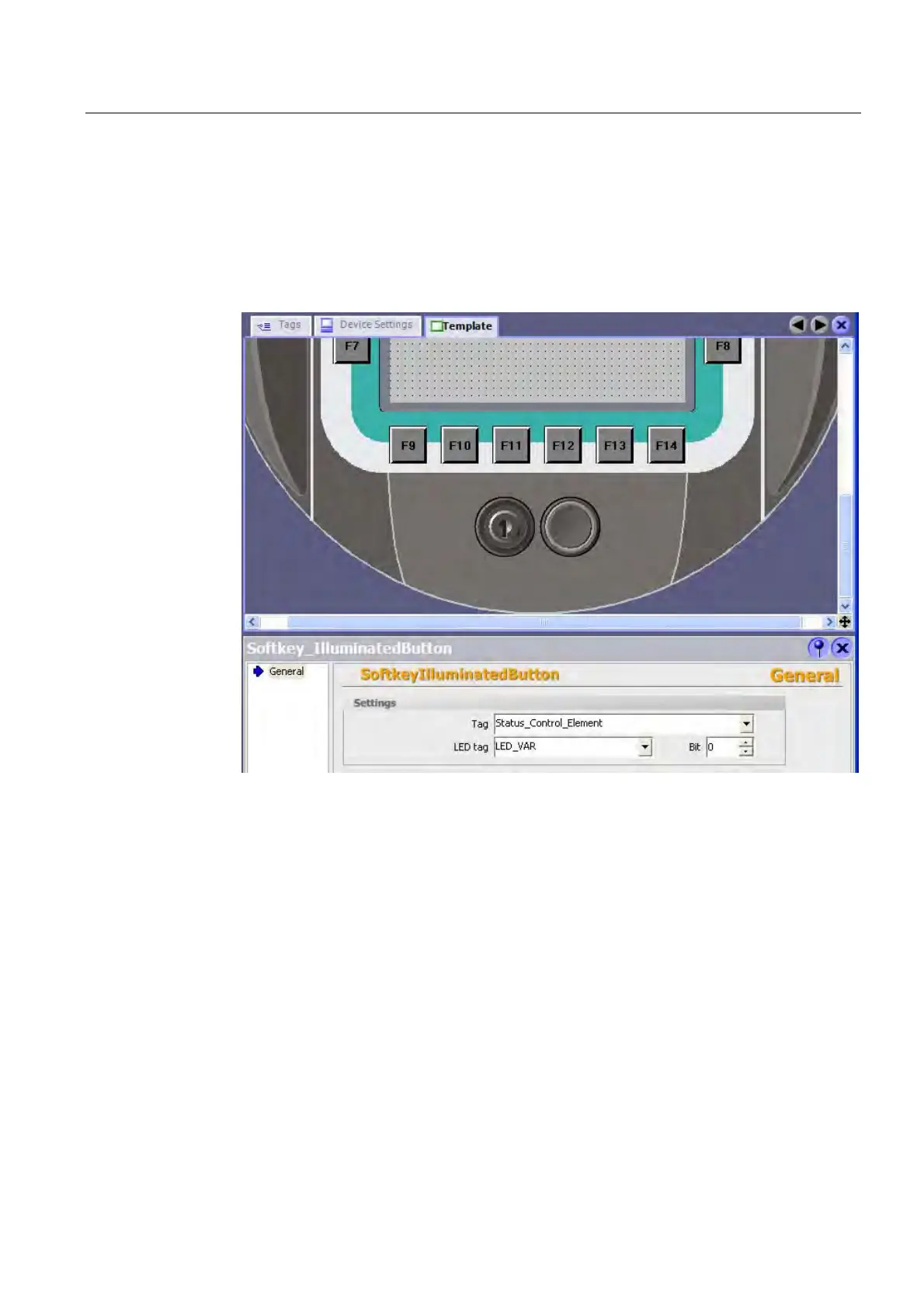
3. For illuminated pushbuttons, key-operated switches and handwheels (global assignment):
Open the template in the "Screens" editor. Select the operator control element in the
template. Click on the "General" group in the properties window. Select the
"Status_Control_Element" tag at "Tag" in the "Settings" section. When you operate the
operator control element, the value is written into the "Status_Control_Element" tag. For
illuminated pushbuttons you can additionally configure the "LED_Tag" tag in order to
control the integrated LED.
Figure A-2 Tag assignment using illuminated pushbuttons as an example
4. For a handwheel (local assignment):
Open the screen in which you want to assign the handwheel locally in the "Screens"
editor. Configure the function "ConnectTagWithHandwheel" on a command button or
directly into the screen structure. Select the "Status_Control_Element" tag at "Value".
When you operate the operator control element, the value is written into the
"Status_Control_Element" tag.
5. The "Control_Element_PLC" tag writes the value of the "Status_Control_Element" tags
into the PLC. The "SetValue" system function has to configured at the
"Status_Control_Element" tag in order for the value to be transferred.
6. Open the properties window of the "Status_Control_Element" tag. Click "Change value" in
the properties view of the "Status_Control_Element" tag in the "Events" group. The
"Function list" dialog box opens. Click the first line of the function list. The list appears,
showing the available project functions.



 To Next Page