Chapter 3: About UCS server management 32
Tasks Steps Details
16 (Optional) Access the KVM Virtual
Console to access advanced server
options.
See "Access the KVM Console in UCS
Manager."
Access the KVM Console in UCS Manager
Before you begin
You have completed the tasks for adding the server to your UCS Manager environment.
Procedure overview
You use the KVM Console to access the Virtual Console, which provides advanced server options on a
UCS C240 M4SX server in Integrated Mode.
Procedure
1. Log in to UCSM.
2. Click the Equipment tab in the left-hand navigation panel.
3. Expand Rack-Mounts > Servers.
4. Right-click a server and select KVM Console.
5. Follow the on-screen directions and security warnings to launch the KVM Console application.
Note:
The installation procedure might also detect and warn you of any Java incompatibilities or security
problems that you must correct before you can use the Virtual Console.
6. Acknowledge the security warning dialogs to allow the Virtual Console to appear.
WARNING:
Do not use UCSM or the console to modify any server settings without first consulting
Customer Support. Doing so might cause your deployment to fail or not operate properly.
About UCS server management for Standalone Mode
The Cisco Integrated Management Controller (CIMC) provides a remote management network interface
that enables you to access the server console through a Web browser.
If the enclosure has power from at least one power supply, the CIMC interface is accessible even when
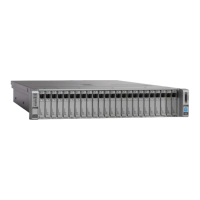
the server is down or has component problems that prevent normal operation. The following figure
shows the rear console ports and connections:


 To Next Page