SLAYER STEAM EP USER MANUAL V1.1 | SEPTEMBER 11, 2018 22
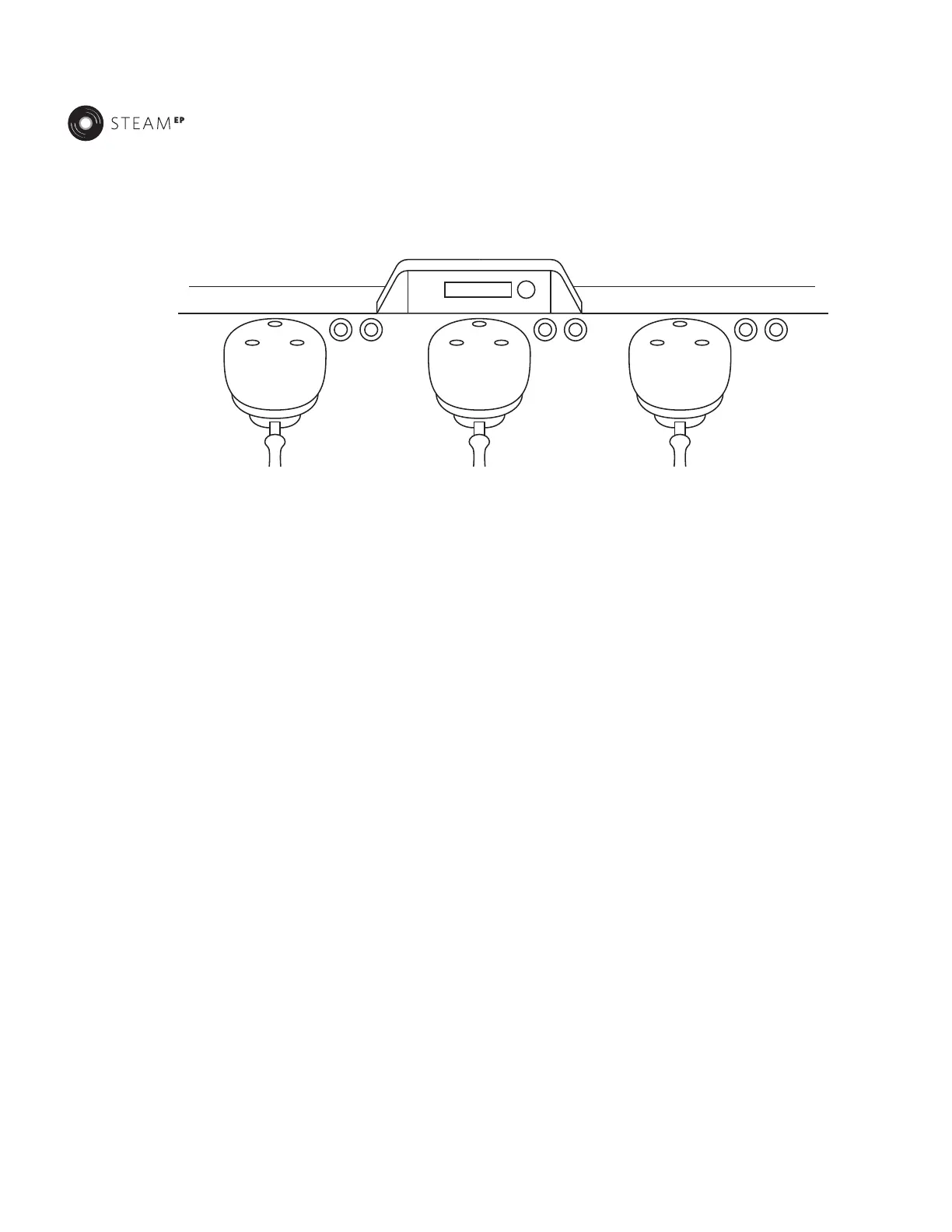
THE BARISTA DASHBOARD™
Slayer Steam EP is equipped with a digital interface that displays the
essential functions of the machine up front and center for your ease.
Through the Barista Dashboard™, you have access to quick and eective
brewing parameters and the ability to access two layers of password
protected menus as a Manager or Technician. **Password protection is
disabled from the factory for ease of install and out of the box calibration
and programming.
BASICS OF NAVIGATION
• The menu, settings, and query display is centered within the Barista
Dashboard™
• An easy to use menu button is located to the right of the centralized,
heads up barista dashboard and, is used to enter the menus, cycle
options, make selections, and adjust settings. These actions are
accomplished in two dierent ways
• Scrolling clockwise gives access to the Barista Menu showcasing
Shot Times, Brew Boiler temperatures, Shot Counts (per group),
a prompt to Enter the Menu (if passwords are not yet set), Full
Cleaning, Quick Cleaning & Switch O
• Pressing the Menu button takes the user to the
Enter Menu Screen
• If passwords are disabled, all menu features from Manager to
Advanced are visible.
• If passwords have been enabled, scroll to select between
Manager and Advanced by typing in the appropriate
password.
• A short hold (2 seconds) will exit you from a setting within any of the
three menus, while a long hold (5 seconds) will bring you back to the
Home menu. A timeout will occur after 30 seconds, sending the user
back to the home menu.
• During the initial setup, select and change the functions to a desired
outcome or action.
• The farthest left group is the control center or Master, enabling most
actions within the brew groups to be saved across multiple groups or
corresponding buttons.
• If saving a volumetric or temperature setting on the left (master)
group head, select YES to save details across multiple groups
and corresponding buttons or select NO and save details at each
individual group button.
• Scroll to the next menu adjustment until setup is complete.
• The menu layout is circular; after cycling through the end of the menu
options, the first menu option will reappear.
PASSWORD RESETS
Password protection is disabled upon arrival to ensure fluid installation
and setup. When passwords are not enabled scrolling clockwise reveals
the Manager and Advanced Menus. The owner/operator has the ability to
bypass password protection on the Manager menu while setting it in the
Advanced menu. If you do not set a password for the Advanced, Steam
EP will function as one long menu featuring the Barista Menu, Manager
and Advanced menu options for review and programming. Once setup is
complete, password protection can be enabled. Details on how to set the
Manager and Advanced Passwords outlined below.
A password can be between 1-8 characters, A-Z letters (uppercase only)
and 0-9. Using the blank space or Null < > will indicate the password is
completed.
Set Passwords, Manager & Advanced Menus
1. Scroll to PASSWORDS
2. Enter the ADVANCED menu and depress the button


 To Next Page