Chapter 3
Connecting your interactive whiteboard to your computer
smarttech.com/kb/001414 29
To connect using a USB cable
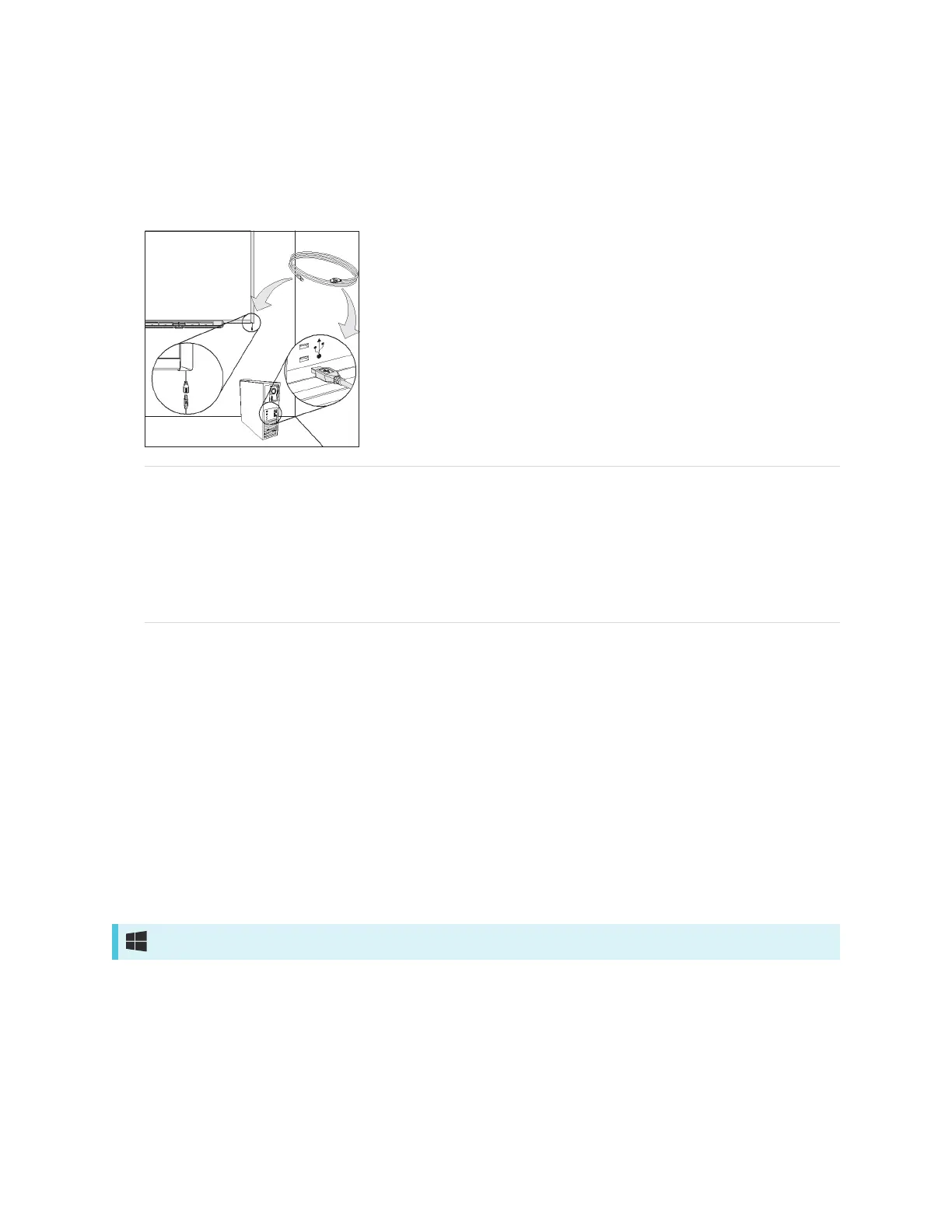
1. Connect one end of the included USB cable to the captive connector suspended from your
interactive whiteboard’s lower-right corner.
NOTE
You must apply approximately 10 oz. (300 g) of downward pressure to unplug a USB cable from the
captive USB receptacle. Because an entire 16' 5" (5 m) USB cable weighs approximately 7 oz. (200
g), you don’t need to tape or otherwise secure the USB cable to the captive connector. The design
ensures that if someone trips on the cable it will disconnect rather than cause injury or damage to
the controller module.
2. Connect the other end of the USB cable to a USB receptacle on your computer.
3. Press the power button on your computer to start your interactive whiteboard.
4. Log on to your computer if required. If your computer doesn’t require you to log on, allow your
computer to reach its default start screen.
If you’re using a Mac computer, or if you already have the appropriate USB driver installed on your
Windows® computer, the Ready light on the lower-right frame immediately turns red, and then flashes
green. If this happens, see Installing SMART software on the next page.
If the appropriate driver isn’t installed on your Windows computer, a Found New Hardware wizard helps
you locate the driver for the newly connected USB Human Interface Device (HID), that is, your interactive
whiteboard. Refer to the following procedure to install the USB driver.
Windows only


 To Next Page