Chapter 4
Using and maintaining your interactive whiteboard
smarttech.com/kb/001414 40
If you ship your interactive whiteboard frequently, consider purchasing a more durable, hard shipping case
from SMART Technologies. With its foam-lined interior, aluminum edges and valances, and steel-reinforced
corners, this shipping case protects your SMART Board interactive whiteboard and has dual-tilt wheels for
ease of transport. To order a hard shipping case, contact your authorized SMART reseller.
Indicators and controls
Your SMART Board 600 or D600 series interactive whiteboard has the following indicators and controls:
l Pen tray buttons, LEDs and sensors (see Pen tray buttons below)
l A Ready light. See The ready light on the next page.
l The controller module’s Reset button. See Resetting your interactive whiteboard on page44.
In addition to providing a convenient place to hold the pens and the eraser, the pen tray has several
controls, sensors and indicators.
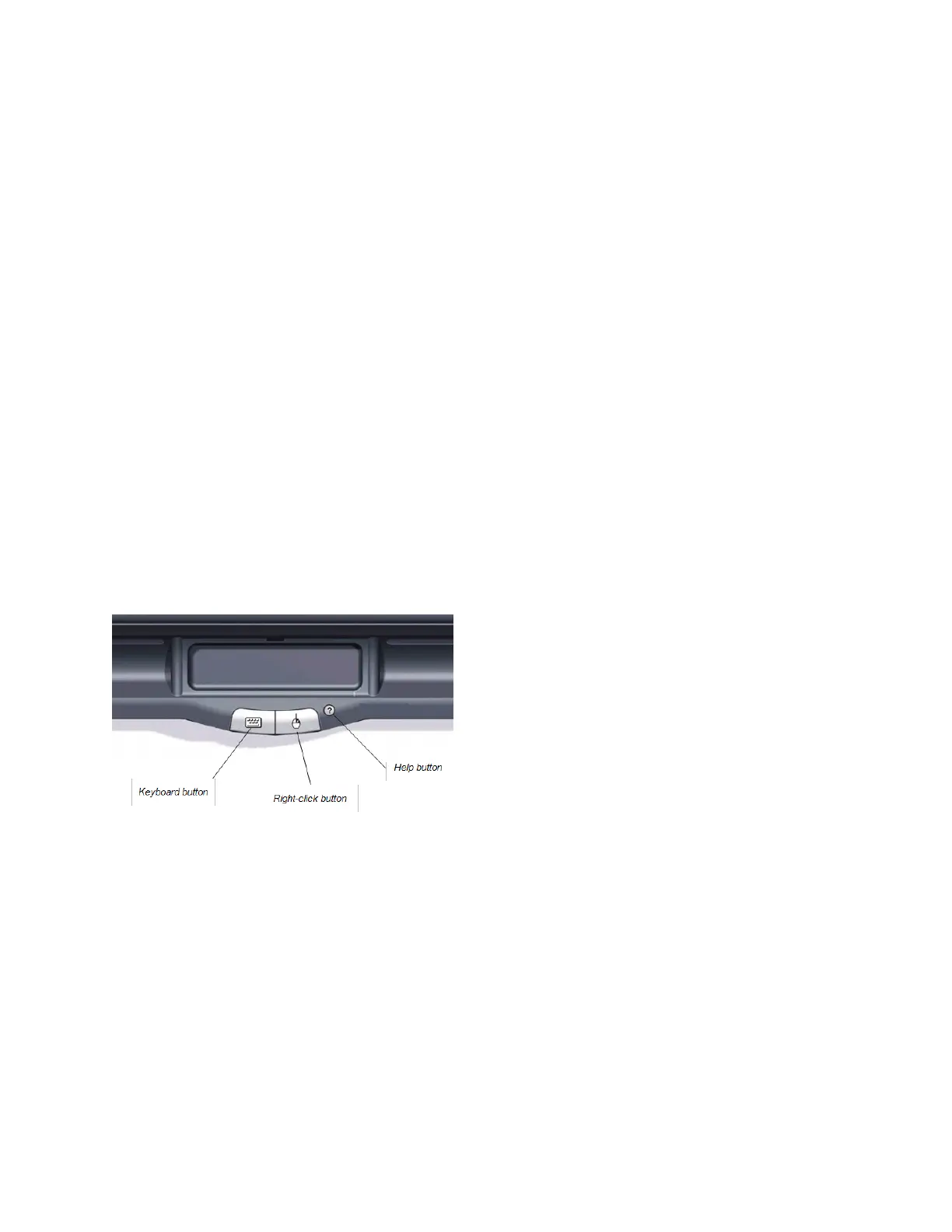
Pen tray buttons
In the center of the pen tray, there are three buttons. The two large rectangular buttons default to keyboard
(left button) and right-click (right button) functions.
You can customize the buttons using SMART Product Drivers to provide several other functions, including
printing, changing pages and capturing the screen. Pressing both buttons simultaneously starts the
orientation process.
The third small, round button launches the online Help, where you’ll also find an alignment icon for orienting
your interactive whiteboard.


 To Next Page