Chapter 5
Troubleshooting your interactive whiteboard
smarttech.com/kb/001414 44
3. Further adjust your projector using small, slow movements until you’re satisfied with the projected
image.
o
Correct the image’s horizontal and vertical position by adjusting the height and position of the
projector platform or stand.
o
Adjust the image laterally by sliding the projector to the left or right.
o
Adjust the image size by moving the projector forward or backward to increase or reduce the
image size, until it correctly fills the screen.
4. Make fine adjustments to the image level and size according to your projector manufacturer’s
instructions.
5. Create a clear image by adjusting your projector’s focus function.
Resetting your interactive whiteboard
If your interactive whiteboard behaves erratically or becomes unresponsive, possibly because of an
electrostatic discharge, a power fade or interruption or some other event, you might be able to restore
normal operation by resetting your interactive whiteboard.
Reset your interactive whiteboard by disconnecting and then reconnecting the USB cable, or by removing
and replacing the power plug to the expansion module. This step turns the power off and back on,
resetting all components of your product.
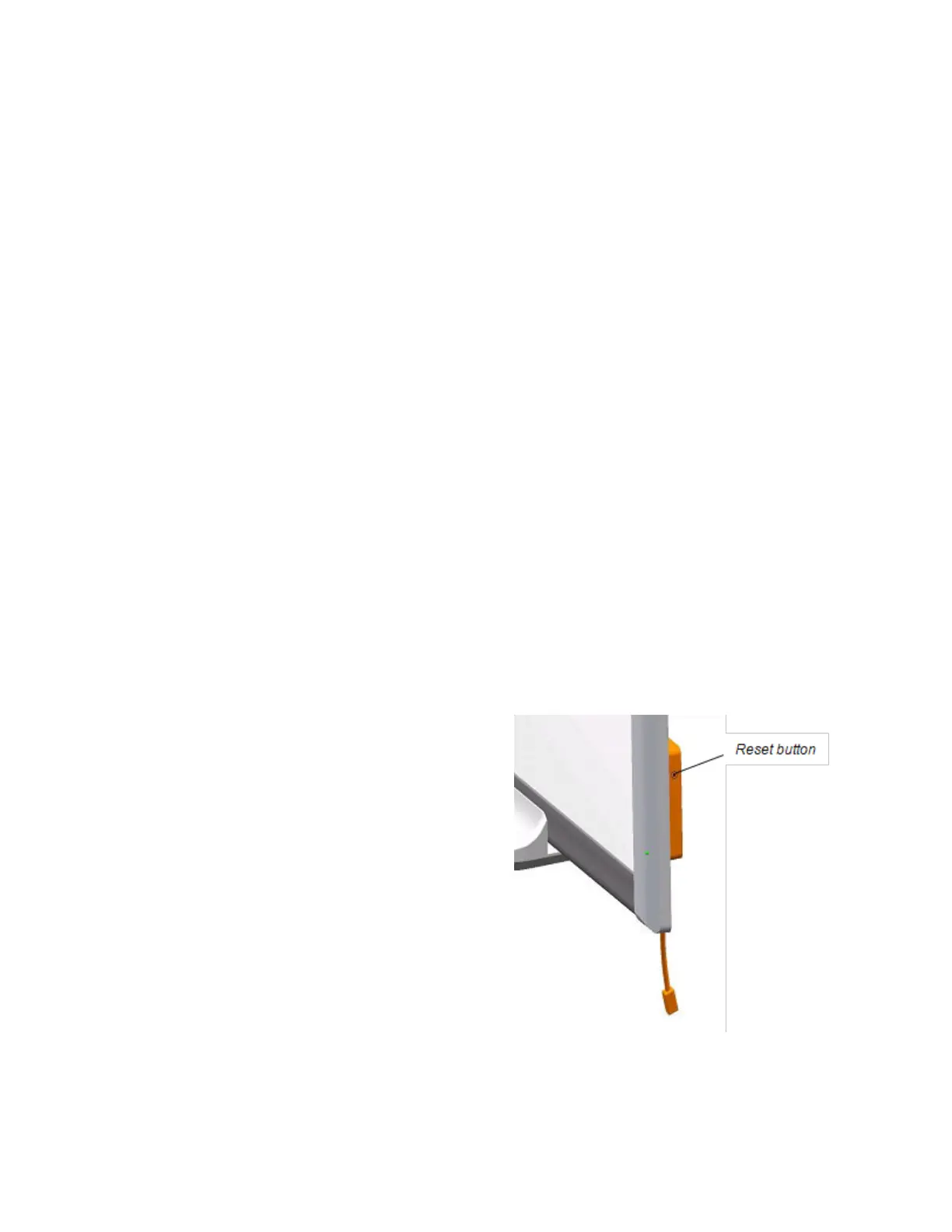
The Reset button
The Reset button on the side of your interactive
whiteboard’s controller module lets you reset the
controller. The Reset button is recessed so that it can’t be
triggered accidentally. Use the tip of a pen tray pen or
another pointed object, such as a ball-point pen, to press
this button.
Press the Reset button if the controller module stops
responding or is in the wrong mode. After you press the
Reset button, the controller module resets and operates
normally.


 To Next Page