Chapter 5
Troubleshooting your interactive whiteboard
smarttech.com/kb/001414 53
Access the Help Center by pressing the Help button on the pen tray. The Help button also provides access
to the orientation screen and SMART contact information. For more information on the pen tray buttons,
see Pen tray buttons on page40. Alternatively, access the Help Center from the SMART software icon in
the Windows notification area or Mac Dock.
For more information, go to smarttech.com/training for free learning resources, hands-on lessons and
information on how to get more training.
Contacting SMART Technical Support
SMART Technical Support welcomes your call. However, if you experience difficulty with your SMART
product, you might want to contact your authorized SMART reseller first. Your local reseller might be able
to resolve the issue without delay.
Before contacting SMART Technical Support, make note of your SMART Board interactive whiteboard’s
serial number, and then note it in the inside cover of this manual (if you printed it).
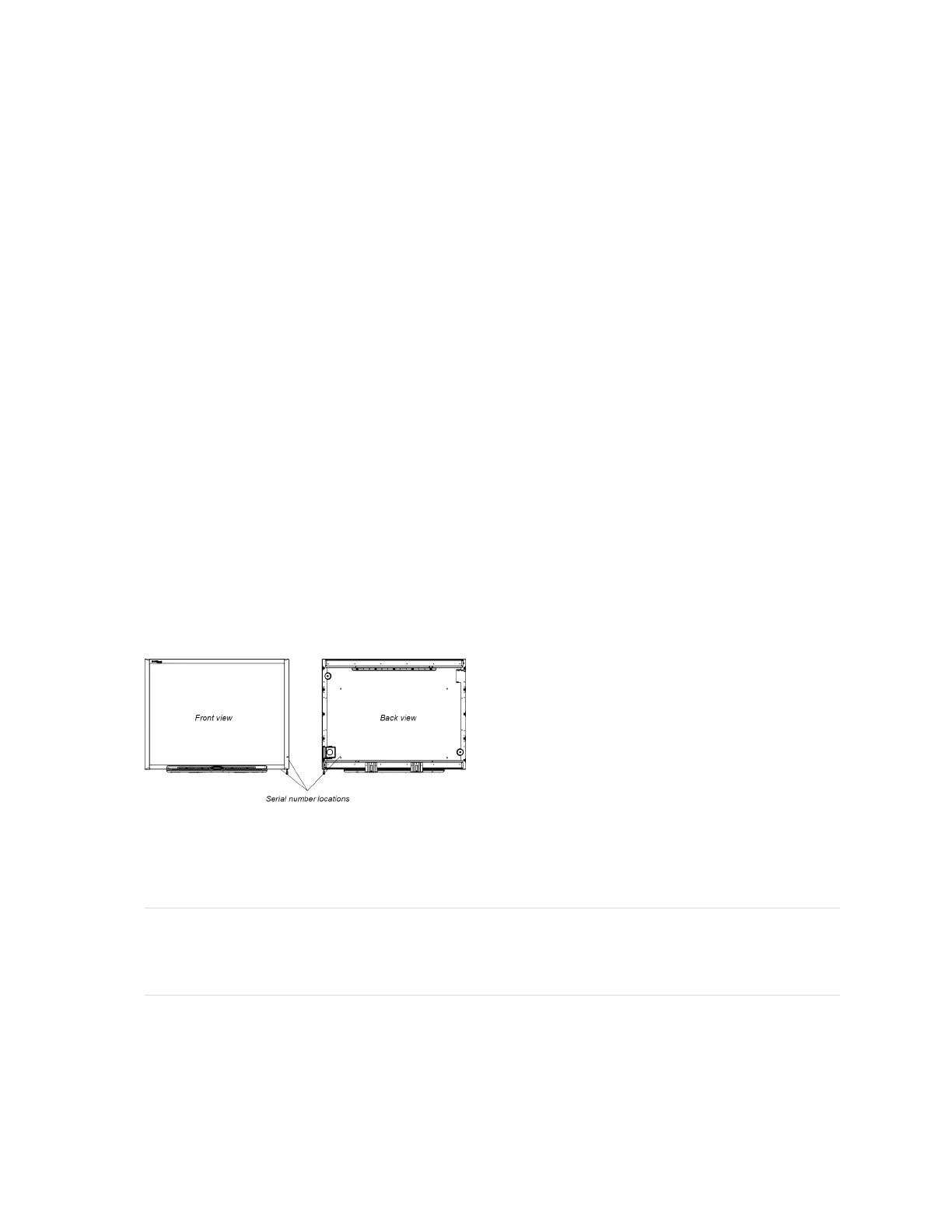
To determine your interactive whiteboard’s serial number
1. You can find the serial number in two places: on the back of your SMART Board interactive
whiteboard, and on the bottom, right-hand edge of your interactive whiteboard’s frame (the side) or on
the bottom of the right-hand end of the frame.
The serial number on your SMART Board interactive whiteboard always begins with the letters SB,
followed by the interactive whiteboard’s model number, for example, D685-xxxxxx. The serial number
can include numbers, letters, and hyphens.
NOTE
If you’re unable to locate the serial number for your interactive whiteboard, you can remove the pen
tray to locate your serial number. For instructions on how to remove the pen tray, see .


 To Next Page