Chapter 4
Using and maintaining your interactive whiteboard
smarttech.com/kb/001414 41
Pen tray LEDs and sensors
When you turn on or reset your interactive whiteboard, the indicator lights on the pen tray cycle twice.
When the system is running, the lights come on only when you remove a tool. Only one illuminates at a
time, indicating the last tool removed from the pen tray. The pen tray detects the removal of the pens and
the eraser using reflective infrared sensors similar to the ones that detect the presence of paper in
photocopiers.
NOTE
The pen tray tools must reflect infrared light. Old-style black SMART Board interactive whiteboard pens
might not reflect infrared light reliably.
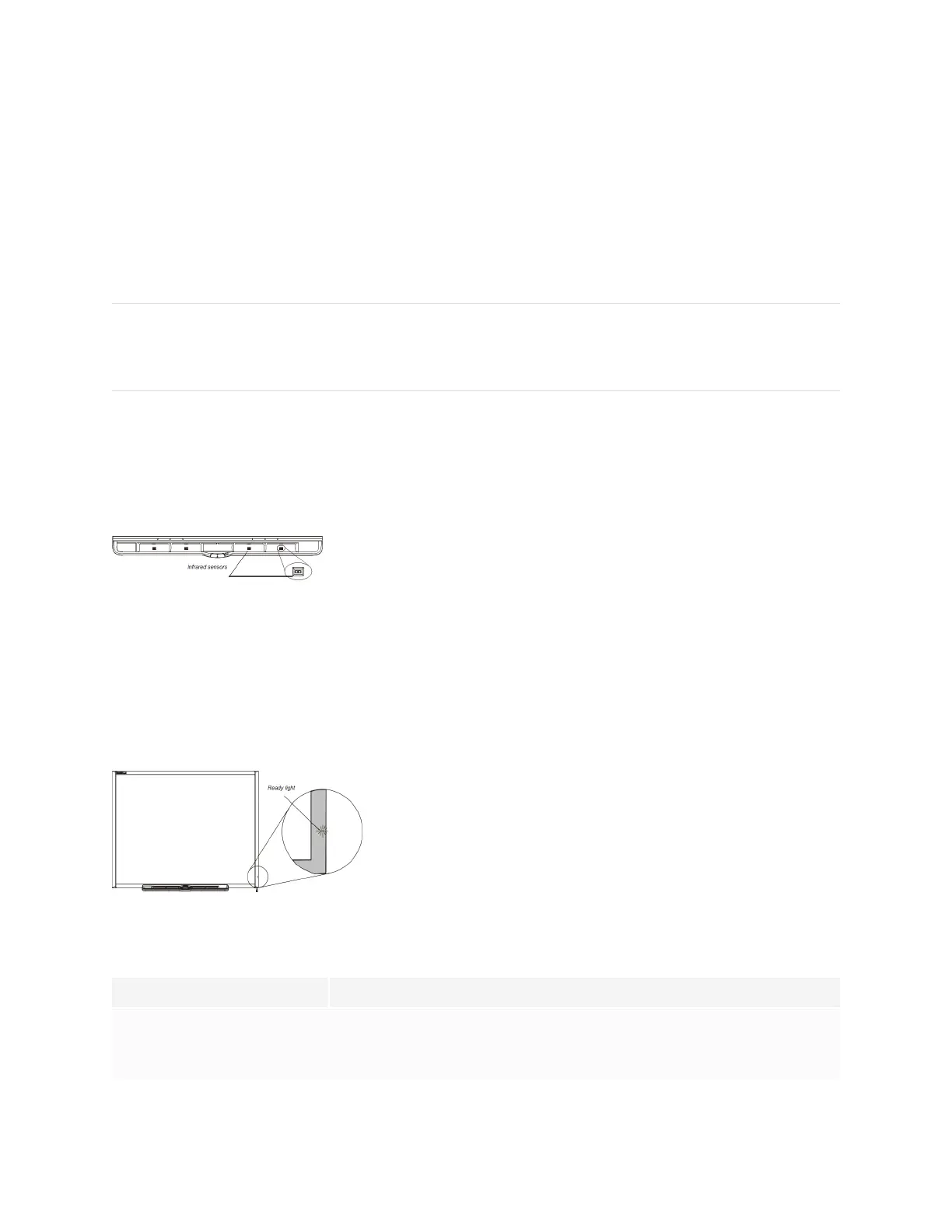
Cleaning the pen tray’s sensors
If the infrared sensors in the bottom of your pen tray’s recesses become obstructed by dirt, the sensors
don’t detect when you remove a pen or the eraser. The recessed LED doesn’t illuminate, and the lifted tool
doesn’t work.
To clean a sensor, moisten a cotton swab with a household glass cleaner, such as Windex, and then
carefully clean the infrared transmitter and receiver.
The ready light
You can see the Ready light in the lower-right corner of your interactive whiteboard’s frame. The Ready
light indicates the controller module’s operating states.
The following table shows the Ready light’s normal states. If the indicator’s behavior doesn’t match a state
listed here, refer to Troubleshooting using the Ready light on page45.
Ready light state Meaning
Solid red Your interactive whiteboard is receiving power from the USB cable or an
optional expansion module’s power adapter, but your interactive
whiteboard isn’t communicating with a computer.


 To Next Page