
 Need help?
Do you have a question about the SMART Board SB640 and is the answer not in the manual?
Key safety instructions and precautions for using the interactive whiteboard and its accessories.
Additional safety measures and recommendations for maintaining the interactive whiteboard and its environment.
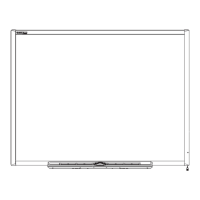
Overview of the interactive whiteboard's capabilities, including touch, pen tray, and durability.
Explanation of the interactive whiteboard's function as an input device and its interaction with computers and projectors.
Details on required software like SMART Product Drivers, SMART Notebook, and SMART Meeting Pro.
Information about the included USB cable for connecting the interactive whiteboard to a computer.
Describes the feature for safeguarding the interactive whiteboard from theft using a security cable.
Information on using the expansion slot for adding optional accessories like SystemOn modules.
Lists included components like USB cable, pens, eraser, and wall-mounting kit.
Information on purchasing additional accessories to enhance the interactive whiteboard's functionality.
Specifies the necessary environmental conditions for operating and storing the interactive whiteboard.
Detailed instructions and guidelines for securely mounting the interactive whiteboard on a wall.
Provides guidance on optimal mounting heights for different user groups and accessibility.
Lists the necessary tools for successfully wall-mounting the interactive whiteboard.
Steps to correctly align the interactive whiteboard with the projected image for optimal display.
Final steps to ensure the interactive whiteboard is properly installed and secured after mounting.
Procedures for securing the pen tray with a security cable and for removing it from the whiteboard.
Instructions on using a security cable to lock the pen tray, offering theft deterrence.
Step-by-step guide on how to detach the pen tray for transport or repair.
Critical safety information regarding USB connections and power requirements to prevent damage.
Instructions for establishing a USB connection between the interactive whiteboard and the computer.
Guide for downloading and installing essential SMART software for full functionality.
Information on using USB extenders and hubs for extending the connection range.
Recommended computer settings for optimal performance and compatibility with the interactive whiteboard.
Guidance on power management settings for the computer and projector to prevent unexpected shutdowns.
How to ensure computer and projector resolutions match for clear, undistorted images.
Process for calibrating touch accuracy by aligning the interactive whiteboard with the projected image.
How to connect a temporary laptop without installing software, for guest use.
Instructions for connecting and configuring multiple SMART interactive products to a single computer.
General advice and best practices for ensuring smooth and reliable operation of the interactive whiteboard.
Specific safety advice for educators to ensure student and teacher well-being around the whiteboard and projector.
Precautions to avoid scratching, staining, or otherwise damaging the interactive screen surface.
Guidelines and tips for cleaning the interactive whiteboard's writing surface effectively.
Method for removing stubborn permanent marker ink from the screen surface.
Advice on safely packaging and transporting the interactive whiteboard to prevent damage.
Overview of the interactive whiteboard's indicator lights, buttons, and sensors for monitoring status.
Details on the functions of the keyboard, right-click, and help buttons on the pen tray.
Explains the pen tray indicator lights and how sensors detect tool removal.
Instructions for cleaning the infrared sensors in the pen tray to ensure proper tool detection.
Describes the meaning of the Ready light's different states (red, green, amber) for troubleshooting.
Steps to correct common image projection issues like alignment, size, and focus.
Procedure to restore normal operation by power cycling or using the reset button.
Location and use of the recessed reset button on the controller module.
Guide to diagnosing issues based on the interactive whiteboard's Ready light status.
Initial flowchart to determine the basic status of the Ready light and next troubleshooting steps.
Flowchart to diagnose issues when the Ready light is not illuminated.
Flowchart to troubleshoot when the Ready light is solid red, indicating no computer communication.
Flowchart to diagnose issues when the Ready light is flashing green, indicating mouse mode.
Flowchart to troubleshoot when the Ready light is steady green but other issues persist.
Common problems and solutions not covered by the Ready light flowcharts.
Information on accessing the Help Center for more detailed procedures and support.
Guidance on how to contact technical support, including necessary information like serial number.
Compliance with EU regulations for the disposal and recycling of electronic equipment.
Confirmation of compliance with EU directive limiting hazardous substances in products.
Compliance with regulations regarding heavy metals in product packaging.
Compliance with Chinese regulations for electronic information products.
Compliance with US law limiting lead content in products, especially those for children.
 General
| Display Size | 64 inches |
|---|---|
| Resolution | 1920 x 1080 pixels |
| Size | 64 inches |
| Aspect Ratio | 16:9 |
| Connectivity | USB, HDMI |
| Operating System Compatibility | Windows, macOS, Linux |
| Ports | USB, HDMI, VGA |
| Mounting Options | Wall mount |
| Touch Technology | DViT (Digital Vision Touch) technology |

 To Next Page