Chapter 5
Troubleshooting your interactive whiteboard
smarttech.com/kb/001414 52
Symptom/observation Cause Solution
Touch isn’t accurate. The
pointer doesn’t appear
directly below your finger.
When you write on the
screen, your writing
appears at a slight
distance from the pen.
Your interactive
whiteboard isn’t oriented
properly.
Orient your interactive whiteboard.
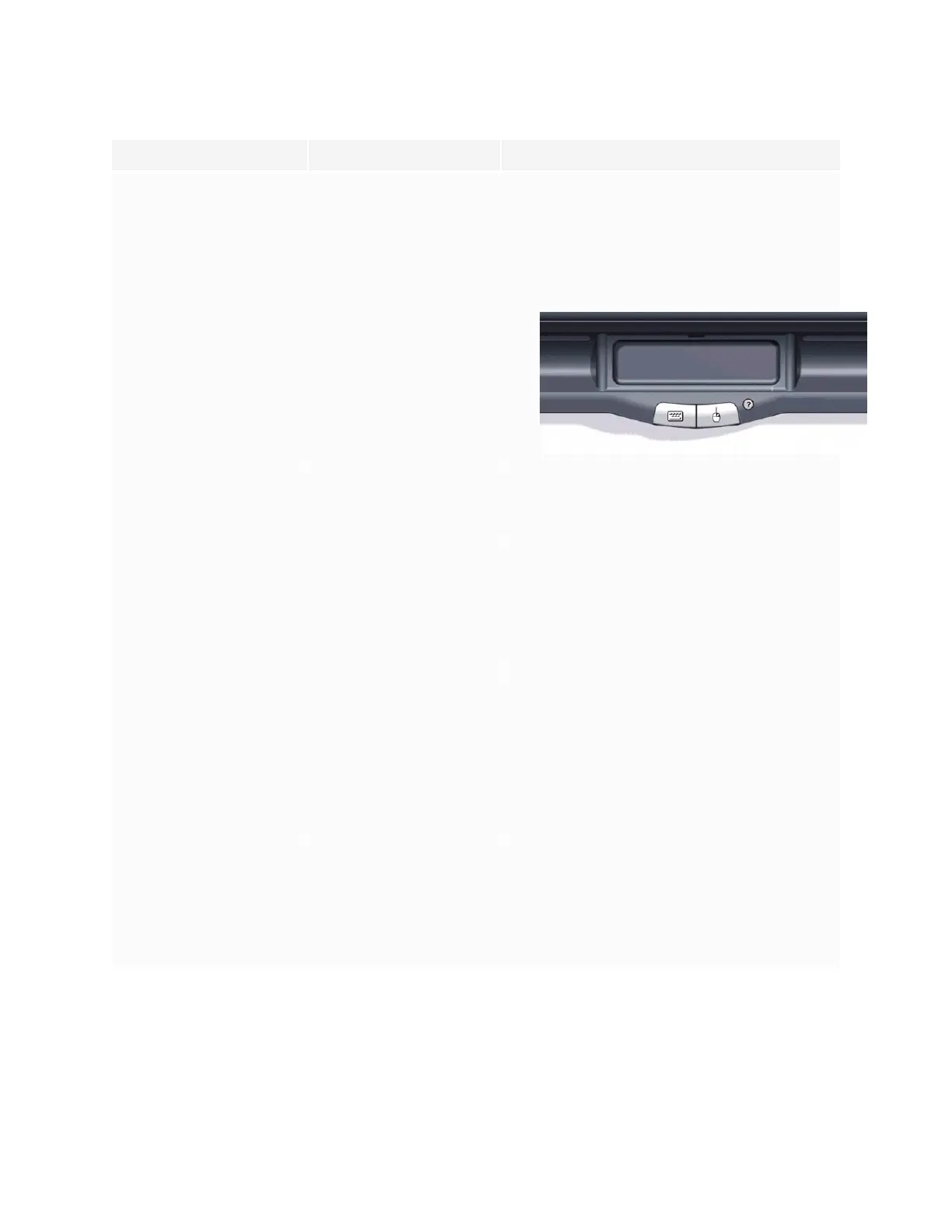
To start the orientation, press and hold
both the Keyboard and Right-Click buttons
on the pen tray at the same time.
See Orienting your interactive whiteboard
on page32.
No pointer is visible on the
screen, and when you
touch the screen, a
colored line appears.
A pen is missing or isn’t
positioned properly in its
pen tray recess.
Replace the missing pen.
Your pen, dry erase
marker, or old style (black)
SMART pen doesn’t
reflect infrared light and
the pen tray sensors are
unable to detect it.
Wrap light-colored tape on the pen to
make it more reflective.
The pointer snaps back to
one location when you lift
the pen or your finger from
the screen.
The resistive surfaces are
in constant contact at the
location to which the
pointer returns. An object
that hits or presses on the
front sheet, leaving a
permanent depression,
can cause this issue.
Gently pull the front sheet away from the
back sheet using a piece of tape or a small
suction cup. If the problem goes away
while you pull but returns when you release
the tape or suction cup, you might have to
return your interactive whiteboard for
repair.
The pointer moves
erratically or gaps appear
when you draw with the
pen.
The USB power from your
laptop, computer or USB
extender is too low to
power your interactive
whiteboard.
Substitute another computer.
OR
Eliminate or substitute the USB extender.
OR
Install a powered USB hub.
Finding more information
The Help Center contains links to a wide range of information, including procedures, concepts, help with
applications, SMART tool descriptions, troubleshooting hints and more.


 To Next Page