23
Installation instructions
9.5
If Voice Assistance is successfully activated, you will nd a
grey bar in the device preview.
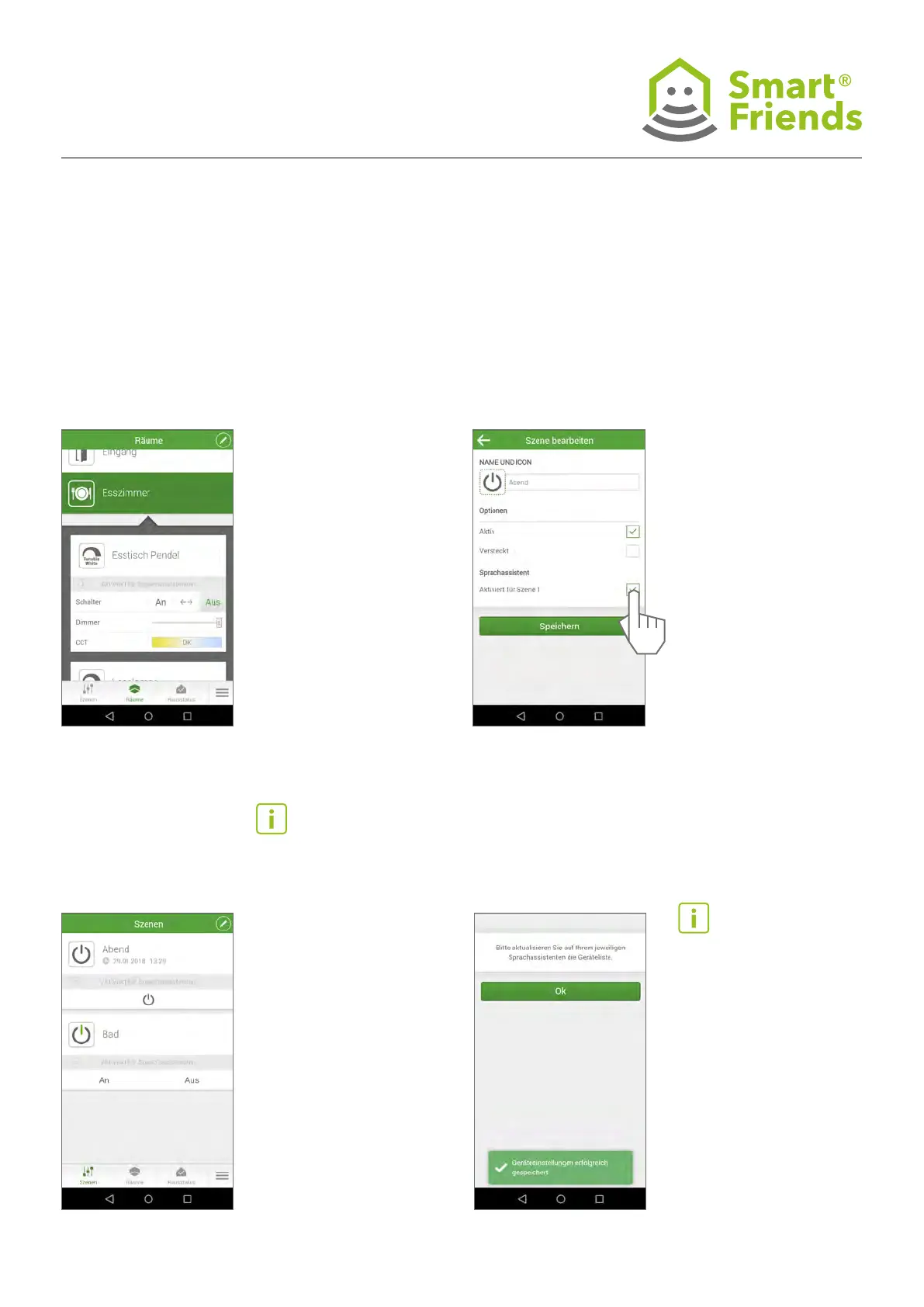
9.6
Activate Scenes for Voice Assistance.
Please change to scenes
menu and choose the scene
your likely to activate for
voice assistance. Hook-up
Voice Assistance and save
your settings.
You can now synchronize
the conguration of the
Smart Friends App with
your Alexa Echo.
9.89.7
Scenes available for Voice
Assistance will be indicated
by a grey bar.
Please note:
- Avoid scene names with sim-
ilar wording or pronunciation
to prevent confusion of voice
commands.
- Note the difference between
scene control (inside Smart
Friends) and group con-
trol (inside Alexa). Scenes
usually only support an “On”
command, even so settings
will switch off the included
devices.
- For scenes voice commands
like “dim to 50%” or “set
colour to red” not be sup-
ported. Dimming and colours
shall be pre-set in the scene
and then activated with an
“On” command.
Please note: any changes
within the Smart Friends
App (scene settings, device
settings) will be available
for Alexa but only after new
synchronization (e.g. „Alexa,
search for new devices).



 To Next Page