28
Installation instructions
10: Connecting ABUS products to the Smart Friends Box
10.1
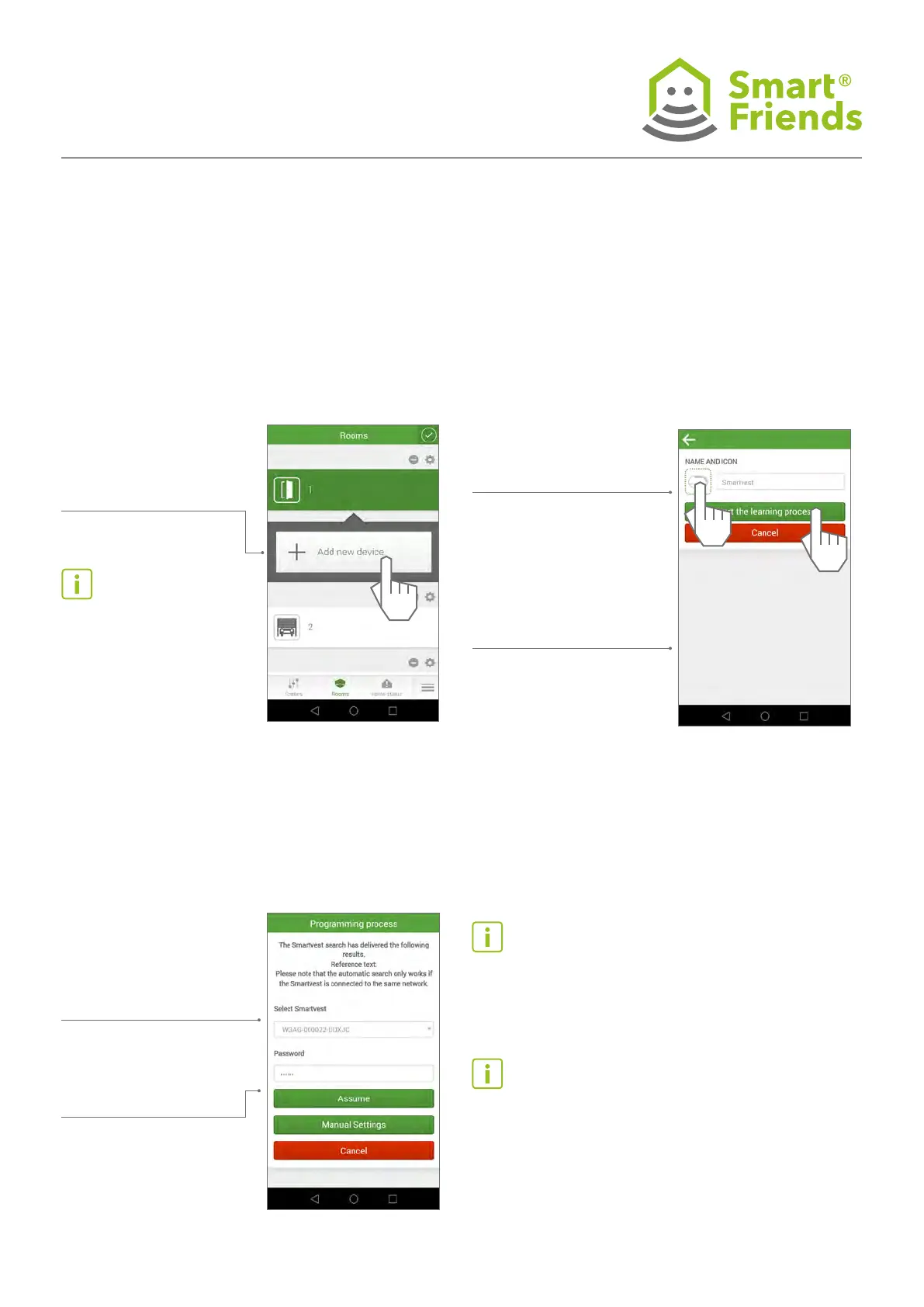
Smartvest Alarm Panel: Open the “Rooms” view.
Select the pencil icon to switch to the programming mode.
Then select the plus sign
to add another device.
10.2
Select the Smartvest icon. The three elds for the name,
system and description are then lled in automatically.
You can edit the name
“Smartvest” if you wish.
Then select “Start the
learning process”.
Important note: Ensure that
the Smartvest and the Smart
Friends Box are in the same
network and that all the
components of the Smartvest
have been learned.
Important note: If the device security code is
incorrect, the Smart Friends Box will not be able
to connect to your Smartvest.
Tip: If the Smart Friends Box cannot nd any
Smartvest in the network, rst try restarting the
Smartvest and then repeat the process. If the
Smart Friends Box still cannot nd any Smart-
vest, enter the DID of your Smartvest in “Manual
settings”.
10.3
The Smart Friends Box automatically looks for a Smartvest
Alarm Panel in the local network.
If a Smartvest Alarm Panel
is found, this is displayed to
you with the DID (WGAG-
XXX-XXX).
The standard device secu-
rity code for the Smartvest,
“123456”, is entered auto-
matically.
Where applicable, replace
this with the device secu-
rity code that you have as-
signed to your Smartvest.
1
2



 To Next Page