75
Installation instructions
P2.5
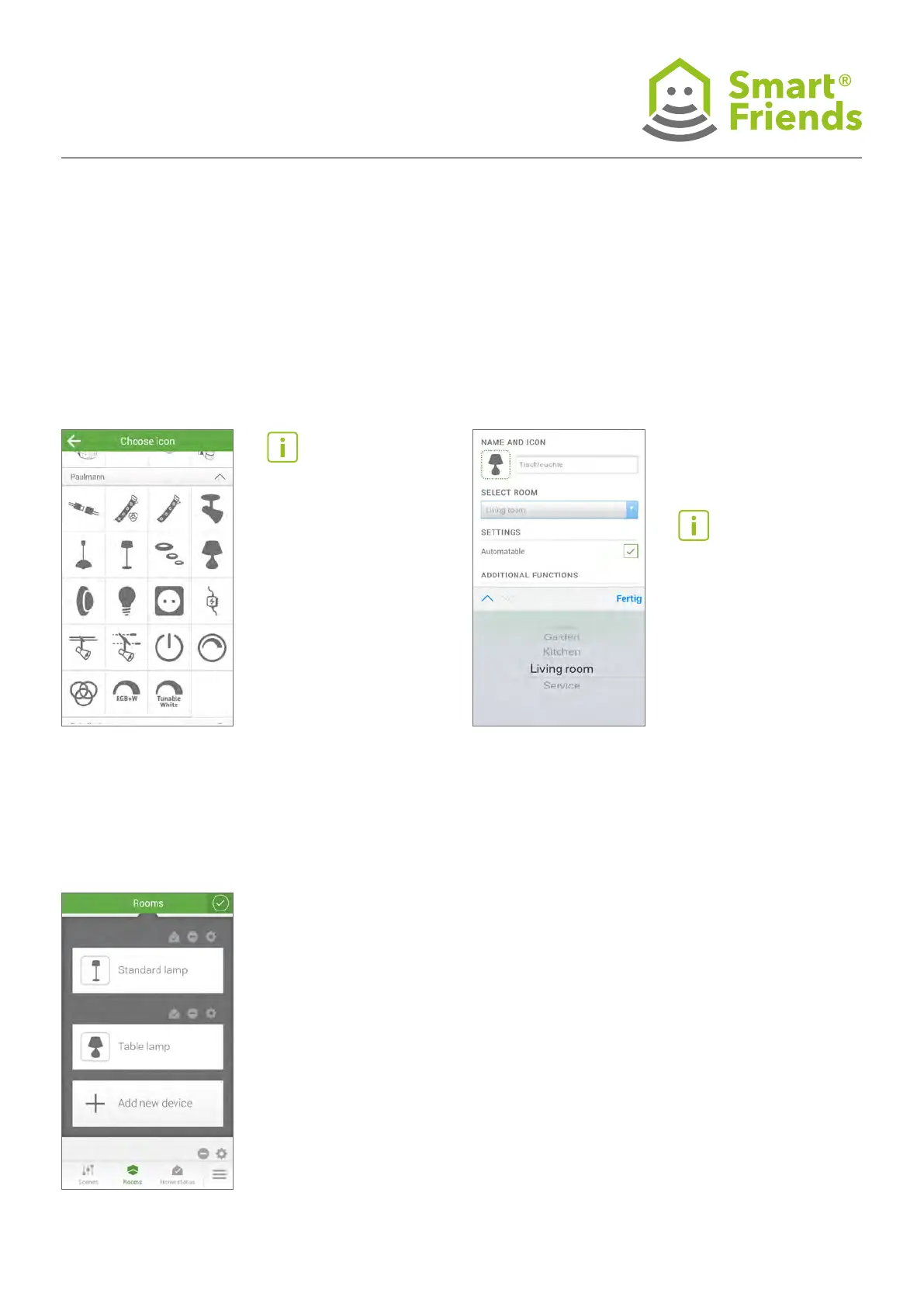
To change the icon, click on the existing icon or empty eld
and select an icon of your choice from the list displayed.
P2.6
To change the room allocation, click on the room name.
This will open a list of room names from which you can select
the new allocation.
P2.7
You can now exit the device settings by clicking
on the checkbox symbol in the top right.
Tip: You can also select the
icons of other Smart Friends
partners. These icons are used
during pairing for simpler user
operation. However, for the
changes described here, all
icons are available for selec-
tion when pairing, regardless
of function.
Conrm your selection by
pressing Save!
Note: Depending on the
smartphone and operating
system, the display may vary
from the example shown in
the image (scroll lists, etc.).
Conrm your selection by
pressing Save!



 To Next Page