EasyManua.ls Logo

Snap-On BK8000 - User Manual

Snap-On BK8000
128 pages
Print Icon
To Next Page IconTo Next Page
Loading...
User Manual Part # ZBK8000
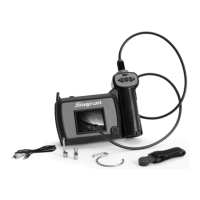
Digital Wireless Video Scope
BK8000
Features Touch Screen Display & Dual View Imager

Table of Contents

Questions and Answers

  • J
    James MejiaSep 8, 2025
    What to do if the image on my Snap-On BK8000 display is breaking up or jerky?
    • S
      Sandra WilliamsSep 8, 2025
      If the image on your Snap-On Security System display is breaking up or jerky, here's what you can do: 1. Ensure the imager handle and viewer unit are within the recommended range of 30 feet (10m). 2. Try changing channels on other radio devices nearby, as interference may be the cause.
  • S
    Sean TownsendSep 10, 2025
    Why is the LCD screen black on my Snap-On BK8000, but the viewer unit is ON?
    • G
      George RussellSep 10, 2025
      If your Snap-On Security System's LCD screen is black while the viewer unit is on, check if a USB or video out cable is inserted. If so, remove the cable.
  • V
    Victoria PerezSep 12, 2025
    How to fix a frozen image on my Snap-On BK8000 display?
    • V
      vsuarezSep 12, 2025
      If the image on the display of your Snap-On Security System is frozen, cycle the power to resolve a processor lockup.
  • J
    Joshua WhiteSep 13, 2025
    What to do if the LED on my Snap-On BK8000 imager is ON but there's no image?
    • D
      Daniel McdanielSep 13, 2025
      If the LED on the imager of your Snap-On Security System is on but there is no image, test with a second imager if available. If the problem persists, it may be due to a broken video signal wire.
  • E
    Erin WileySep 15, 2025
    Why does the battery on my Snap-On BK8000 Security System not hold a charge?
    • M
      Matthew RobinsonSep 15, 2025
      If the battery of your Snap-On Security System does not hold a charge, it may be faulty.
  • K
    Kimberly PierceSep 18, 2025
    What does it mean if the charging LEDs flash red/green on my Snap-On BK8000 Security System?
    • S
      sjohnstonSep 18, 2025
      If the charging LEDs on your Snap-On Security System are flashing red/green, it indicates a faulty battery.

Summary

General Safety Information

Work Area Safety

Keep work area clean, avoid flammable atmospheres, corrosive chemicals, and ensure adequate lighting.

Personal Safety

Stay alert, use common sense, maintain footing and balance, and use appropriate safety equipment.

BK8000 Battery and A;C Power Supply

Safety precautions for battery charger and battery use, including AC power supply handling and warnings.

Battery Safety and Handling

Battery Safety

Non-user replaceable batteries, proper disposal, charging and storage temperatures, and handling damaged units.

Video Scope Use and Care

Use as directed, avoid water immersion, handle condensation, ensure switches work, and store safely.

Specific Safety Information

Video Scope Safety

Precautions for live electrical charge, walls, pipes, automobiles, and general use to prevent injury.

Getting Started

Power Supply Setup and Charging

Charging the BK8000

Procedure for charging the BK8000, including LED indicators and temperature limits.

Assembly and Maintenance

Tool and Work Area Setup

Operating Instructions

General operating instructions, including warnings about force and water resistance.

Using the Imager

How to display images, power on the unit, and adjust LED brightness.

Using the Display Unit and Features

User Interface and Display

Function Select and Modes

Editing and Playback

Live Mode Operations

Pairing Viewer and Imager

Service and Repair

Troubleshooting Common Issues

Snap-On BK8000 Specifications

General IconGeneral
MaterialSteel
Lock TypeElectronic
Dimensions12.00 x 8.50 x 4.50 in
Weight7.00 lbs
ColorBlack

Related product manuals