5.13 Key lock
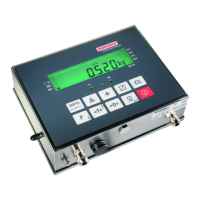
Single, multiple or all keys can be locked on the keyboard.
Lock keys
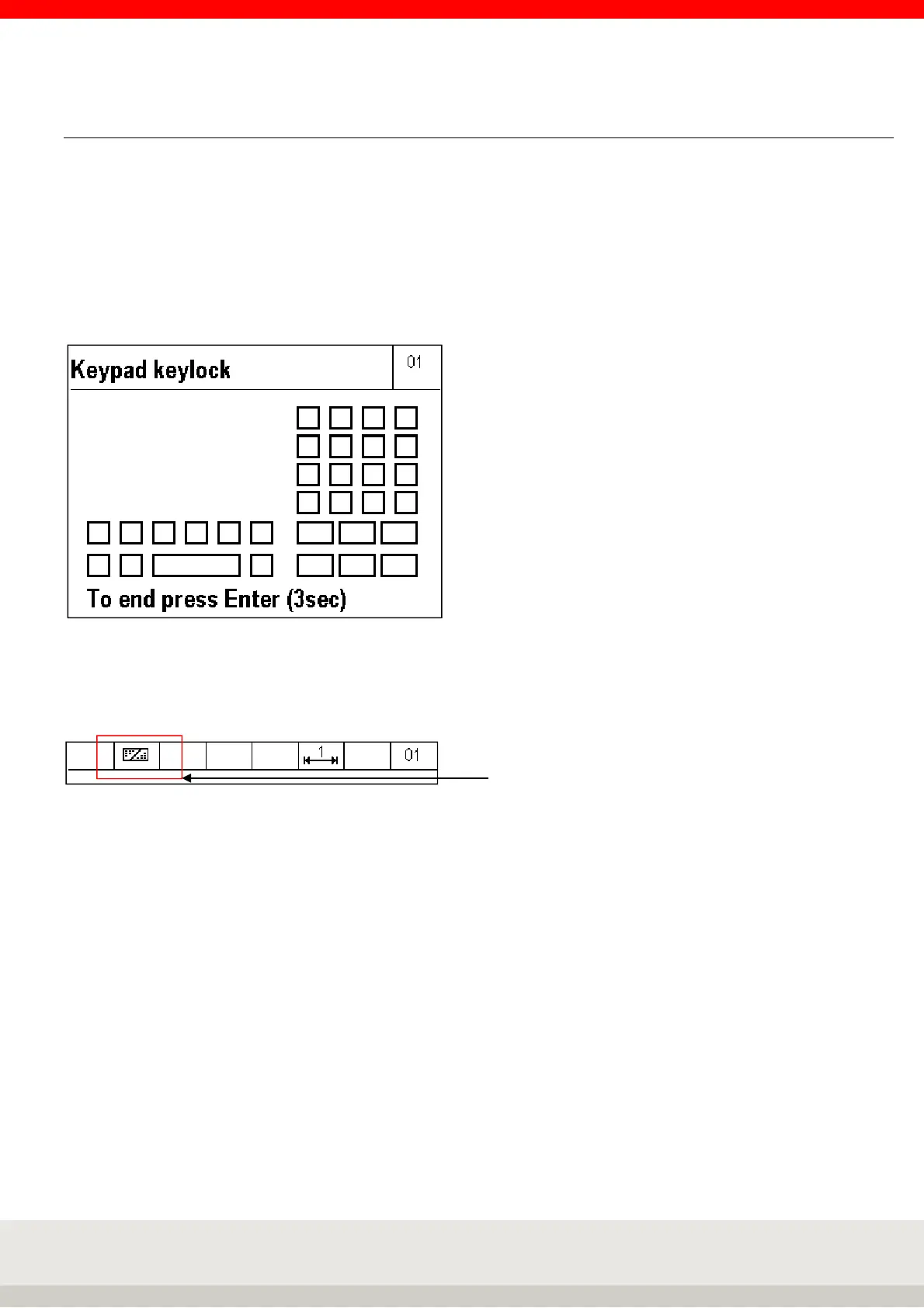
Call up Terminal / Keypad / Keypad keylock in the setting mode.
The keyboard is shown schematically in the display. By pressing the key, the status of the key can now be
changed from open to locked and vice versa.
Display view keylock
Locked keys are marked with a cross in the display.
Accept and activate the lock by pressing the Enter key for 3 seconds.
The locked keys are now deactivated, the symbol for key lock appears in the toolbar.
The key lock remains even after switching off.
Cancel key lock
Call up Terminal / Keypad / Keypad keylock in the setting mode.
The keyboard is shown schematically in the display. Locked keys are marked with a cross in the display. By
pressing the key, the status of the key can be changed from locked to open and vice versa.
Accept and activate the change by pressing the Enter key for 3 seconds.
If no more keys are locked, the symbol for key lock disappears from the toolbar.
Note: If access to the setting mode is no longer possible by locking keys, this access can be restored by
pressing the F1 and F6 key combinations for 5 seconds. However, this does not release the key lock, but only
temporarily overrides it for access to the setting mode. After leaving the setting mode, the keypad lock is
reactivated.



 To Next Page