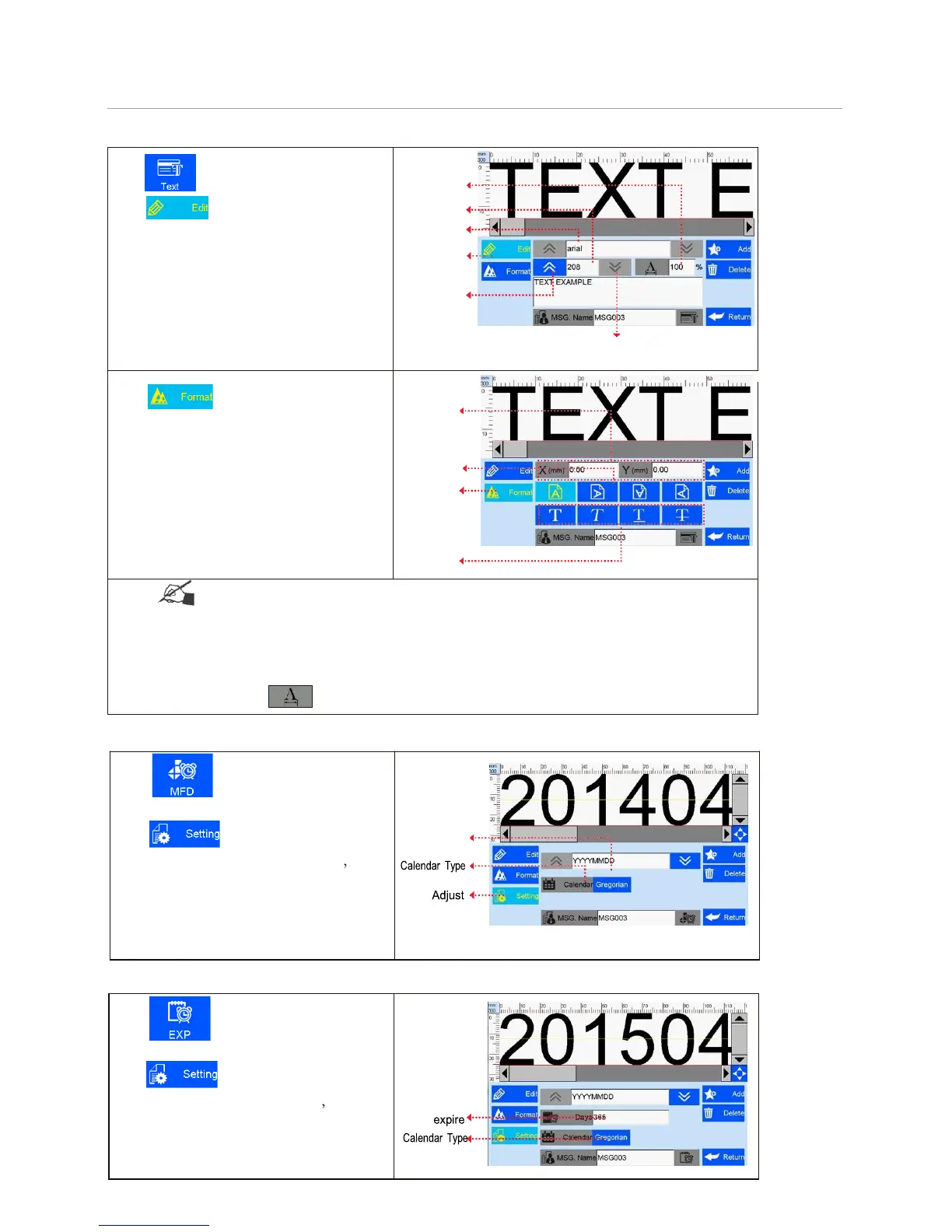
Click to add text object, see Figure 9.
Click to enter text editing interface:
A. Font: including the default one, totally
support 2 fonts at same time, the default
one and one alternative font.
B. 16-208( adjust freely within the scope
of 1-12.7mm);
C. Text horizontal scale: 1-300%;
Vertical scale up and
location down
Click to enter text adjustment
interface.
E. Coordinate location: adjustable range for
X axis 0-3000mm; for Y axis, 0-12.7mm.
F. Text orientation: 0°, 90°, 180°, 270°.
Four orientations adjustable.
G. Font effects: bold, italy, underline,
strikeout, four effects adjustable.
Coordinate
position
Orientation
Adjust
Font effect
Note: Please refer to this Section (Section 5.3.2) regarding how to add objects as “production
date”, “expiration date”, ”image”, ”counter”, ”shift code”,"dynamical text""dynamical logo", but the
content of “production date”, “expiration date”, ”counter”, ”shift code”, "dynamical text", "dynamical
logo" cannot be revised or adjusted directly when you add, and the font, height, content and font
effect of “image” "dynamical logo" cannot be revised directly. There is no option of horizontal scale “
” for “image” “barcode”, "dynamical logo".
5.3.3 Add Production Date
5.3.4 Add Expiration Date
17
to add object “production
to enter date format setting,
choose a format by arrow up and down
Gregorian and Hijri available.
to add object of expiration
to enter date format setting
and days to expire (scope: 0~9999)
Gregorian and Hijri available.


 To Next Page