26
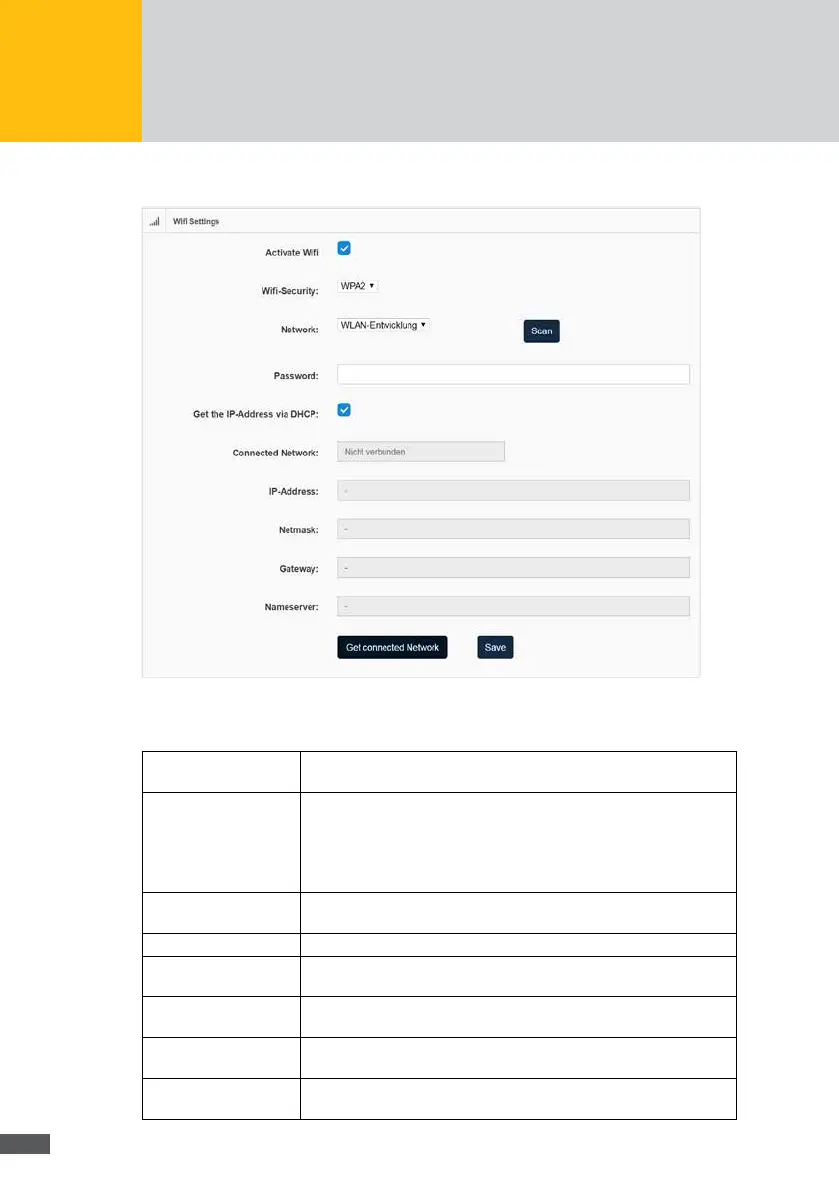
Wifi settings
Fig. 12: Menu: WLAN setting
Activate Wi: Tick this option if you want to transmit the data of the MaxWeb XPN
via WLAN.
Wi-Security: Select the security key for your WLAN connection in this menu. You
can choose between the following security keys:
WPA
WPA2
WEP
Network: Click on the Scan button to nd nearby WLAN networks. Then select the
WLAN network you want to connect the device to.
Password: Enter here the password for the selected WLAN network.
Get the IP address via
DHCP
Tick this option if you want to obtain the IP address of the
MaxWeb XPN automatically from the DHCP server.
Connected Network Click on the Get connected Network button to show the WLAN status in
the adjacent data eld.
IP-Address: Enter here a static IP address for your MaxWeb XPN to enable a
connection to the Internet.
Net mask: The default net mask is 255.255.255.0. In this eld, you can change
the net mask manually.


 To Next Page