36
b Notes
• To turn off the TV Direct Rec. function, set
“SMARTLINK” to “Pass Through” in the
“Options” setup (page 132).
• Some buttons, such as the TITLE LIST button or
H button, do not work when “TV” appears in
the front panel display.
• If you press the [/1 button while recording, the
recorder stops recording and turns off.
• After pressing the z REC button, it may take a
short while to start recording.
• It may take a short while for recorder to stop or
pause recording.
• You cannot change the recording mode while
recording.
• Programmes are recorded in the original aspect
ratio when recording to the HDD (when “HDD
Recording Format” is set to “Video Mode Off”
in the “Recording” setup (page 128))/DVD-
RWs/DVD-Rs (VR mode).
• When recording to DVD-R DLs (Video mode),
the title is divided when the layer switches.
• If there is a power failure, the programme you
are recording may be erased.
• You cannot watch a PAY-TV/Canal Plus
programme while recording another PAY-TV/
Canal Plus programme.
• To use the TV Direct Rec. function, you must
first correctly set the recorder’s clock.
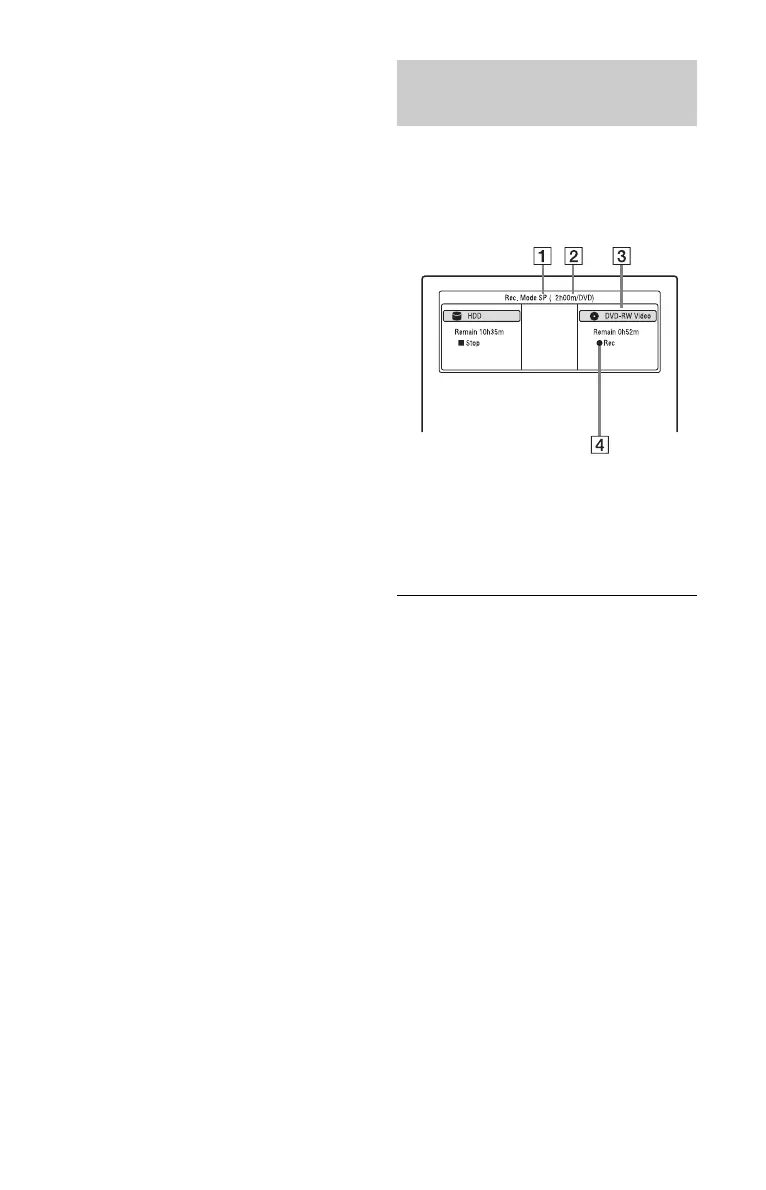
You can check the recording information
such as recording time or disc type.
Press DISPLAY during recording.
The recording information appears.
A Recording mode
B Recording time
C Disc type/format
D Recording status
To turn off the display
Press DISPLAY repeatedly.
Checking the disc status while
recording



 To Next Page