Viewing the recording on TV
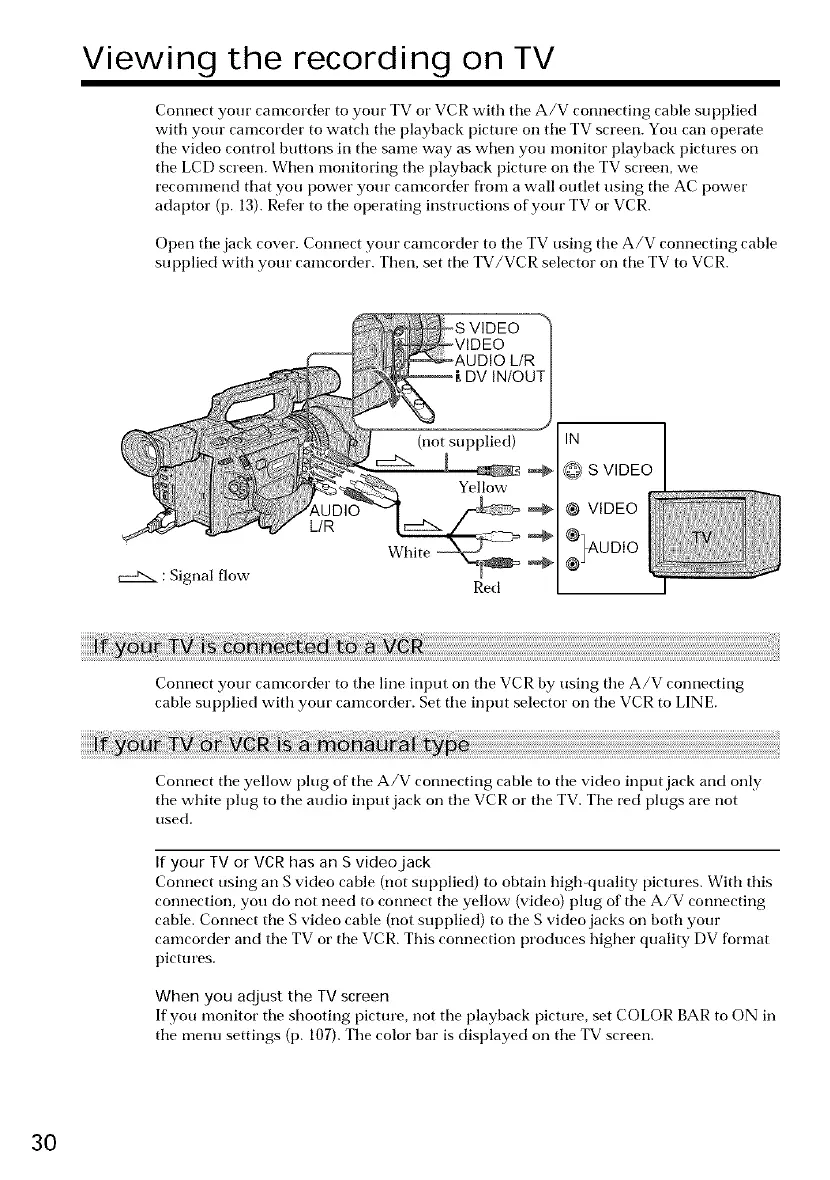
Connect your camcorder to your TV or VCR with the A/V connecting cable supplied
with your camcorder to watch tile playback picture on tile TV screen. You carl operate
tile video control buttons in tile same way as when you monitor playback pictures on
tile LCD screen. When monitoring tile playback picture on tile TV screen, we
recommend that you power your camcorder fl'om a wall outlet using tile AC power
adaptor (p. 13). Refer to tile operating instructions of your TV or VCR.
Open tile jack cover. Connect your camcorder to tile TV using tile A/V connecting cable
supplied with your camcorder. Then, set tile TV/VCR selector on tile TV to VCR.
:Signal flow
L/R
IN
@ S VIDEO
Connect your camcorder to tile line input on tile VCR by using tile A/V connecting
cable supplied with your camcorder. Set tile input selector on the VCR to LINE.
Connect tile yellow plug of tile A/V connecting cable to tile video input jack and only
tile white plug to tile audio input jack on tile VCR or tile TV. Tile red plugs are not
used.
If your TV or VCR has an S video jack
Connect using art S video cable (not supplied) to obtain high-quality pictures. With dlis
connection, you do not need to connect tile yellow (video) plug of the A/V connecting
cable. Connect tile S vkteo cable (not supplied) to the S video jacks on both your
camcorder and the TV or tile VCR. This connection produces higher quality DV format
pictures.
When you adjust the TVscreen
If you monitor tile shooting picture, not tile playback picture, set COLOR BAR to ON in
tile menu settings (p. 107). Tile color bar is displayed on tile TV screen.
30




 To Next Page