I
USB d
Before connecting your camera to your personal computer, install the USB driver to
the computer. The USB driver is included with the application software in the CD-
ROM which is supplied with your camera.
Be sure to complete installation of the USB driver before connecting the
USB cable. If you connect the USB cable first, you will be unable to
install the USB driver properly.
See page 93 for corrective measures if the USB cable was connected before installing
the driver and the driver software could not be installed correctly.
For Windows 99/99SE/Me and Windows 2090 users
v
0 Turn on your personal computer and allow Windows to load.
‘0
Do not connect the USB cable in this step.
F
-z
m
0 Insert the supplied CD-ROM in the CD-ROM drive of your personal g
computer.
x
The application software screen appears.
0 Click “USB Driver Installation for Windows 98/98SE&le and
Windows 2000”.
USB driver installation starts.
0 Follow the on-screen messages to install the USB driver.
Your personal computer may restart.
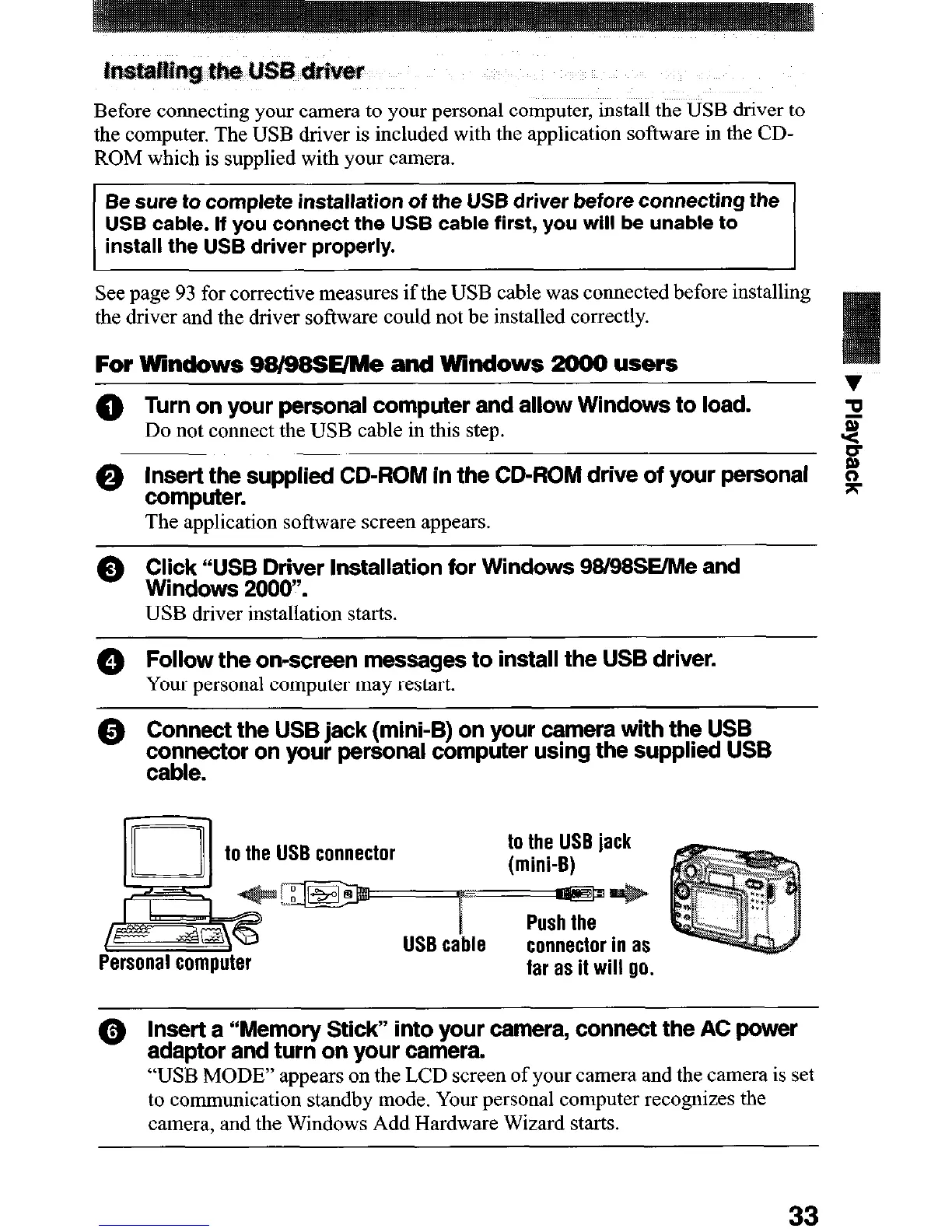
@ Connect the USB jack (mini-B) on your camera with the USB
cog”,“‘“’ on your personal computer usmg the suppked USB
to the US6 connector
far as it will go.
0 Insert a “Memory Stick” into your camera, connect the AC power
adaptor and turn on your camera.
“USB MODE” appears on the LCD screen of your camera and the camera is set
to communication standby mode. Your personal computer recognizes the
camera, and the Windows Add Hardware Wizard starts.
33






 To Next Page