Dividing a moving
image file (DIVIDE)
Mode dial: I@
You can divide moving images
recorded in MPEG MOVIE mode. This
is convenient when there is not enough
space on a “Memory Stick” or when
attaching moving images to e-mails.
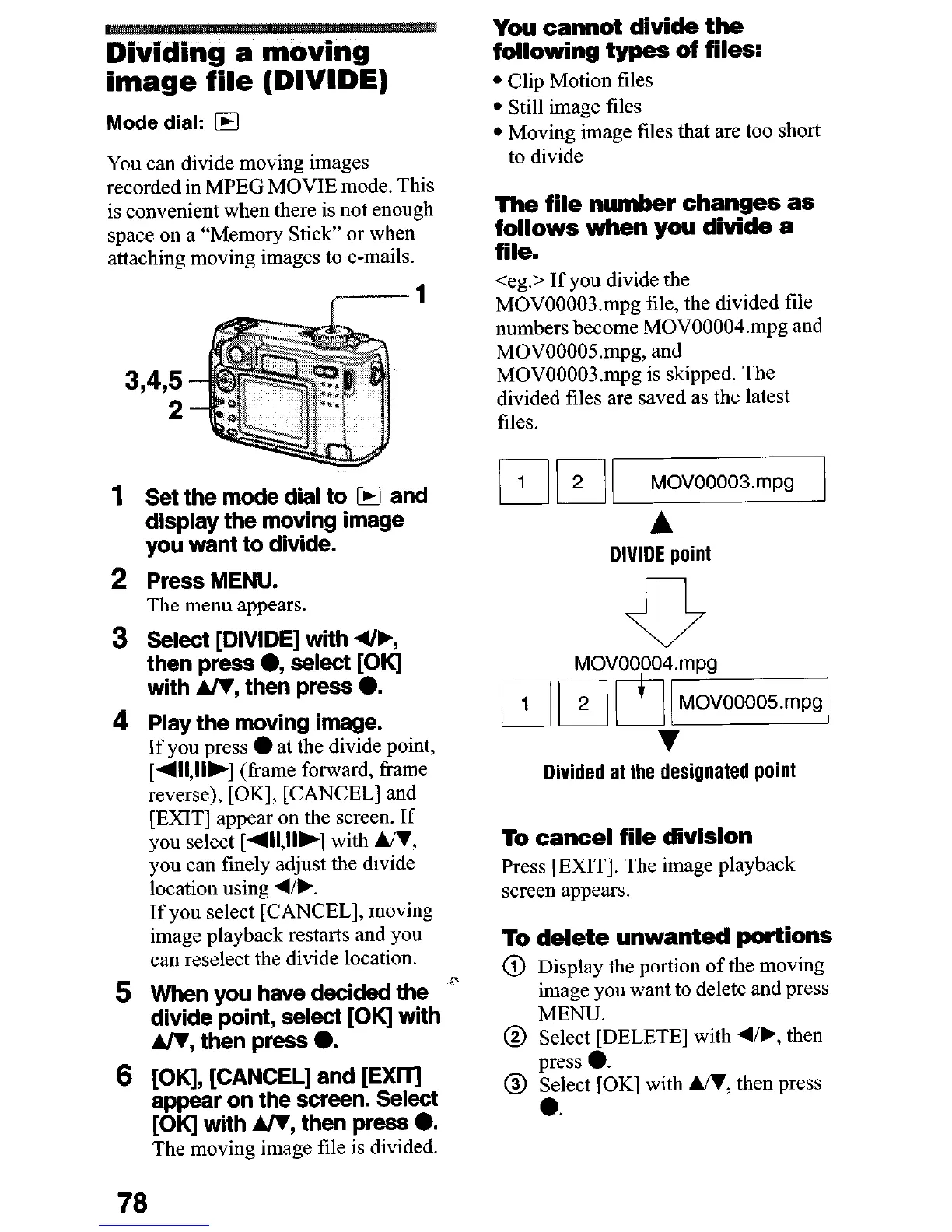
1
2
3
4
5
6
Set the mode dial to H and
display the moving image
you want to divide.
Press MENU.
The menu appears.
Select [DIVIDE] with 4/b,
then press 0, select [OK]
with A/V, then press 0.
Play the moving image.
If you press
l
at the divide point,
[4l,llb] (frame forward, frame
reverse), [OK], [CANCEL] and
[EXIT] appear on the screen. If
you select [4ll,llb] with WI,
you can finely adjust the divide
location using 41,.
If you select [CANCEL], moving
image playback restarts and you
can reselect the divide location.
When you have decided the
”
divide point, select [OK] with
A/V, then press 0.
[OK], [CANCEL] and [EXIT]
appear on the screen. Select
[OK] with A/V, then press 0.
The moving image file is divided.
You cannot divide the
following types of files:
l
Clip Motion files
l
Still image files
l
Moving image tiles that are too short
to divide
The file number changes as
follows when you divide a
file.
<eg.> If you divide the
MOV00003.mpg tile, the divided tile
numbers become MOV00004.mpg and
MOV00005,mpg, and
MOV00003.mpg is skipped. The
divided files are saved as the latest
tiles.
v
Divided at the designated point
To cancel file division
Press [EXIT]. The image playback
screen appears.
To delete unwanted portions
@ Display the portion of the moving
image you want to delete and press
MENU.
@ Select [DELETE] with d/b, then
@ FyGK] with UT, then press
78






 To Next Page