28
3 Set ON/OFF of the “Position”.
1 Press U u of the 5 Direction JOG to
select “Position:” and press i (VOL)
to confirm.
The setting of the “Position” (ON/
OFF) appears in [ ].
2 Press U u of the 5 Direction JOG to
select “ON” or “OFF” and press
i (VOL) to confirm.
The display returns to the screen of
step 2.
4 Set ON/OFF of the “Track Info”,
“Clock”, “Fruits”, “Sky”, and
“Water” following the same as
steps 2 and 3.
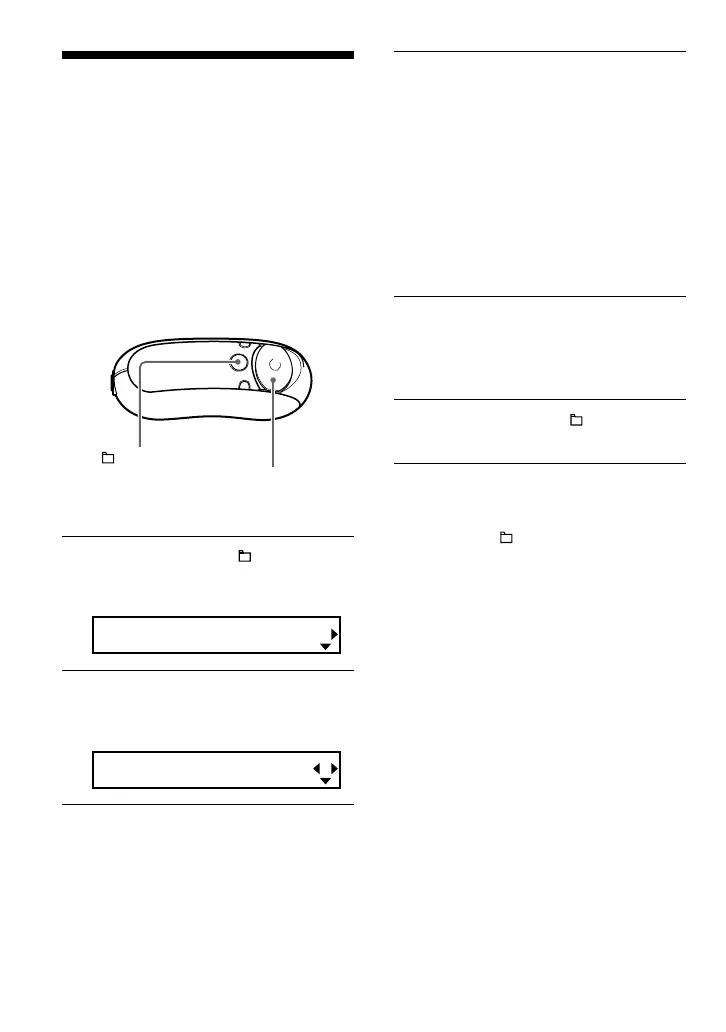
5 Press and hold the /MENU
button until the screen changes.
To cancel operating the menu screen
Press and hold the /MENU button until the
screen changes.
Changing display mode
Selecting the display types
(Display Screen)
You can select whether or not to use each of
the 6 display types: “Position”, “Track Info”,
“Clock”, “Fruits”, “Sky”, and “Water” by
pressing the DISP/FM button (NW-E303/
E305/E307), or DISP button (NW-E205/
E207).
You can only view the screen which is set to
“ON” in the “Display Screen” menu.
1 Press and hold the /MENU
button until the following menu
screen appears.
Search
2 Press U u of the 5 Direction JOG
to select “Display Screen” and
press i (VOL) to confirm.
Position:ON
5 Direction JOG
/MENU
button


 To Next Page