Operating Instructions
Using the Video Menu
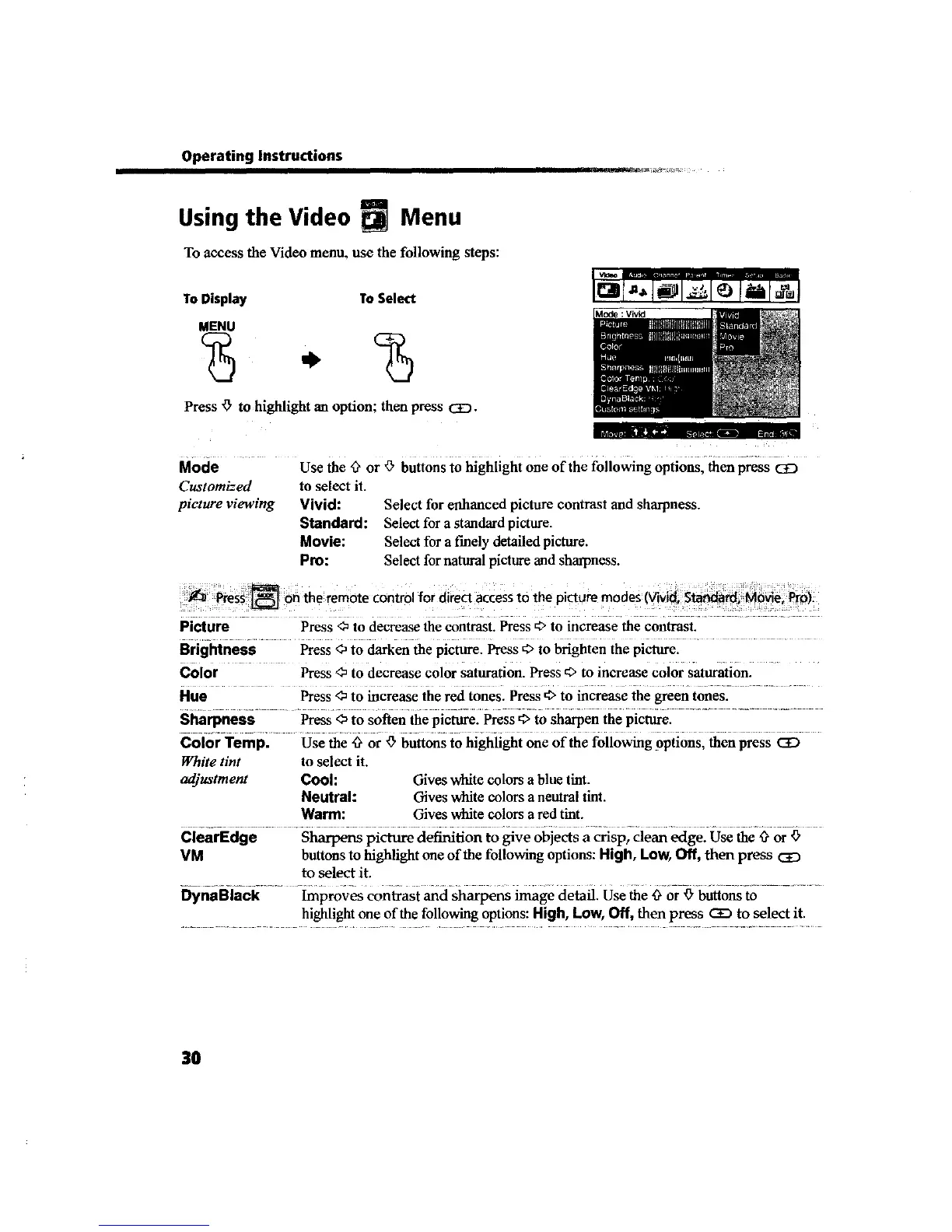
To access the Video menu, use the following steps:
ToDisplay ToSelect
MENU
% . %
Press ,7' to highlight an option; then press CaD.
Mode ........ Use the '_ or _ buttons to highiighi Oneof the foilo_ng Options' _ press _
Select for enhanced picture contrast and sharpness.
Select for a standard picture.
Select for a f'mely detailed picture.
Select fornatural picture and sharpness.
Customized to select it.
picture viewing Vivid:
Standard:
Movie:
Pro:
_ Press:[] bn the remote Controlfor diiect accesstOthe picture modes(ViVid,Sta_, M_ie_ _roii
Pi_ure ....... Press <_to decrease the contrast. Press _ to increase the contrast. ...........
Brightness Press <_to darken the picture. Press €, to brighten the picture.
Color ...... Press <_to decrease color saturation. Press €, to increase color saturation.
..... Press ,_ to increase the red tones. Press €. to increase the green tones_............
Hue
Sharpness Press ,0 to soften the picture. Press €' to sharpen the picture.
Color Temp. Use the '_ or '_'buttons to highlight one of the following optinns, then press CE:)
White tint to select it.
adjustment Cool: Gives white colors a blue tint.
Neutral: Gives white colors a neutral tint.
Warm: Gives white colors a red tint.
ClearEdge Sharpens picture definition to give objects a crisp, dean edge. Use the 'ffor _"
VM buttons to highlight one of the following options: High, Low, Off, then press CE)
to select it.
DynaBlack Improves conlrast and sharpens image detail. Use the '_ or '_'buttons to
highlight one of the following options: High, Low, Off, then press QD to select it.
3O





 To Next Page