— 33 —
35
Playing MDs
If you entered the wrong track number
Press m repeatedly until the wrong track number
appears and turn AMS (or press ./> ) to enter a
correct track number. Press CLEAR to erase the track
order so that the track order is moved up.
To enter a track number over 26
Use >25. For details, see page 29.
4
Repeat step 3 to store the track you want to access.
5
Press YES.
“Complete!” appears and the track order and track
number to be stored are completed.
6
Turn AMS (or press ./> repeatedly) to select
“Play Mode” of “Setup Menu” then press AMS or
YES.
7
Turn AMS (or press ./> repeatedly) to select
“M.Access” then press AMS or YES. (Press
M.ACCESS after step 5 for the remote.)
“M.Access” and “1” (Single Play) light up and
“Memorizing” (during recording) flashes, then the
normal screen is returned.
Memorizing
M.ACCESS
1
Note
If the MD is inserted when Multi-access Play is selected,
“Memorizing” flashes and track numbers 1 to 10 in the
track order are recorded and programmed automatically.
To stop “Memorizing”
Press x (stop) when “Memorizing” is flashing.
“Memorizing” stops and “Play Mode” returns to normal
play (CONTINUE).
Multi-access play Z
Press the Number buttons on the remote you want to play
the track order.
z
To play by the recorder
Turn AMS to select the track order, then press AMS.
To resume normal play
While the recorder is stopped, press CONTINUE on the
remote. “M.Access” and “1” at the display window turn
off.
z
The program is stored until the MD is ejected
If the play is stopped or Play Mode is changed and
“M.Access” turns off, the program is stored. If the
multi-access is selected again, “Memorizing” flashes
and the entered program is stored in memory.
Notes
• If the MD is ejected, the program will be lost.
•“ProgramFull” appears when you try to program 11 th
track.
• The set program will be lost when you try record or edit
operation.
Checking the program
1
While the recorder is stopped, press MENU/NO
twice.
“Setup Menu” appears in the display.
2
Turn AMS (or press ./> repeatedly) to select
“M.Access?” then press AMS or YES.
3
Press m/M repeatedly for checking.
4
Press MENU/NO to return normal display.
Changing the contents of the program
Do steps 1 to 2 of “Checking the program” and follow the
procedures below.
To Do the following:
Erase a track Press m/M repeatedly until the
number of the unwanted track
appears, then press CLEAR.
Erase all tracks Press CLEAR repeatedly until all the
track numbers disappear.
Add a track to the Press M repeatedly until the track
end of the program order in which “0” flashes, then do
step 3 of “Programming access play
tracks” on page 34.
If 10 tracks are programmed,
“ProgramFull” appears and no
addition is made.
Replace a track Press m/M repeatedly until the
changed track order appears, then do
step 3 of “Programming access play
tracks” on page 34.
36
Playing MDs
Setting Play Start Position
After Play Is Stopped
(Resume Play)
After play is stopped by pressing STOP, you can set play
start position when play starts.
1
While the recorder is stopped, press MENU/NO
twice.
“Setup Menu” appears in the display.
2
Turn AMS (or press ./> repeatedly) to select
“Resume Mode,” then press AMS or YES.
3
Turn AMS (or press ./> repeatedly) to select
from the following three edit modes:
Resume Off: No resume play is performed.
Resume Play: Play starts from the position of previous
stop.
Resume Next: Play starts from the beginning of the
next track of the previously stopped
track.
Press AMS or YES.
4
Press MENU/NO.
Note
Resume Play becomes OFF forcibly and does not work
during Shuffle Play or Multi-access Play.
If you use Resume Play again, reset by the above
procedure.
Returning to the Specified
Point (Locate Play)
You can repeatedly locate the desired setting point.
MENU / NO
YES
LOCATE
AMS
(MARK)
To mark the desired point (MARK)
The following two ways can be used to determine the
point.
1 Press AMS (MARK) during play.
The play time when AMS is pressed is determined the
specified point. ”MARK” lights up at the display
window.
2 4m09s
- MARK -
Tr
2
Specify numeric directly for the track number and
play time to set the point.
1 While the recorder is stopped, press MENU/NO
twice.
“Setup Menu” appears in the display.
2 Turn AMS (or press ./> repeatedly) to select
“Direct Mark”, then press AMS or YES.
3 Turn AMS to display the track number to be
located , then turn AMS.
00f
2 0m00s
Tr
4 Similarly with step 3, set minutes, seconds, and
frames in order to locate a point.
“Complete!” appears and “Mark” lights up at the
display window, then normal display is returned.
You can slide a position for each frame* (f) (1 frame =
1/86 seconds).
* Monaural or LP2 stereo tracks move two frames at
a time, LP4 stereo tracks move four frames at a
time.
To set quickly, press m/M repeatedly in step 4.
Change units advanced when AMS is turned (or
m/M is pressed) to frames, seconds, or minutes.
37
Playing MDs
Fine adjusting the marked point
(Rehearsal)
You can fine adjust the determined point while monitoring
the sound of play.
1 While the recorder is stopped, press MENU/NO
twice.
“Setup Menu” appears in the display.
2 Turn AMS (or press ./> repeatedly) to select
“Mark Rehear”, then press AMS or YES.
“-Rehearsal-” flashes and play is repeated for several
seconds from the already determined point.
3m43s04f
-Rehearsal-
3
Turn AMS (or press ./> repeatedly) to move
the location of a track.
You can slide a position for each frame* (f) (1 frame =
1/86 seconds).
* Moraural or LP2 stereo tracks move two frames at a
time, LP4 stereo tracks move four frames at a time.
To set quickly, press m/M repeatedly in step 4.
Change units advanced when AMS is turned (or ./
> is pressed) to frames, seconds, or minutes.
4
After the point is determined, press AMS or YES.
“Complete” appears and normal display is returned.
Notes
• If the point (MARK) is not determined, “Mark Rehear”
of “Setup Menu” does not appear.
• Adjustment of the point in Rehearsal cannot be moved
over the track.
To locate the marked point
When LOCATE is pressed, play pauses in the determined
marked point. You can start playing again from the same
location.
Notes
• When one of the following operations is performed,
Mark is released. To play Locate, set Mark again.
· Eject the disc.
· Perform Edit Menu.
· Record.
• During the programmed play, if the LOCATE is pressed
though the Track in which the marked point is not
included to the playing program, “No Program” is
displayed.
• Locate does not function during shuffle Play and Multi-
access Play.
Pausing After Each Track
(Auto Pause)
You can set the MD recorder so that it pauses
automatically at the beginning of the next track after play
back of each track. This is convenient to record one track
only or several uncontinuous tracks.
12345
678910
11 12 13 14 15
16 17 18 19 20
21 22 23 24 25
M.ACCESS
CONTINUE SHUFFLE PROGRAM
NAME CHAR
RM-DR1J
NUM
>
25
AUTO CUE
A.CUE
A.PAUSE
Press AUTO CUE repeatedly until “A.PAUSE” appears at
the display window. (Or press A.CUE/A.PAUSE.)
To stop Auto Pause
Press AUTO CUE repeatedly until “A.PAUSE” at the
display window disappears. (Or press A.CUE/A.PAUSE.)
38
Playing MDs
Making Track Play Start
Soon (Auto Cue)
You can skip the portion from the beginning of a track to
actual sound playing start. This is convenient to add a
sound during video editing (postrecording).
12345
678910
11 12 13 14 15
16 17 18 19 20
21 22 23 24 25
M.ACCESS
CONTINUE SHUFFLE PROGRAM
NAME CHAR
RM-DR1J
NUM
>
25
1
Press AUTO CUE repeatedly until “A.CUE” lights up
at the display window. (Or press A.CUE/A.PAUSE.)
2
When you turn AMS to select a track number in
which you want to start playing soon, then press
AMS (or press Number buttons), the recorder
searches the first portion where the sound of the
track is made and play pauses.
3
When 7 is pressed, play starts instantaneously.
To stop Auto Cue
Press AUTO CUE until “A.CUE” at the display window
disappears. (Or press A.CUE/A.PAUSE.)
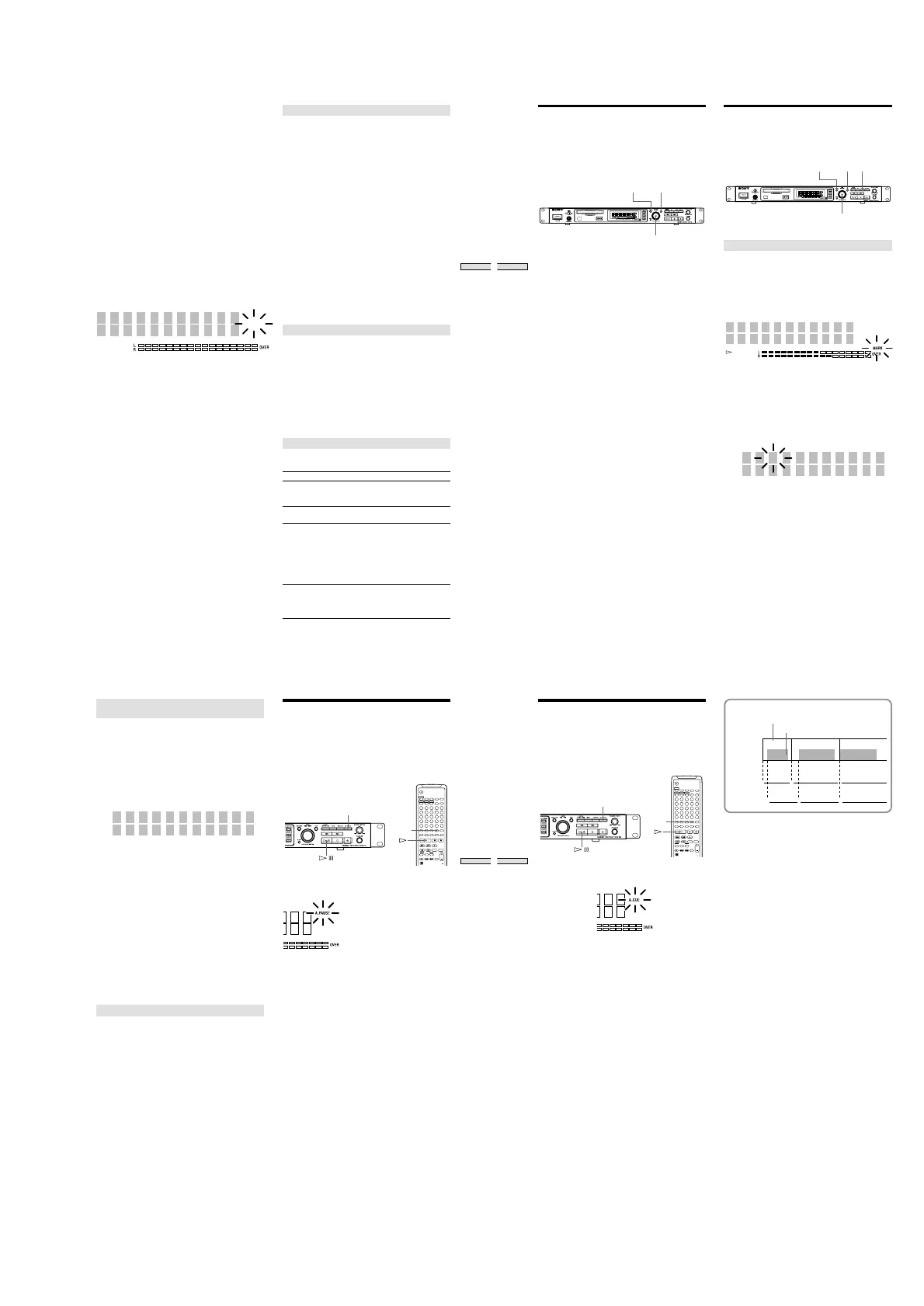
Auto Pause and Auto Cue
PP P
PP P
Portion of sound
Portion of track
First track
Second track Third track
Auto Pause
Auto Cue
z You can select the level (threshold level) of a sound in the
Auto Cue position
The recorder finds the first point to which a sound of
_72dB or more is output from the beginning of a track and
play pauses.
You can select the level of a sound at the pause point
among 5 levels (_72 dB, _68 dB, _60 dB, _54 dB, and _48
dB).
1 While the recorder is stopped, press MENU/NO twice.
“Setup Menu” appears in the display.
2 Turn AMS (or press ./> repeatedly) until “A.Cue
Level” appears, then press AMS or YES.
3 Turn AMS (or press ./> repeatedly) until the
level to be set appears, then press AMS or YES.
4 Press MENU/NO.
z
You can slide the stop position by Auto Cue to make the room
of the start portion and adjust a slight gap.
1 While the recorder is stopped, press MENU/NO twice.
“Setup Menu” appears in the display.
2 Turn AMS (or press ./> repeatedly) to select
“A.Cue Offset”, then press AMS or YES.
3 Turn AMS (or press ./> repeatedly) to select a
set value to slide within 1 second (86 frames), then
press AMS or YES.
4 Press MENU/NO.
Notes
• You cannot slide over the track number.
• You can slide each frame. Sliding is made to the position
of frames with a multiple of 2 for monaural or stereo-
recorded tracks and with a multiple of 4 for LP4 stereo-
recorded tracks. Fractions are omitted.


 To Next Page
 Loading...