— 35 —
43
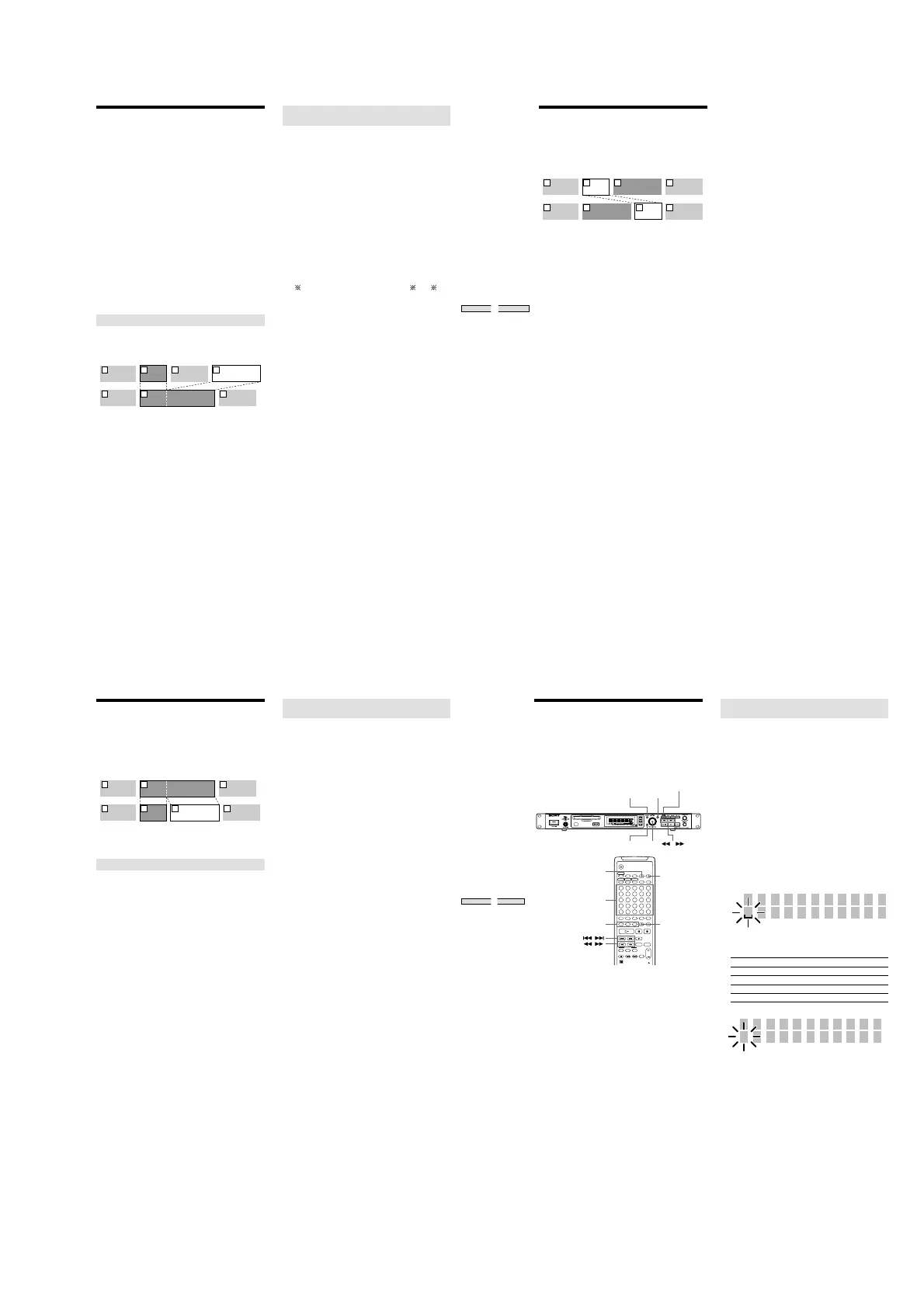
Editing Recorded MDs
Combining Tracks
(COMBINE)
This allows you to combine any two tracks into a single
track. The two tracks do not have to be consecutive to be
combined. Tracks from the end of the track order can be
combined with those in the front. Several independently
selected portions of tracks can be combined into a single
track. When two tracks are combined, the tracks are
reordered and unneeded track numbers are deleted.
Notes
• Only tracks of the same recording mode (stereo,
monoural, LP2 stereo, or LP4 stereo) can be combined.
• If “Impossible” appears in the display, the tracks can’t be
combined because repeated editing has been done to the
track(s). This is a technical limitation of the MD system,
and is not a mechanical error.
• It is impossible to use the “Undo?” function when
combining multiple tracks, so make sure to be careful
before completing the combination.
Combining two tracks (COMBINE)
Example: combining the second track and fourth
track
AAA BBB
BBB
DDD
CCC
1 2 3
AAA BBB DDDCCC
1 2 43
The track name of the first track becomes the name of the
combined track.
1
Press MENU/NO while the recorder is stopped,
playing, or paused.
“Edit Menu” appears in the display.
2
Turn AMS (or press ./> repeatedly) until
“Combine?” appears in the display; press AMS or
YES.
3
Turn AMS (or press ./> repeatedly) until the
number of the first track of the two to be combined
appears, then press AMS or YES.
The display for selecting the second track appears and
the recorder repeatedly plays the portion where joining
will occur (several seconds of the end of the first track
and the beginning of the track following it).
4
Turn AMS (or press ./> repeatedly) until the
number of the second track of the two to be
combined appears, then press AMS or YES.
“Complete!” appears for a few seconds, and the tracks
are combined. The recorder begins to play the
combined track.
To cancel the operation
Press MENU/NO or x.
Combining consecutive tracks (Multi track
combine)
Multiple consecutive tracks are combined.
The track name of the first track becomes the name of the
combined track.
1
Press MENU/NO while the recorder is stopped,
playing, or paused.
“Edit Menu” appears in the display.
2
Turn AMS (or press ./> repeatedly) until “M-Tr
Combin?” appears in the display; press AMS or YES.
3
Turn AMS (or press ./> repeatedly) until the
number of the first track to be combined appears,
then press AMS or YES.
The display for selecting the second track appears.
4
Turn AMS (or press ./> repeatedly) until the
number of the final track to be combined appears,
then press AMS or YES.
“M-Tr Com OK?” appears with the numbers of the first
(
) and last (#) tracks also appearing as “ - #→ ”.
5
Press AMS or YES
“Complete!” appears for a few seconds, then the
display returns to normal.
44
Editing Recorded MDs
Moving Tracks (MOVE)
This function lets you change the order of any track
Example: Moving the second track after the third
track
AAA BBB CCC DDD
1 2 3 4
AAA BBBCCC DDD
1 32 4
After you move a track, the tracks are automatically
renumbered.
1
Press MENU/NO while the recorder is stopped,
playing, or paused.
“Edit Menu” appears in the display.
2
Turn AMS (or press ./> repeatedly) until
“Move?” appears in the display; press AMS or YES.
3
Turn AMS (or press ./> repeatedly) until the
number of the track to be moved appears, then
press AMS or YES.
4
Turn AMS (or press ./> repeatedly) until the
new track position appears, then press AMS or YES.
“Complete!” appears for a few seconds, and the track is
moved. The recorder begins playback of the moved
track.
To cancel the operation
Press MENU/NO or x.
45
Editing Recorded MDs
Dividing Tracks (DIVIDE)
This function allows you to divide recorded material that
has multiple tracks but only one track number, or to set a
new beginning point in the middle of a track.
Example: Dividing the second track
AAA
B1 B2
CCC
1 2 3
AAA
BBB
BBB
B1 B2
CCC
1 2 3 4
When you divide a track, the total number of tracks are
automatically increased by one and renumbered.
Dividing a track after selecting a track
1
Press MENU/NO while the recorder is stopped,
playing, or paused.
“Edit Menu” appears in the display.
2
Turn AMS (or press ./> repeatedly) until
“Divide?” appears in the display; press AMS or YES.
3
Turn AMS (or press ./> repeatedly) until the
number of the track you want to divide appears,
then press AMS or YES.
“-Rehearsal-” appears, press AMS or YES, and a few
seconds of the track from that point repeatedly play
back.
4
While monitoring the sound, turn AMS (or press
./> repeatedly) to locate the dividing point
The position is moved one frame* (f) at a time (one
frame = 1/86 sec.).
* Monaural tracks or tracks recorded in LP2 stereo
move two frames at a time; LP4 stereo tracks move
four frames at a time.
To quickly find a point
Press m/M repeatedly in step 4 to select the
position by frame, second, or minute. The selected unit
flashes in the display.
5
Repeat step 4 until you’ve located the proper
dividing point
6
Press AMS or YES.
“Complete!” appears for a few seconds, the track is
divided, and the recorder begins to playback the new
track. The new track is not given a new track name.
To cancel the operation
Press MENU/NO or x.
z
You can divide tracks while recording.
For details, see “Marking Track Numbers While
Recording” on page 23.
Dividing a track after selecting the
dividing point
1
While the recorder is playing, press (7) at the
point where you want to divide the track
2
Press MENU/NO.
“Edit Menu” appears in the display.
3
Turn AMS (or press ./> repeatedly) until
“Divide?” appears in the display; press AMS or YES.
4
If needed, refer to step 4 of “Dividing a track after
selecting a track” on page 45, and adjust the
position.
5
Press AMS or YES.
“Complete” appears for a few seconds, the track is
divided, and the recorder begins to play back the new
track. The new track is not given a new track name.
To cancel the operation
Press MENU/NO or x.
z
You can divide tracks while recording
For details, see “Marking Track Numbers While
Recording” on page 23.
46
Editing Recorded MDs
Naming a Track or MD
(NAME)
You can enter a name for a recorded MD, as well as for
individual tracks. Names can consist of uppercase and
lowercase letters, numbers and symbols. A total number of
1,700 characters can be stored for all names on the MD.
MENU / NO
LEVEL / DISPLAY / CHAR
YES
AMSCLEAR /
12345
678910
11 12 13 14 15
16 17 18 19 20
21 22 23 24 25
-
M.ACCESS
CONTINUE SHUFFLE PROGRAM
NAME CHAR
RM-DR1J
NUM
>
25
CLEAR
YES
NAME, CHAR, NUM
NENU / NO
LETTER/NUMBER
/
/
Notes
If you name a track while it is being recorded, be sure to
finish the naming operation before the track ends. If the
track ends before you finish, the entered character data
will be discarded and the tracks will remain unnamed.
Also, you can’t name tracks while the recorder is recording
over existing material.
Naming a Track or MD using the controls
on the recorder
1
Press MENU/NO while the recorder is stopped,
playing, or paused.
“Edit Menu” appears in the display.
2
Turn AMS until “Name?” appears in the display;
press AMS or YES.
3
Turn AMS until “Nm In?” appears, then press AMS
or YES.
When naming is being made during recording, the
cursor flashes and characters can be entered. Please
proceed to step 5.
4
Turn AMS until the track number (when naming a
track) to “Disc” (when naming the MD) flashes, then
press AMS or YES.
When the cursor flashes, characters can be entered. The
track number flashes, the track begins to play back
automatically so the track can be confirmed and the
track name entered.
Nm In Tr21
5
Press LEVEL/DISPLAY/CHAR repeatedly to select the
character type
To select Press repeatedly until
Uppercase letters “A” appears in the display
Lowercase letters “a” appears in the display
Numbers “0” appears in the display
Symbols* “
’
” appears in the display
*Symbols which can be used: ‘_/,.():!?&+<>_=”;#$%@
*
`
To enter a space
Press M while the cursor is flashing. However, the first
character of the name cannot be a space.


 To Next Page
 Loading...