— 39 —
59
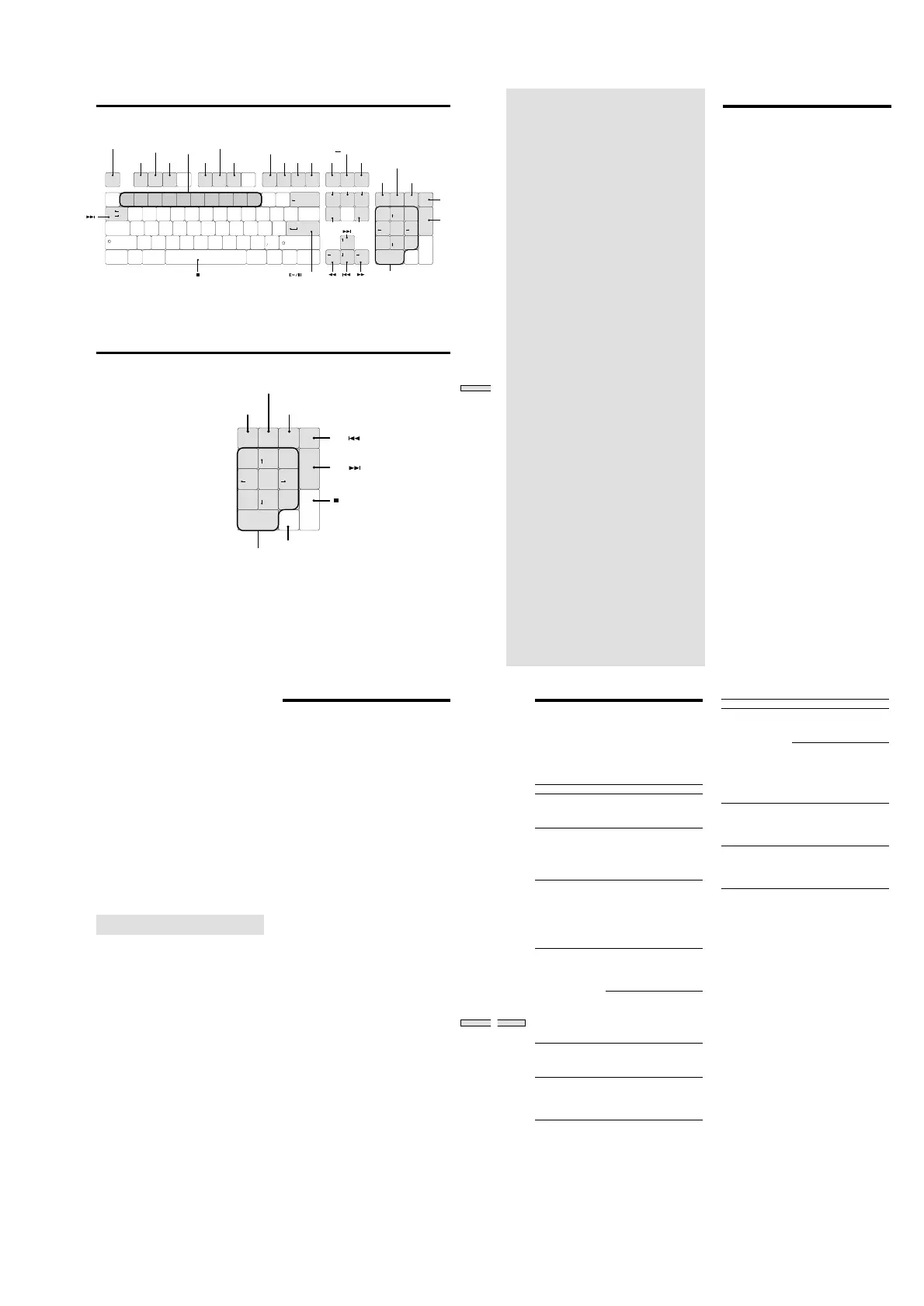
Operating the MD Recorder Using a Keyboard
Keyboard Operations (English Keyboard Layout)
Backspace
ASDFGHJ
K
L
:
"
!
1234567890
-
^
,
@# $% & '
(
)
=
+
|
QWERTY'U
I
OP
{
}
]
';
[
Tab
Caps Lock
ZXCVBNM
<
>
.
?
Shift
Ctrl CtrlAlt Alt
Shift
Enter
~
`
|
\
Esc F1 F2 F3 F4 F5 F6 F7 F8 F9 F10 F11 F12
Insert
Ins
Del
PgDn
PgUp
Enter
Home
/*–
+
Home
Page
Up
Num
Lock
789
456
1
0
23
Delete End
End
Page
Down
Print
Screen
Scroll
Lock
Pause
MENU/NO
A.CUE
A.PAUSE
PLAY MODE
Press the same number
as for the track number
to be played
For track numbers greater than 11
Naming a
track or MD
Divide a track
**
Press the same number as
for the track number to be played
press
0
for 10
Move a track
**
or YES
*
Erase a
track
***
Combine
tracks
**
TIMEVARI SPEED DISPLAY/CHAR
FADER UNDO EJECT REPEAT
MARK
CLEAR VARISREED-
VARISREED+
LOCATE
MUSIC SCAN
A B REPEAT
SCROLL
* .: [Shift] + [Tab]
Recz: [Shift]+[Enter]
MUSIC SYNC: [Ctrl]+[Enter]
** Effective only during track playback (or while choosing a track)
*** All tracks are erased at once when stopped.
While track is playing back (or during track selection), tracks are erased
one by one.
Keyboard Operations (10-Keyboard Layout)
Ins
Del
PgDn
PgUp
Enter
/*–
+
Home
Num
Lock
789
456
1
0
23
End
Press the same number as
for the track number to be played
press [0] for 10
Enter for track numbers over 11
YES
AMS( )
MENU/NO
AMS PUSH
(MARK/ENTER)
AMS( )
60
Additional
Information
This chapter provides additional
information that will help you understand
and maintain your MD recorder.
System Limitations
The recording system of your MD or Mini-disc recorder is
radically different from those use din cassette and DAT
recorders, and is characterized by the limitations described
below. Note, however, that these limitations are due to the
inherent nature of the MD recording system itself, and not
to mechanical causes.
“Disc Full” appears in the display even before the
MD has reached the maximum recording time
When too many tracks have been recorded in the MD,
“Disc Full” appears regardless of the total recorded time.
More than 256 tracks cannot be recorded on the MD. To
continue recording, erase unnecessary tracks or use a
second recordable MD.
“Disc Full” appears before the maximum number
of tracks or the maximum recording time has
been reached
Fluctuations in emphasis within tracks are sometimes
interpreted as track intervals, increasing the track count
and causing “Disc Full” to appear.
The remaining recording time does not increase
even after erasing a number of short tracks
Tracks under 12 seconds* in length (in stereo mode) are not
counted, so erasing them may not lead to an increase in
recording time.
* In stereo recording mode. For monaural and LP2 stereo the length is 24
seconds, for LP4 stereo it is 48 seconds.
The total recorded time and the remaining
recordable time on the MD may not total the
maximum recording time
Recording is in minimum units of 2 seconds* each (in
stereo mode), no matter how short the material. The
contents recorded may therefore be shorter than the
maximum recording capacity. Disc space may be further
reduced by scratches on the disc, which are automatically
deleted, further reducing time.
* In stereo recording mode. For monaural and LP2 stereo the length is 4
seconds, for LP4 stereo it is 8 seconds.
Limitations when recording over an existing track
• The correct remaining recordable time on the MD may
not be displayed.
• You may find it impossible to record over a track if that
track has already been recorded over several times. If
this happens, erase the track.
• The remaining recording time may be shortened out of
proportion to the total recorded time.
• Recording over a track to eliminate noise is not
recommended since this may shorten the duration of the
track.
• You may find it impossible to name a track while
recording over an existing track.
61
Additional Information
Tracks created by editing may exhibit sound
dropouts as you’re searching for a point while
monitoring the sound.
Some tracks cannot be combined with others
Tracks may not be combined if they have been edited.
Track numbers are not marked correctly
Incorrect assignment or marking of track numbers may
result when CD tracks are divided into several smaller
tracks during digital recording. Depending on the material
recorded, when “Track Mark” of the Setup Menu was set
to “Level Sync” and the track number automatically
assigned during recording, the track number may not have
been accurately assigned.
“TOC Reading” appears for a long time
If the inserted recordable MD is brand new, “TOC
Reading” will appear in the display for a longer period
than for already-used MDs.
The correct recorded/playing time may not be
displayed during playback of MDs recorded in
monaural mode.
Guide to the serial Copy Management
System
Digital audio components, such as CDs, MDs, and DATs,
make it easy to produce high-quality copies of music by
processing music as a digital signal.
To protect copyrighted music sources, this recorder uses
the Serial Copy Management System, which allows you to
make only a single copy of a digitally recorded source
through digital-to-digital connections.
You can make only a first-generation copy
1)
through a digital-to-digital connection.
Examples are as follows:
• You can make a copy of a commercially available digital
sound program (for example, a CD or MD), but you
cannot make a second copy from the first-generation
copy.
• You can make a copy of a digital signal from a digitally
recorded analog sound program (for example, an analog
record or a music cassette tape) or from a digital satellite
broadcast program, but you cannot make a secons copy
from the first-generation copy.
1) A first-genaration copy means the first recording of a digital audio
source through the recorder’s digital input connector. For example, if
you record from a CD player connected to the DIGITAL IN
connector, that copy is a first-generation copy.
Notes
The restrictions of the Serial Copy Management System do not
apply when you make a recording through the analog-to analog
connections.
Trouble shooting
Should you have trouble with your MD recorder, first
unplug the unit, then plug it back in and check It while
using this troubleshooting guide. Should the problem
persist, consult your nearest Sony dealer.
The recorder does not operate or operates poorly
/ The MD may be dirty or damaged. Replace the MD.
The recorder does not play
/ Moisture has formed inside the recorder/ Take the
MD out and leave the recorder in a warm place for
several hours until the moisture evaporates.
/ Be sure that the power is on.
/ The recorder may not be correctly connected to the
amplifier. Check the connection.
/ The MD is inserted in the wrong direction. Slide the
MD into the disc slot with the label side up and the
arrow pointing toward the slot.
/ The MD may not be recorded. Replace the disc with
one that has been recorded.
The sound has a lot of static
/ Move the recorder away from sources of strong
magnetism, such as televisions.
The recorder does not record
/ THe MD is record-protected. Slide the record-
protect tab to close the slot.
/ The recorder is not connected properly to the
program source. Check the connection.
/ Select the correct program source using INPUT.
/ The recording level is not adjusted properly. Adjust
the recording level.
/ A premastered MD is inserted. Replace it with a
recordable MD.
/ There is not enough time left on the MD. Replace it
with another recordable MD with fewer recorded
tracks, or erase unnecessary tracks.
/ There has been a power failure, or the AC power
cord has been disconnected during recording. Data
recorded to that point may be lost. Repeat the
recording procedure.
The recorder does not perform synchro recording
with a CD player
/ The remote supplied with the MD recorder is not
set correctly. Reset the remote.
The keyboard does note operate
/ Disconnect the keyboard, turn off power to the
recorder, and reconnect the keyboard.
The recorder begins playback or recording when
the power is turned on
/ “Timer” of the Setup Menu is set to “Play” or
“Rec.” Set “Timer” to “Off.”
When the suggested measures above do not solve the
problem, remove the power plug, then plug it back in
again.
62
Additional Information
Self-Diagnosis Function
The recorder’s self-diagnosis function automatically
checks the condition of the MD recorder when an error
occurs, then displays message. Refer to the table below to
perform the indicated countermeasure. If after two or three
attempts the problem persists, consult your nearest Sony
dealer.
Message (code) Cause/Remedy
Protected The inserted MD is record-
protected.
/ Take out the MD and close the
record-protect slot (page 19)
Cannot copy (C12) The external CD-ROM or video
CD player is playing back a disk
in a format that cannot be played
back.
/ Remove the disk and insert a
playable music CD
Cannot copy (C41) The sound source is a copy of a
commercial music software, or a
CD-R recorded CD.
/ Because of the serial copy
management system, the copy
cannot be made (see page 61).
Copies also cannot be made from
CD-Rs.
REC Error the recording was not made
properly.
/ Set the recorder on a stable
surface, and repeat the recording
procedure.
The inserted MD is dirty
(smudges, fingerprints, etc.),
scratched or substandard in
quality.
/Replace the MD and repeat the
recording procedure.
Read Error The recorder could not read the
information on the MD properly.
/ Eject the MD and insert it
again.
TOC Error The recorder could not read the
information on the MD properly.
/ Insert another MD.
/ If possible, erase all the tracks
on the MD (page 42).
Message (code) Cause/Remedy
Din Unlock The sporadic appearance of this
message is caused by the digital
signal being recorded. This will
not affect the recording.
While recording from a digital
source, the connection cable was
unplugged or the digital source
was turned off.
/ Reconnect the cable, or turn
the digital component’s power
back on.
MEMORY NG A problem occurred with the
internal information needed to
actuate the recorder.
/ Consult your nearest Sony
dealer.
LASER NG A problem has occurred with the
laser pickup.
/ There is the possibility that a
malfunction has occurred.
Consult your nearest Sony dealer.


 To Next Page
 Loading...