1-14
DVP-NS975V
59
Enjoying Movies
Adjusting the Playback
Picture
(CUSTOM PICTURE MODE)
You can adjust the video signal of the DVD,
VIDEO CD, or DATA CD in JPEG format
from the player to obtain the picture quality
you want. Choose the setting that best suits
the program you are watching. When you
select “MEMORY,” you can make further
adjustments to each element of the picture
(color, brightness, etc.).
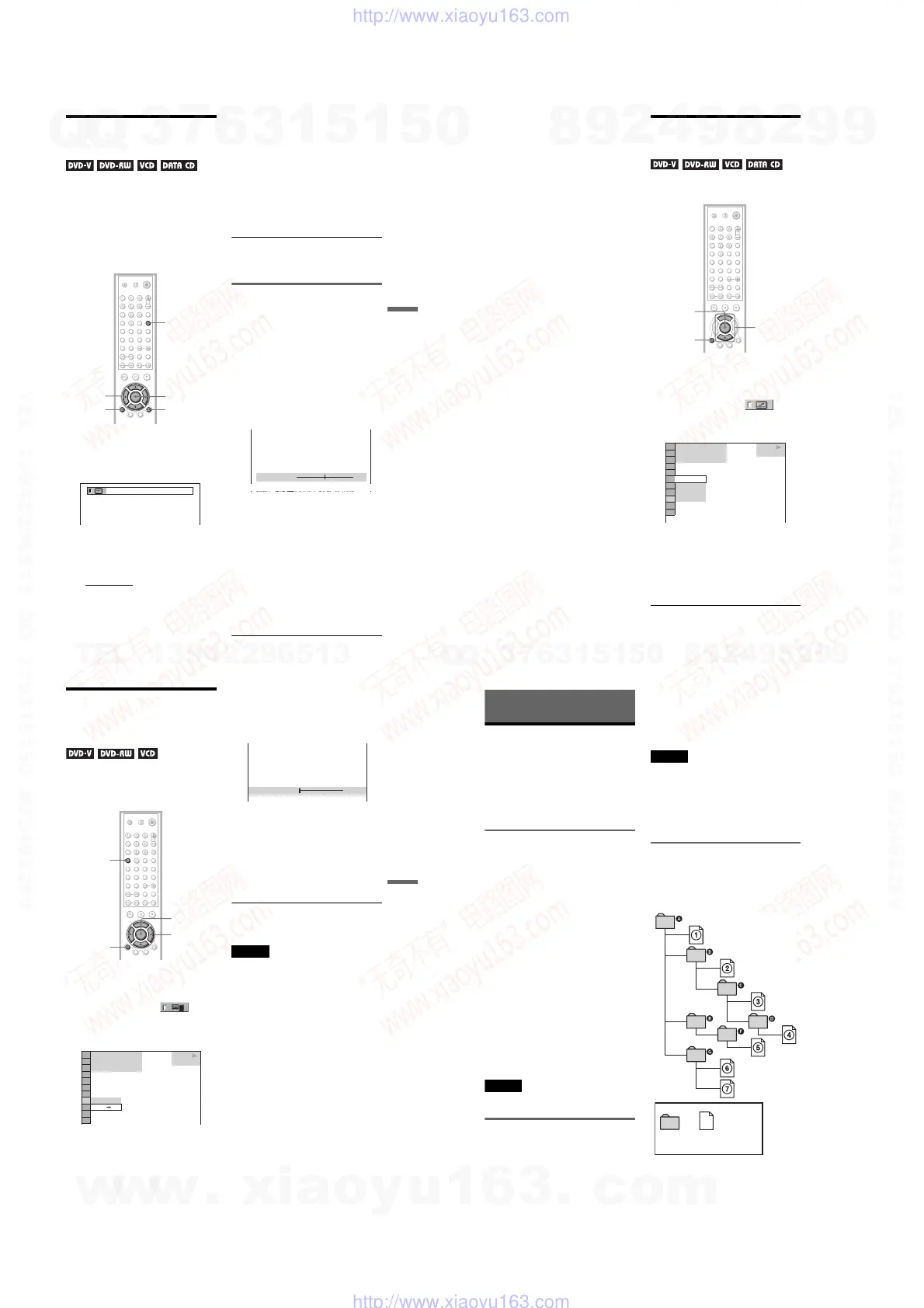
1
Press PICTURE MODE during
playback.
The following display appears.
2
Press PICTURE MODE repeatedly
to select the setting you want.
The default setting is underlined.
• STANDARD:
displays a standard
picture.
• DYNAMIC 1: produces a bold
dynamic picture by increasing the
picture contrast and the color intensity.
• DYNAMIC 2: produces a more
dynamic picture than DYNAMIC 1 by
further increasing the picture contrast
and color intensity.
• CINEMA 1: enhances details in dark
areas by increasing the black level.
• CINEMA 2: white colors become
brighter and black colors become
richer, and the color contrast is
increased.
• MEMORY: adjusts the picture in
greater detail.
z Hint
When you watch a movie, “CINEMA 1” or
“CINEMA 2” is recommended.
Adjusting the picture items in
“MEMORY”
You can adjust each element of the picture
individually.
• PICTURE: changes the contrast
• BRIGHTNESS: changes the overall
brightness
• COLOR: makes the colors deeper or lighter
• HUE: changes the color balance
1
Press PICTURE MODE repeatedly to
select “MEMORY” and press ENTER.
The “PICTURE” adjustment bar appears.
2
Press C/c to adjust the picture
contrast.
To go the next or previous picture item
without saving the current setting, press
X/x.
3
Press ENTER.
The adjustment is saved, and
“BRIGHTNESS” adjustment bar
appears.
4
Repeat step 2 and 3 to adjust
“BRIGHTNESS,” “COLOR,” and
“HUE.”
PICTURE
MODE
DISPLAY
O RETURN
ENTERC/X/x/c
DYNAMIC 1
C
0 1 : 3 2 : 5 5
PICTURE
0
Cancel :Select :
ENTER
RETURN
,continued
60
To turn off the display
Press O RETURN , or DISPLAY.
Sharpening the Pictures
(SHARPNESS)
You can enhance the outlines of images to
produce a sharper picture.
1
Press DISPLAY during playback.
The Control Menu appears.
2
Press X/x to select
(SHARPNESS), then press ENTER.
The options for “SHARPNESS” appear.
3
Press X/x to select a level.
• 1: enhances the outline.
• 2: enhances the outline more than 1.
4
Press ENTER.
The selected setting takes effect.
To cancel the “SHARPNESS” setting
Select “OFF” in step 3.
ENTER
X/x
DISPLAY
DVD VIDEO
1 8
(
3 4
)
1 2
(
2 7
)
T
1 : 3 2 : 5 5
2
1
OFF
OFF
61
Enjoying Movies
Adjusting the Delay
Between the Picture and
Sound (AV ALIGNMENT)
When the sound does not match the pictures
on the screen, you can adjust the delay
between the picture and sound.
1
Press DISPLAY during playback.
The Control Menu appears.
2
Press X/x to select (AV
ALIGNMENT), then press ENTER.
The following display appears.
3
Press x to select “SETc”, then
press ENTER.
The “AV ALIGNMENT” adjustment bar
appears.
4
Press c repeatedly to adjust the
delay.
Each time you press C/c, the delay is
adjusted by 10 milliseconds.
5
Press ENTER.
The selected setting takes effect.
To reset the “AV ALIGNMENT” setting
Press CLEAR in step 4.
Notes
• This function is not effective if you use the
DIGITAL OUT (OPTICAL or COAXIAL) jack,
and set “DOLBY DIGITAL” or “DTS” in
AUDIO SETUP to “DOLBY DIGITAL” or
“DTS” respectively (page 83).
• This function is not effective if you connect a
Dolby Digital or DTS-compliant device via the
HDMI OUT jack, and set “DOLBY DIGITAL” or
“DTS” in AUDIO SETUP to “DOLBY
DIGITAL” or “DTS” respectively (page 83).
CLEAR
C/X/x/c
DISPLAY
ENTER
DVD VIDEO
1
(
2 6
)
1
(
1 2
)
T
0 : 0 0 : 0 2
0 ms
SET
AV ALIGNMENT 0ms
62
Enjoying MP3 Audio and JPEG
Images
About MP3 Audio Tracks
and JPEG Image Files
MP3 is audio compression technology that
satisfies the ISO/MPEG regulations. JPEG is
image compression technology.
You can play DATA CDs that contain MP3
audio tracks or JPEG image files.
DATA CDs that the player can
play
You can play back DATA CDs (CD-ROMs/
CD-Rs/CD-RWs) recorded in MP3 (MPEG1
Audio Layer 3) and JPEG format. However,
the discs must be recorded according to
ISO 9660 Level 1, Level 2 or Joliet format for
the player to recognize the tracks (or files).
You can also play discs recorded in Multi
Session.
Refer to the instructions supplied with the
CD-R/CD-RW drives and the recording
software (not supplied) for details on the
recording format.
Note on Multi Session discs
If MP3 audio tracks or JPEG image files are
recorded in the first session, the player will
also play MP3 audio tracks or JPEG image
files in other sessions. If audio tracks and
images in Music CD format or Video CD
format are recorded in the first session, only
the first session will be played back.
Note
The player may not be able to play some DATA
CDs created in the Packet Write format.
MP3 audio track or JPEG image
file that the player can play
The player can play the following tracks and
files:
– MP3 audio tracks with the extension
“.MP3.”
– JPEG image files with the extension
“.JPEG” or “.JPG.”
– JPEG image files that conform to the DCF*
image file format.
* “Design rule for Camera File system”: Image
standards for digital cameras regulated by JEITA
(Japan Electronics and Information Technology
Industries Association).
Notes
• The player will play any data with the extension
“.MP3,” “.JPG,” or “.JPEG,” even if they are not
in MP3 or JPEG format. Playing these data may
generate a loud noise which could damage your
speaker system.
• The player does not conform to audio tracks in
MP3PRO format.
• Some JPEG files cannot be played.
About playback order of albums,
tracks, and files
Albums play in the following order:
◆Structure of disc contents
ROOT
Tree 1 Tree 2 Tree 3 Tree 4 Tree 5
Album
Track or file
w
w
w
.
x
i
a
o
y
u
1
6
3
.
c
o
m
Q
Q
3
7
6
3
1
5
1
5
0
9
9
2
8
9
4
2
9
8
T
E
L
1
3
9
4
2
2
9
6
5
1
3
9
9
2
8
9
4
2
9
8
0
5
1
5
1
3
6
7
3
Q
Q
TEL 13942296513 QQ 376315150 892498299
TEL 13942296513 QQ 376315150 892498299
http://www.xiaoyu163.com
http://www.xiaoyu163.com


 To Next Page