61
Function Setting Menu
Chapter 3 Menu
Marker Setting
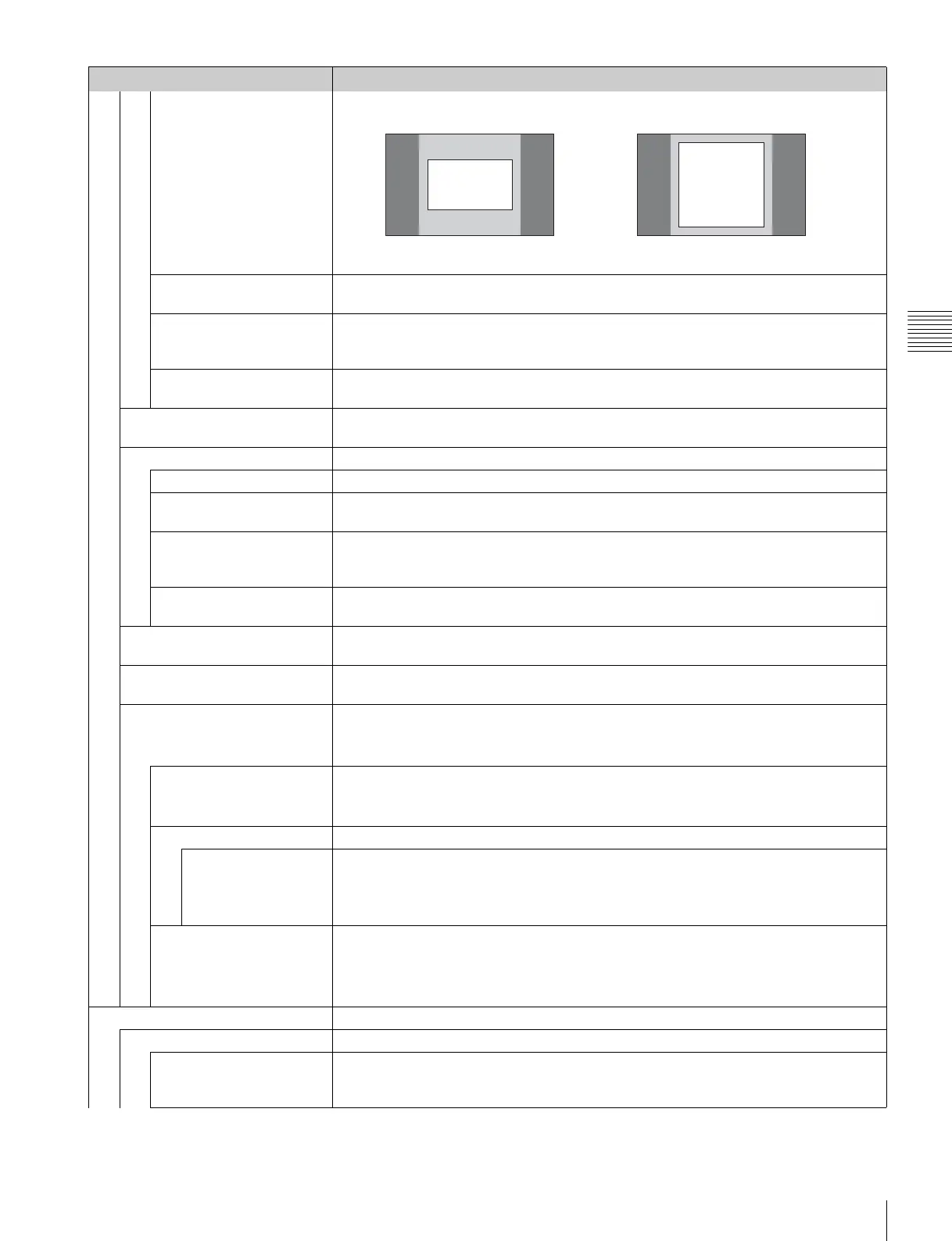
With 4:3
Thickness Sets the thickness of the area marker 1.
Set to 1 to 5 (dots). [2]
Color Sets the color of the area marker 1.
You can select from [White] (white), Red (red), Green (green), Blue (blue), Yellow (yellow),
Cyan (cyan) or Magenta (magenta).
Bright Sets the luminance of the area marker 1.
You can select from High (bright) or [Low] (dark).
Area Marker 2 Sets the area marker 2.
The set items are the same as for Area Marker 1 (page 60).
Center Marker Sets the center marker.
Center Marker Sets whether or not to display the center marker ([Off] or On).
Mode Sets the display mode of the center marker.
You can select from [Short] (short) or Long (long).
Color Sets the color of the center marker.
You can select from [White] (white), Red (red), Green (green), Blue (blue), Yellow (yellow),
Cyan (cyan) or Magenta (magenta).
Bright Sets the luminance of the center marker.
You can select from High (bright) or [Low] (dark).
H Position Sets the horizontal position of the marker.
Set to –65 (leftward) to +65 (rightward). [00]
V Position Sets the vertical position of the marker.
Set to –35 (downward) to +35 (upward). [00]
Copy From Copies the other marker preset data.
Note
Use the controller with software version 1.6 or higher to use the Copy From function.
Preset Value Copies other data in this monitor.
When the item is selected, you can select from Marker1, Marker2, Marker3, Marker4 or
Marker5.
Other Monitor Copies data from another monitor.
Monitor ID Enter the ID number of the source monitor.
When the NETWORK switch is set to PEER TO PEER, this is not selectable.
When the ID number is entered, you can select from Marker1,
Marker2, Marker3, Marker4
or Marker5.
Memory Stick Copies data in the “Memory Stick”.
When the item is selected, the file names in the source “Memory Stick” are displayed.
When the file is selected, you can select from Marker1, Marker2, Marker3, Marker4 or
Marker5.
P&P Setting Sets the multi display setting.
Side by Side Sets the side by side display.
Line Display Sets display mode of the boundary line.
[Off]: Not displayed.
On: Always displayed.
Menu Function and operation ([ ]: factory setting)
Aspect Mode 16:9
Aspect Mode 4:3
80%
80%


 To Next Page