62
Function Setting Menu
Chapter 3 Menu
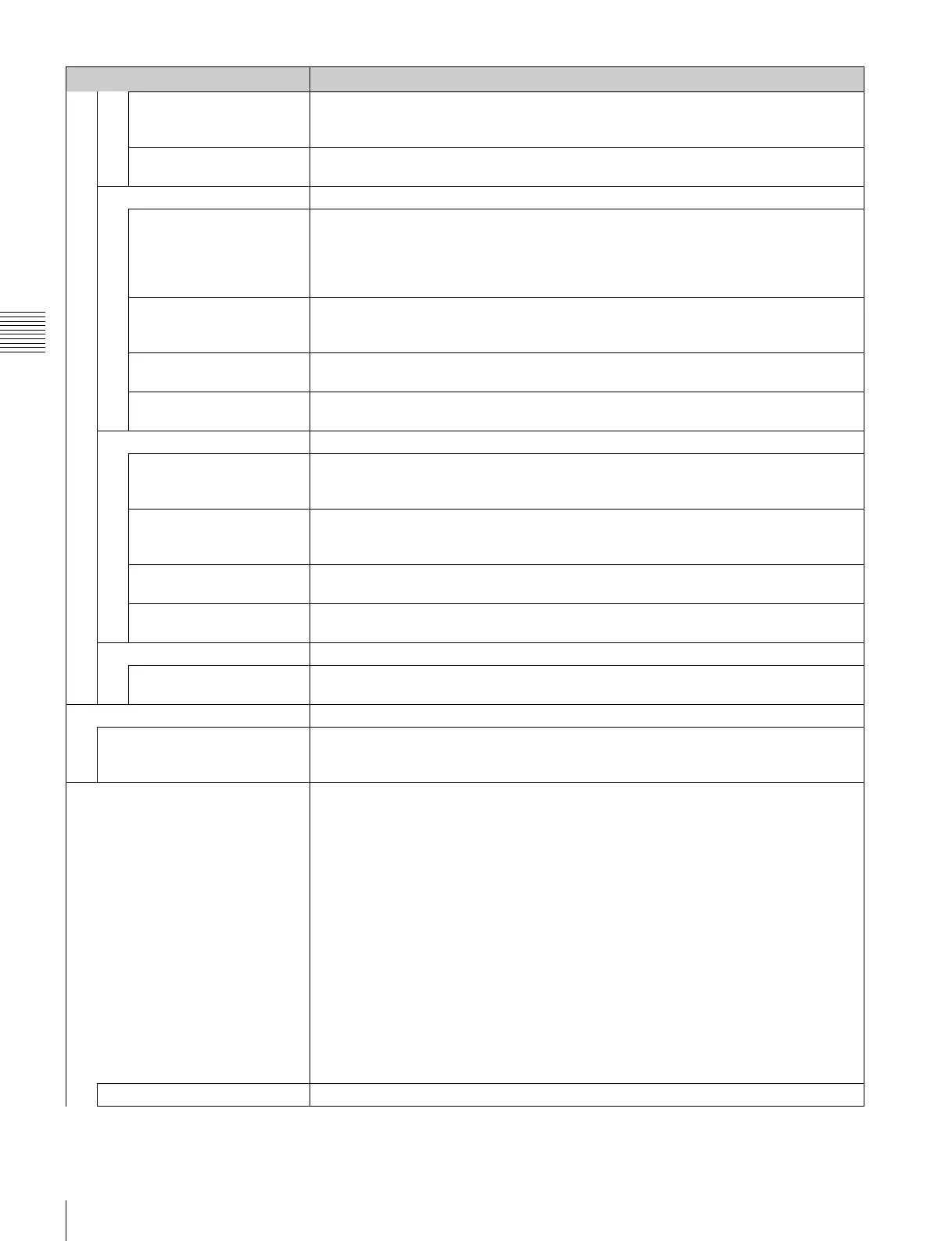
P&P Setting
Line Color Sets the boundary line color of two pictures.
You can select from [White] (white), Red (red), Green (green), Blue (blue), Yellow (yellow),
Cyan (cyan), Magenta (magenta) or Black (black).
Line Bright Sets the luminance of the boundary line.
You can select from High (bright) or [Low] (dark).
Wipe Sets the wipe display.
Line Display Sets display mode of the boundary line.
[Auto]: Appears when the position of the boundary line is set and disappears after a
while.
On: Always displayed.
Off: Not displayed.
Line Color Sets the boundary line color.
You can select from [White] (white), Red (red), Green (green), Blue (blue), Yellow (yellow),
Cyan (cyan) or Magenta (magenta) or Black (black).
Line Bright Sets the luminance of the boundary line.
You can select from High (bright) or [Low] (dark).
Position Sets the position of the boundary line.
Set to –100 (leftward) to +100 (rightward). [000]
Butterfly Sets the butterfly display.
Line Display Sets display mode of the boundary line.
Off: Not displayed.
[On]: Always displayed.
Line Color Sets the boundary line color.
You can select from [White] (white), Red (red), Green (green), Blue (blue), Yellow (yellow),
Cyan (cyan) or Magenta (magenta) or Black (black).
Line Bright Sets the luminance of the boundary line.
You can select from High (bright) or [Low] (dark).
Position Sets the position of the boundary line.
Set to –100 to +100. [000]
Blending Sets the blending display.
Blending Ratio Sets the blending ratio when two images are mixed.
Set to 000 (Signal A disappears.) to 100% (Signal B disappears). [050]
Pixel Zoom Setting Sets the pixel zoom.
Line Color Sets the boundary line color.
You can select from [White] (white), Red (red), Green (green), Blue (blue), Yellow (yellow),
Cyan (cyan) or Magenta (magenta) or Black (black).
Gamut Error Display Sets the gamut error display.
A zebra pattern is superimposed on the portion where an error is detected.
Notes
• The gamut error display function is effective when the input signal is 3G/HD/SD SDI, HDMI,
or DisplayPort (and the quantization range for the signal is Limit). It is effective regardless
of the signal format, when Gamma is set to S-LOG Standard or S-LOG Full in the Color
Profile menu.
• The gamut error display function does not work in the following cases:
- When the input signal has no sync signal
- When the internal signal is displayed
- When H Delay/V Delay is set to On
- When Side by Side, Wipe, Butterfly or Blending is set to On
• In under scan mode, each one line of the upper and lower lines of the video signal is also
detected for gamut error display.
• The time code display, the closed caption display when the BKM-244CC is installed, and
the embedded audio level display when the BKM-250TG is installed are also detected for
gamut error display.
• In over scan mode, 5% mask portion is also detected for gamut error display. However, the
zebra pattern is not displayed on 5% mask portion.
Gamut Error Display Sets whether or not to display the gamut error ([Off] or On).
Menu Function and operation ([ ]: factory setting)


 To Next Page