28
Menus
Using the Video Menu
Mode
Customized
picture viewing
Use the F or f buttons to highlight one of the following options, then
press to select it.
Vivid: Select for enhanced picture contrast and sharpness.
Standard: Select for a standard picture.
Movie: Select for a finely detailed picture.
Pro: Select for natural picture and sharpness.
Picture
Control
With the Picture Controls menu open, press
F or f to select one of the
following option:
Picture: Press
G to decrease the contrast. Press g to increase
contrast.
Brightness: Press
G to darken the picture. Press g to brighten the
picture.
Color: Press
G to decrease color saturation. Press g to increase
color saturation.
Hue: Press
G to increase the red tones. Press g to increase the
green tones.
Sharpness: Press
G to soften the picture. Press g to sharpen the
picture.
Color Temp.
White color tint
adjustment
Use the
F or f buttons to select from one of the following options:
Cool: Gives the white colors a blue tint.
Neutral: Gives the white colors a neutral tint.
Warm: Gives the white colors a red tint.
ClearEdge
VM
Sharpens picture definition to give objects a crisp edge. Use the
F or f
buttons to highlight of the following options: High, Low, Off; then press
to select it.
Video: Vivid
Brightness
Color
Hue
Sharpness
Return
Picture
Select
End
To Display To Select
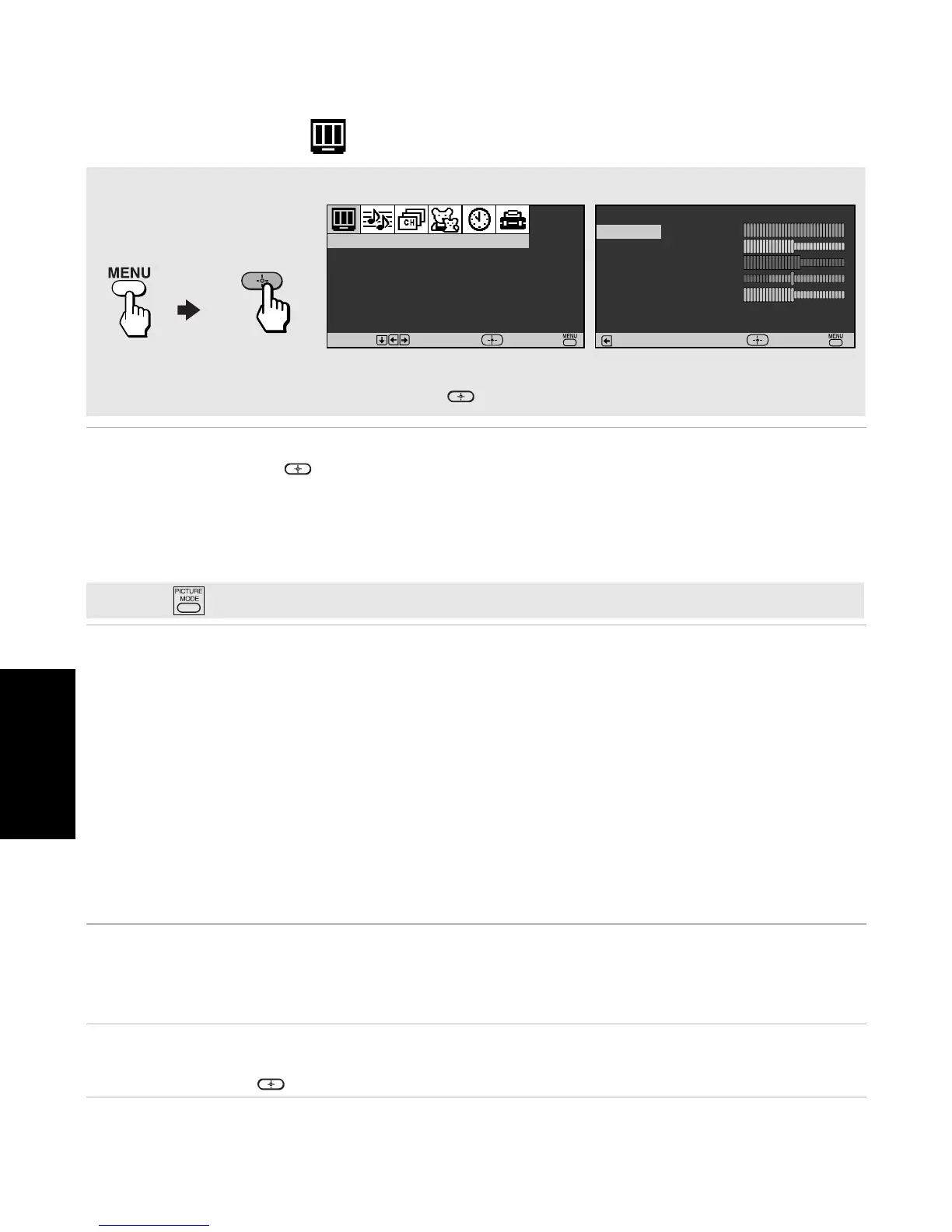
To access the Video menu, use the following steps:
Press
f to highlight an option; then press .
Picture Controls
Mode : Vivid
Color Temp.
:
Cool
ClearEdge VM
:
High
Video
Move
Select
End
✍
Press
on the remote control for direct access to the picture modes (Vivid, Standard, Movie, Pro).






 To Next Page