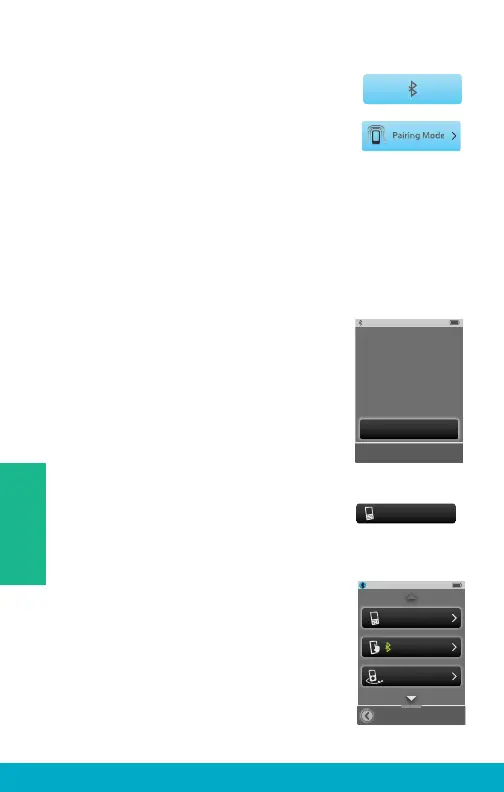
(4) Highlight the Pairing Mode button to
initiate the Bluetooth pairing process.
This button remains highlighted during
the Bluetooth pairing process.
Note: Bluetooth device must also be put into
pairing mode. Ensure the Bluetooth device is
within 30 feet [10m] of SurfLink Mobile 2.
(5) Confi rm the Bluetooth pairing on Bluetooth device.
If you are unfamiliar with the Bluetooth pairing process,
consult your Bluetooth device owner’s manual.
Note: Some Bluetooth devices may ask for
SurfLink Mobile 2 PIN, which is 0000.
(6) Once the Bluetooth pairing process
is complete, SurfLink Mobile 2 displays
a success message. Select Choose Icon
button.
Note: If Bluetooth pairing is unsuccessful or if
too much time elapses, then SurfLink Mobile 2
displays an advisory message.
(7) Use the up/down arrows to page
through the list of available icons. For
example, “Cell Phone” button would be
an appropriate selection for your cell phone.
(8) Once the icon has been selected, the
Paired Devices screen will appear and will
show the newly paired cell phone in the list
of available paired Bluetooth devices.
Choose Icon
“Tim_iPod”
has been paired
successfully
Cell Phone
Paired Devices
Kevin_Kindle
SCH-1545
Tim_iPod
26
Tools


 To Next Page