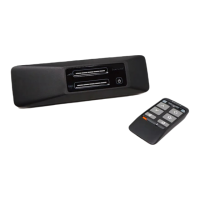
General Options
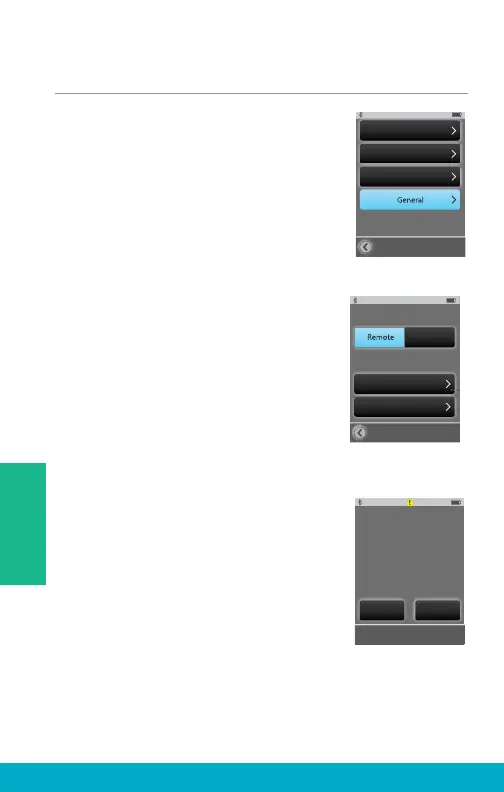
(1) Select the Tools icon at the
bottom of the display to navigate
to the Tools screen.
(2) Select Settings button on the
Tools screen.
(3) Select General on Settings screen.
(4) Select either the Remote or Streaming
screen as the Default screen displayed
when SurfLink Mobile 2 is powered on.
Note: Remote or Streaming will not be
selectable, if those screens are turned Off
in Advanced Setup > Features.
Note: SurfLink Mobile 2 defaults
to Tools screen when there are
no hearing aids synced.
(5) Select Reset button on General
screen to erase all synced hearing
aids, all paired Bluetooth devices,
and reset any settings/features that
were altered since leaving the factory.
(6) Select OK to Reset.
(7) Select Cancel to keep
SurfLink Mobile 2 settings as is.
Settings
Advanced Setup
Display
Phone
General
Reset
About
Default Power On Screen:
Streaming
OK Cancel
Do you really want to
reset Surflink Mobile to
factory settings?
Note: Selecting OK will
restart SurfLink Mobile.
38
Tools


 To Next Page