27
Editing
Editing Programs
FX1–4 Send Levels
These four sliders adjust the send levels for the global AUX FX busses for each layer
separately.
Output
Here you can select the output for each layer separately. If you do not want the signal
to be sent to the output that is specified for the program, you can select the Main
output or one of the 15 individual plug-in outputs instead.
The FlexPhraser Subpage
For detailed information about the FlexPhraser functions, see “The FlexPhraser” on
page 64.
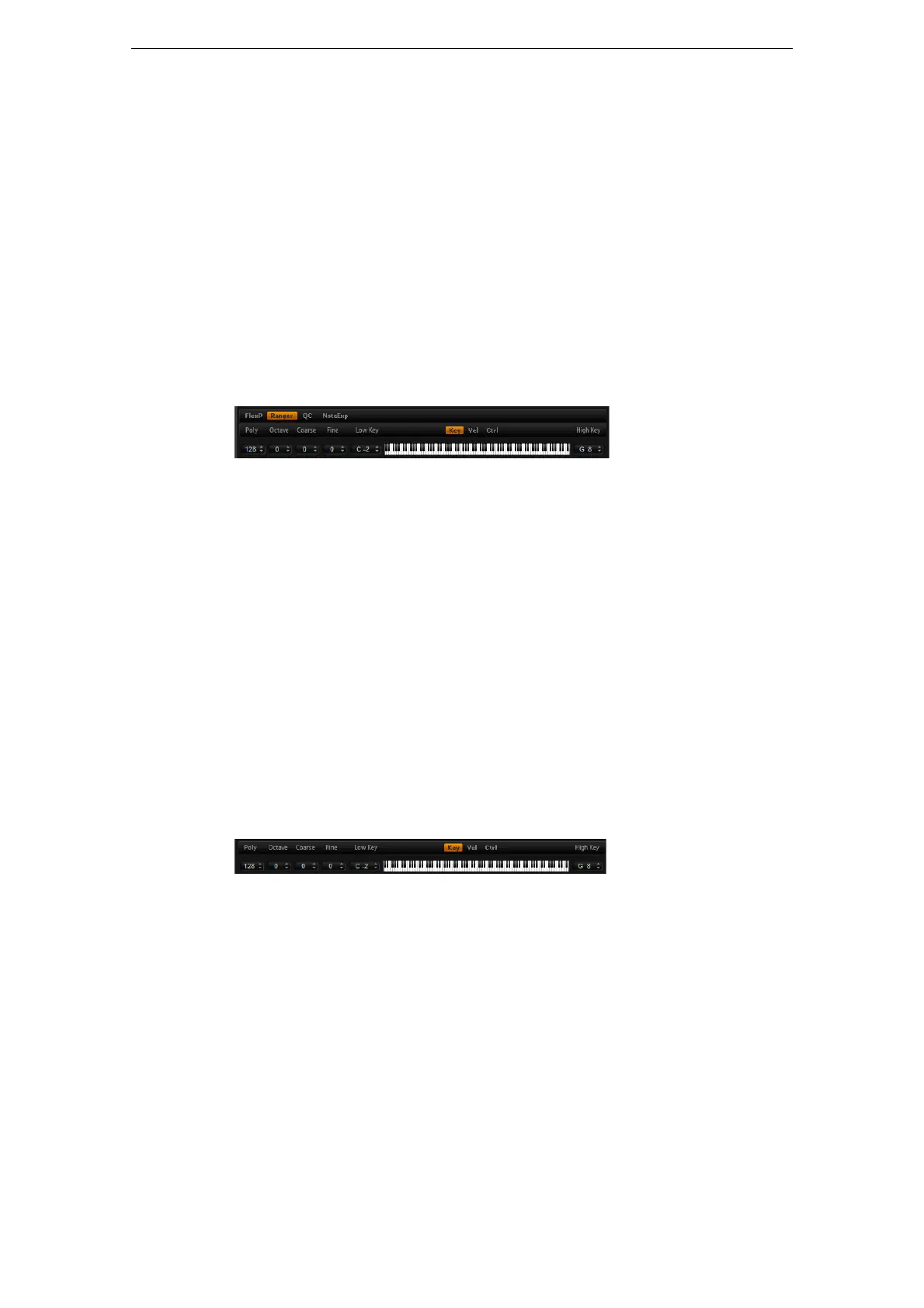
The Ranges Subpage
The layer Ranges subpage contains the following parameters:
Poly
This setting is used to specify how many notes can be played at the same time.
Ö Unlike all the rest of the parameters of the Program page, the Polyphony setting is part
of the layer settings and therefore restored when you load a layer.
When a layer is defined as monophonic sound, the setting has no effect.
Octave
You can shift the octave of a layer by ±4 octaves.
Coarse (Tune)
You can shift a layer by ±12 semitones.
Fine (Tune)
You can detune a layer by ±100 cents.
Key Range (Low Key, High Key)
Each layer can be limited to a certain key range. You can set the range with the Low
Key and High Key values or by dragging the keyboard range control at its ends. When
you click and drag towards the middle of the keyboard, both values are moved at the
same time. As an additional option, you can use the MIDI input to set the range.
Simply click in the value field and play the note.
To set the key range:
1. On the Ranges subpage, click the Key button.
The key range options are shown on the subpage.
2. On the layer that you want to use, set the key range with the keyboard range
controls and/or Low Key/High Key value fields.



 To Next Page