Software
UR44 Operation Manual 11
4 Scene
Indicates the scene name. You can change the scene
name by clicking on it.
Clicking the button on the right opens the window for
calling up other scenes. Call up the desired scene by
clicking it. To cancel calling up the scene, click
outside of the window.
5 STORE
Opens the scene store window. Enter the desired
scene name into the STORE NAME field. Select the
destination for storing the scene in the No. NAME field.
Click [OK] to store the scene.
6 Selecting windows
Selects the desired dspMixFx UR44 window. The
selected window icon will light in red.
7 Help
Opens the Operation Manual (this manual).
Main Window
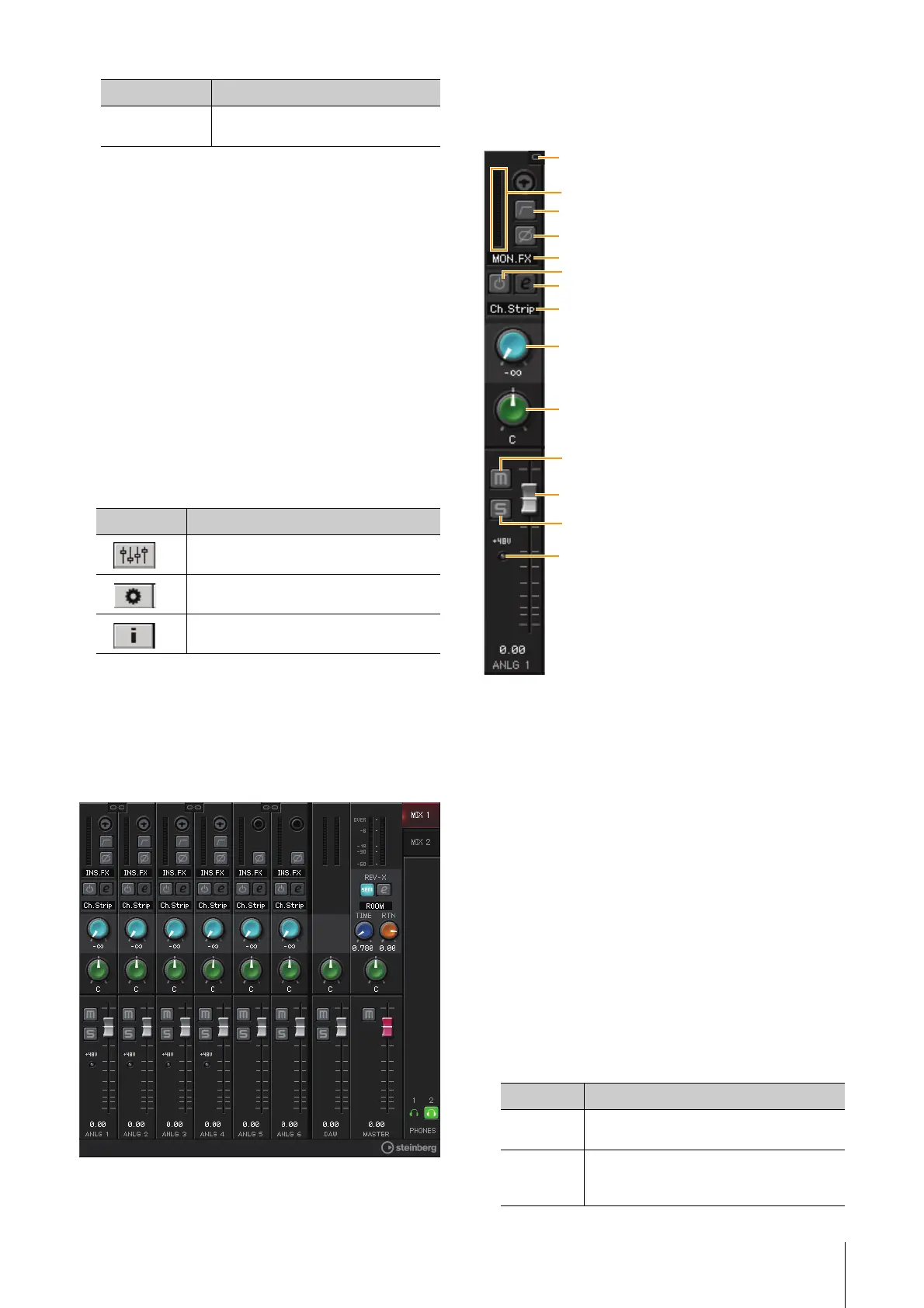
This window is for configuring the entire signal flow.
Channel Area
This is the area for configuring the input channel
settings.
1 Channel Link
Turns on (lit) and off (dark) the channel link of two
adjacent channels. When you turn this on, two mono
channels will become one stereo channel.
2 Level Meter
Indicates the signal level.
3 High Pass Filter
Turns on (lit) and off (dark) the high pass filter (not
available on [LINE INPUT 5/6] ). To select the cutoff
frequency of the high pass filter, use the “Setup
Window” (page 14) in the section “dspMixFx UR44.”
4 Phase
Turns on (lit) and off (dark) the phase inversion of the
signal.
5 Effect Insertion location
Selects the insertion location of an effect.
Initialize All
Scenes
Deletes all the saved scenes.
Menu Description
Main window (page 11)
Setup window (page 14)
Information window (page 14)
Menu Description
Options Description
MON.FX Applies an effect to only the monitor signal
(sent to the device).
INS.FX Applies an effect to both the monitor signal
(sent to the device) and the recording signal
(sent to a DAW software).


 To Next Page